81D-Link DSL-520B ADSL2+ Modem User Manual
AppendixA-NetworkingBasics
Networking Basics
Check your IP address
AfteryouinstallyournewD-Linkdevice,bydefault,theTCP/IPsettingsshouldbesettoobtainanIPaddressfromaDHCPserver(i.e.wireless
modem)automatically.ToverifyyourIPaddress,pleasefollowthestepsbelow.
Click on Start > Run.Intherunboxtypecmd and click OK.
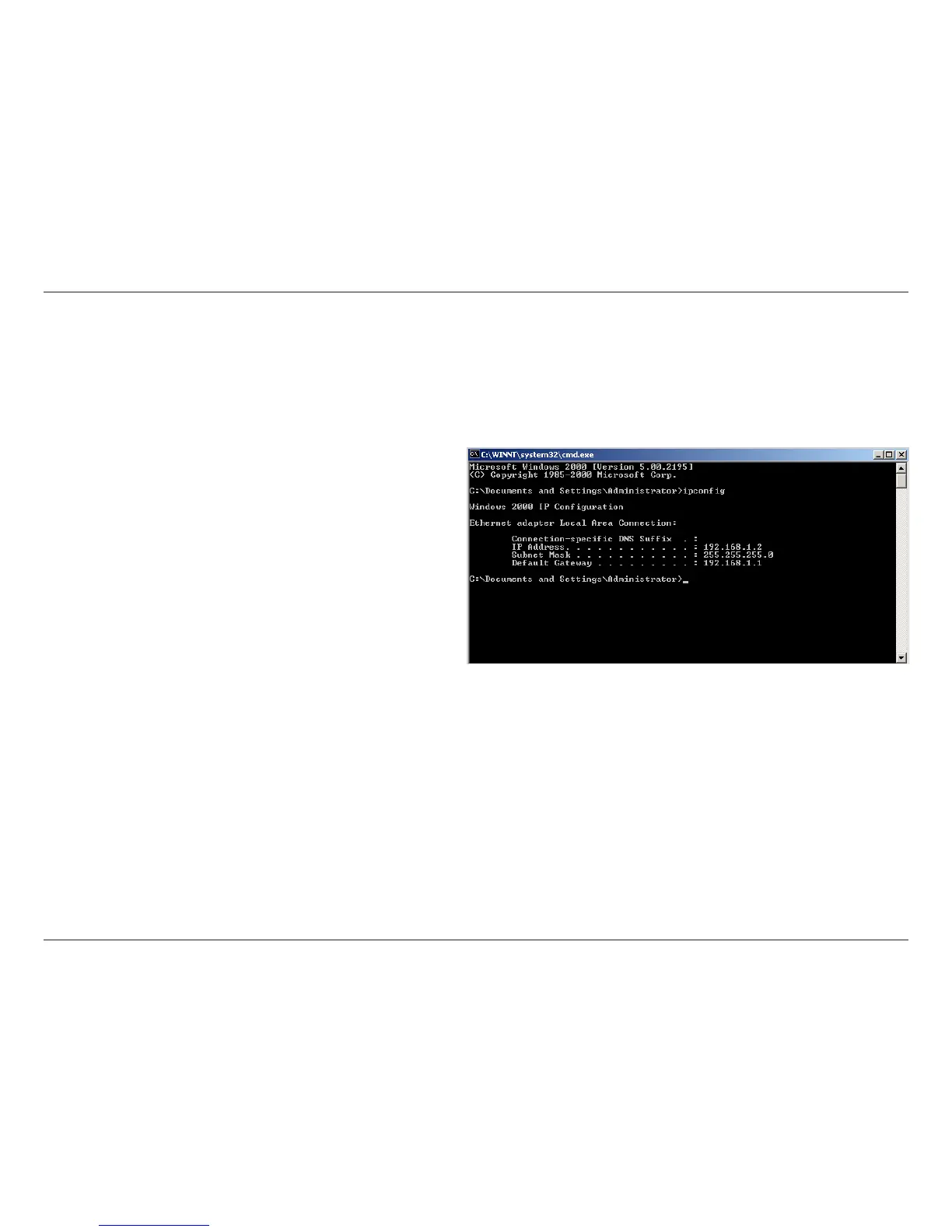
Attheprompt,typeipcong and press Enter.
ThiswilldisplaytheIPaddress,subnetmask,andthedefaultgateway
of your adapter.
Iftheaddressis0.0.0.0,checkyourdeviceinstallation,securitysettings,
and the settings on your modem. Some rewall software programs
mayblockaDHCPrequestonnewlyinstalleddevice.
Ifyouareconnectingtoawirelessnetworkatahotspot(e.g.hotel,coeeshop,airport),pleasecontactanemployeeoradministratortoverify
their wireless network settings.
Check your MAC address
Click on Start > Run.Intherunboxtypecmd and click OK.
Attheprompt,typeipcong /all and press Enter.
Thiswilldisplayinformationaboutallinstalledadaptersonyourcomputer.YourMACaddressislistedasthe“PhysicalAddress”andshouldlook
likexx-xx-xx-xx-xx-xxorxx:xx:xx:xx:xx:xx


 To Next Page