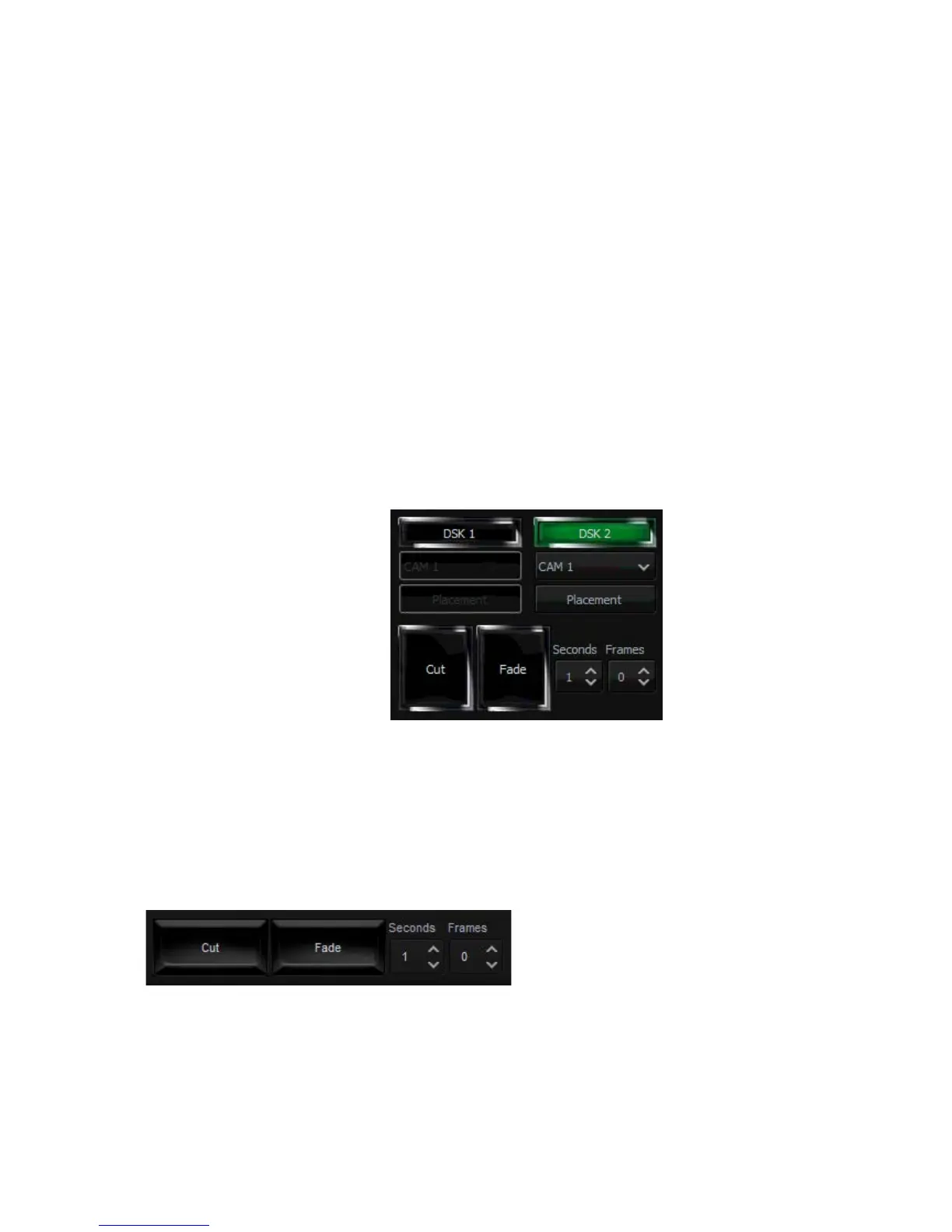
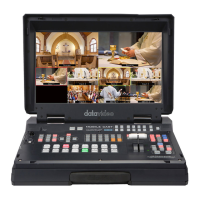
There are two DSK keys available for the user. Follow the following procedure to display DSK
on the Program view:
• Switch on one of the DSK buttons;
• DSK button is illuminated in green;
• Select the source from the list below;
• The text is ready to be broadcast;
• The text preview is shown in PREVIEW;
• The Placement button can optionally be used for changing the size or position of the
text on the Preview screen (Note: change of the text position is impossible if the text is
already on air);
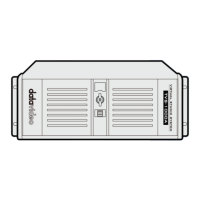
• The text can be put on air gradually (using the Fade button) or abruptly (using the Cut
button) and disappears from the Preview Screen;
• The operation of the Fade and Cut buttons is independent of the Production Switcher
TAKE button;
• If the text is on air, the colour of the DSK button changes to red;
• To remove the text from the air, click the Fade or Cut button once again;
• When the text is taken off air, the DSK button colour returns to green and the text will
now appear in PREVIEW screen again.
Text 2
Media 1
Media 2
Still 1
Still 2
Camera 1
Camera 2
To configure position and size of the downstream key, click the placement button to open the
configuration window.
After the DSK is properly configured, the next step is to place the key on the program view.
Click CUT/Fade buttons to switch the key between Preview and Program screens. The two
downstream keys are designed in such a way that the user is allowed to simultaneously place
two downstream keys on the program view.
between Preview and Program
screens
Fade: Gradual switching between
Preview and Program; fade time
will be based on Time and Frame
presets in seconds.



 To Next Page