How to add an accessory object?
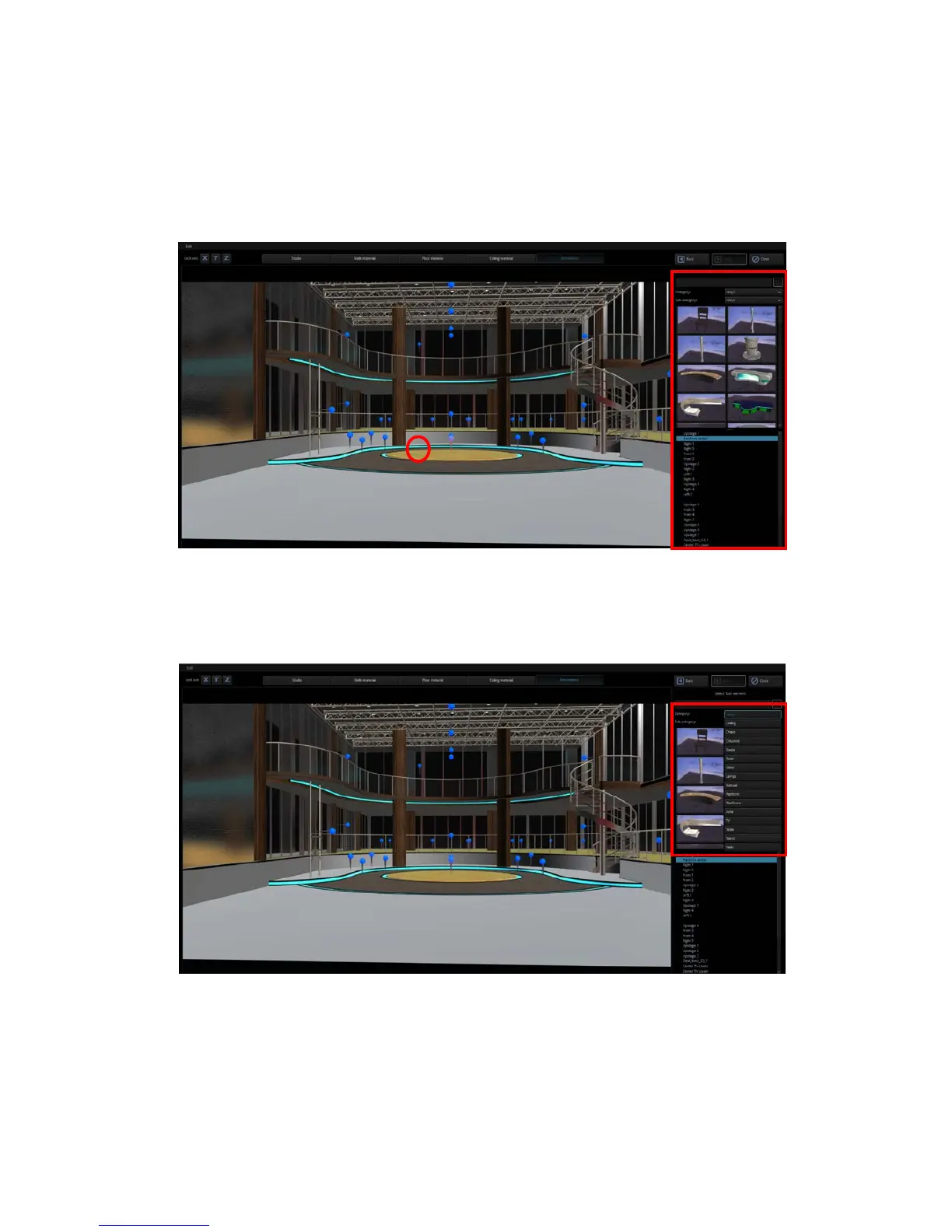
In the scene, click a “Slot” icon and you will immediately see the selected slot flashing,
indicating that the slot will be the position at which the object will be placed. In the template
area, the user will also be recommended the appropriate objects. The system default of this
position is the podium. Of course the user should not be limited by the system default and is
allowed to add any object to this position.
Accessory Object Search
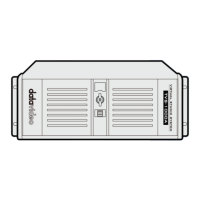
The user is allowed to search the system for the category of the objects to be added. The
system provides the user with categories such as ceiling, chairs, columns, desks, floor and
lamps, which can be quickly selected by the user.
How to change the position of an accessory object?
The following example illustrates how a podium can be added. The user is allowed to enter the
relevant values on the control panel in the right half of the screen to modify the object
position, rotation and scale. Because the object position is defined by three axes, the XYZ
coordinates should be the same to achieve equal zoom ratio.


 To Next Page