Version 1.2.0 - 04.02.2013
13
Components
Specifications and design are subject to change without notice. The content of this document is for information only. The information presented in this document does not form part
of any quotation or contract, is believed to be accurate and reliable and may be changed without notice. No liability will be accepted by the publisher for any consequence of its use.
Publication thereof does neither convey nor imply any license under patent rights or other industrial or intellectual property rights.
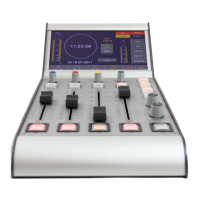
The control module is tightly integrated with the control engine. It collects all events from the faders, rotary knobs and
buttons and sends back the information into the status indicators and displays.
To make configuration easier, the software allows to print out labels for the keys of the control module. These labels are
slid under the key caps. If necessary, they can be changed again later to reflect changes in the configuration of the
system.
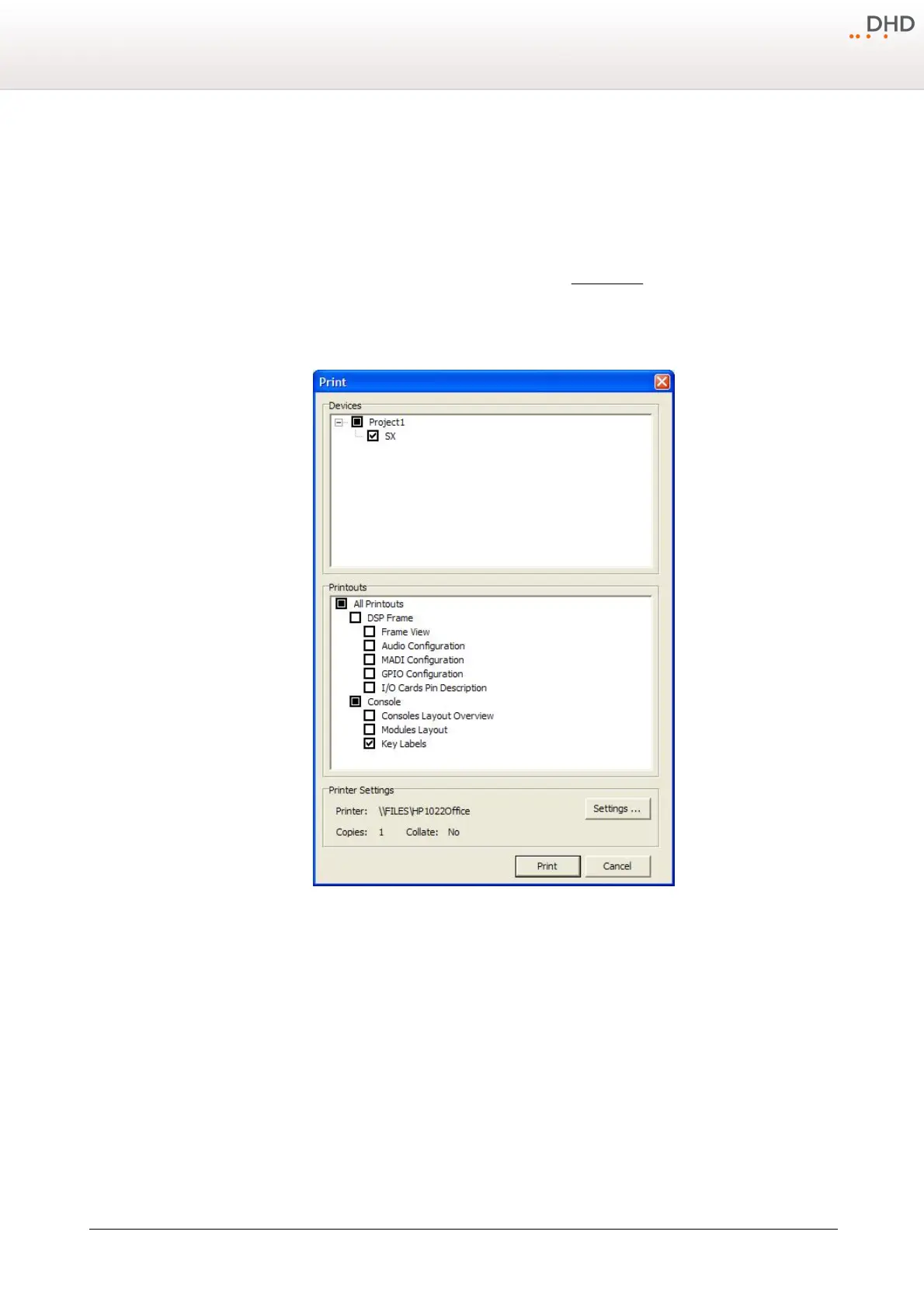
To print the key labels follow these steps:
1. In the
File
menu, select print. The
Print
window opens (see figure Print window).
2. In the
Devices
area, select the check box in front of the device name (e.g., SX).
3. In the
Printouts
area, select the
Key Labels
check box.
4. If required, change your printer in the
Printer Settings
area.
5. Click
Print
.
Print window
The keys on the control modules are labeled with their default functionality. You can insert printed film labels in the keys
to customise the fader modules. To insert a label into the keys, follow these steps:


 To Next Page