NIC Quick Reference Guide
39
selected Test Unit, start tests, and perform general product functions
without the worry of contending for resources with another user.
Some NIC chassis’s may include more than one Test Unit, depending
on its configuration. See “Understanding Test Units” for more
information.
Lock Icon Guidelines
The following guidelines describe how to lock and unlock a Test Unit
using the Lock icon.
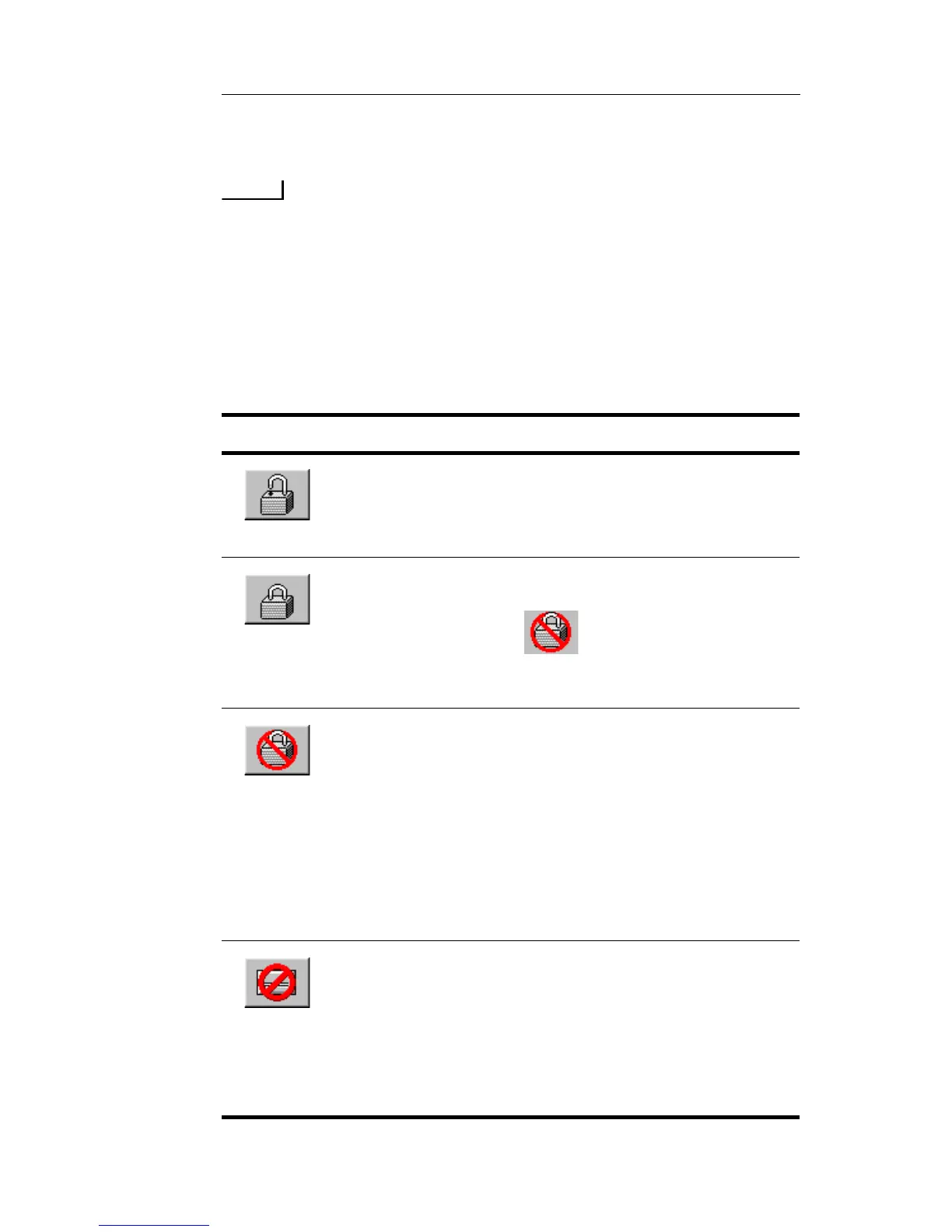
This icon Means
The Test Unit is unlocked and available. No
individual user has control of it. You can lock the
Test Unit by selecting this icon. See “Locking a Test
Unit” for instructions.
You have the Test Unit locked. You currently control
the Test Unit and can configure protocol processors.
Other users will see on their GUI.
See “Unlocking a Test Unit That You Locked” for
instructions.
The test set is locked by another user. You can only
view protocol processor screens.
If you have Admin or Write privileges: You can
select this icon and force an unlock. See “Unlocking
a Test Unit Locked by Someone Else”for instructions.
If you do not have the proper user privilege: A
message appears stating that the protocol processor is
locked by the current owner. For example, “Protocol
Processor locked by User X.”
The circuit pack (and its associated protocol
processors) is out of service. A counter appears
indicating how long the circuit pack has been out of
service. A fault is also logged on the System > Fault
tab. The unit will need to be rebooted for the circuit
pack to become usable again. Contact Customer
Service if problem does not go away.


 To Next Page
 Loading...