ANNEX III: Instructions for Software update
Open safety chain during SW update procedures. (DIS switch = OFF)
PlayPad (PLP) SW update procedure
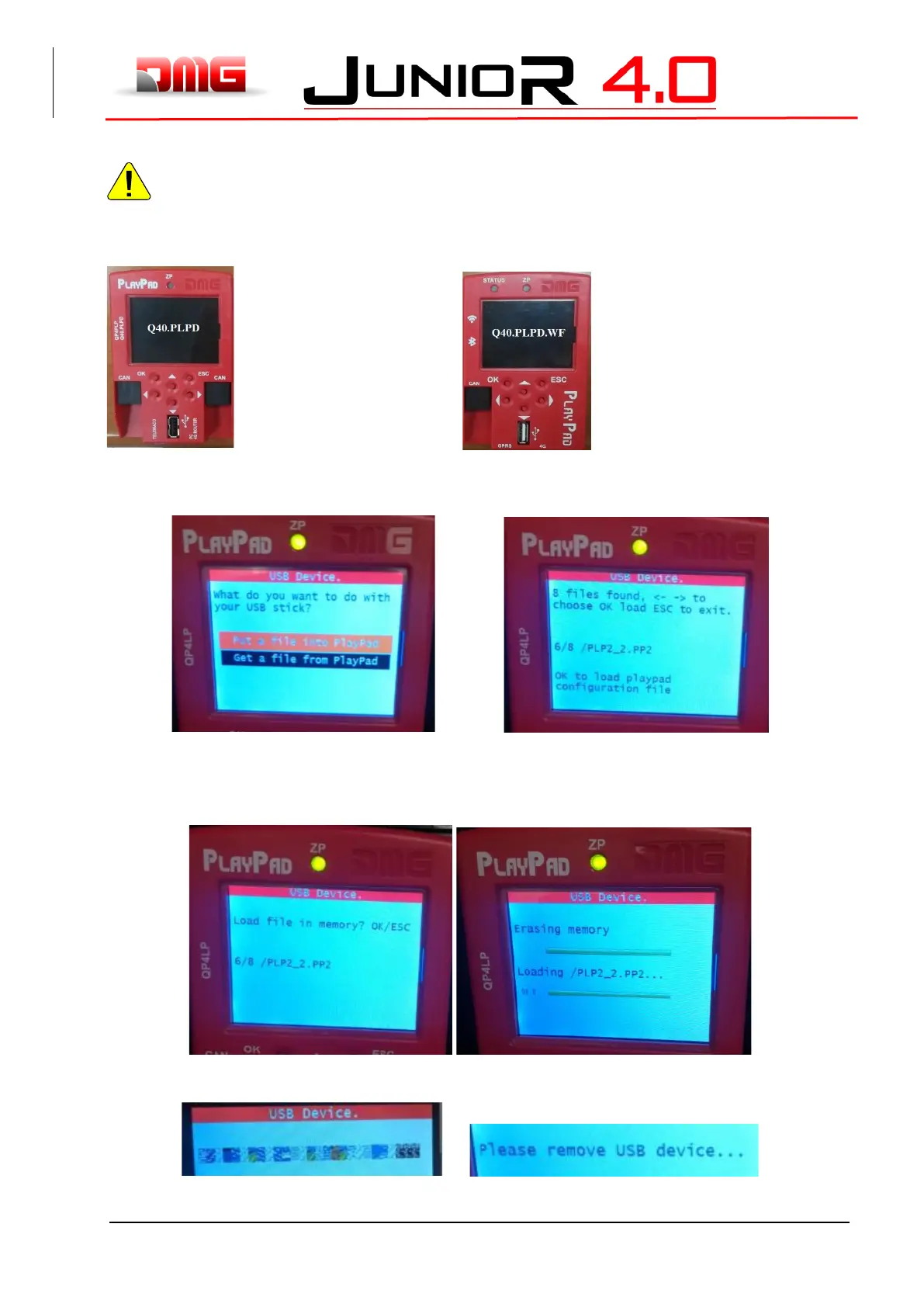
SW update file for PLP depends on which Playpad is installed:
PLAYPAD: FileName.PP2 PLAYPAD WiFi: FileName.PP4
Insert the USB device into the slot, waiting for the message as in the Figure 1.
Select “Put a file into PlayPad” (default), press OK button. Window changes into Figure 2.
Figure 1 Figure 2
Follow the instruction on screen and select the .PP2 file (in the example PLP2_2.PP2) and press OK.
Window changes into Figure 3.
Press OK to confirm the update process. Window changes into Figure 4.
Figure 3 Figure 4
At the end of Procedure you have to remove the USB (Figure 5 or Figure 6 will be appear)
Figure 5 Figure 6



 To Next Page