36
Setting Cut Mode
Chapter 4 Advanced Settings
Setting Cut Mode
It is possible to print in non-standard sizes when using the
2UPC-C15 series or 2UPC-C48 series printing pack. This
function allows you to print several different print sizes
without having to replace the printing pack.
If Cut mode is set, a print size selection screen appears at
the start of the ordering process.
The following print sizes can be set in Cut mode.
2UPC-C15 Series
• 5 × 7 (standard print size)
• 3.5 × 5 (standard print size, cut in half)
2UPC-C48 Series
• 4 × 8 (standard print size)
• 4 × 7 (4 × 7 print size, cut)
• 4 × 6 (4 × 6 print size, cut)
• 4 × 4 (standard print size, cut in half)
When printing an image that is half the size of a standard
print (3.5 × 5" for the 2UPC-C15 series and 4 × 4" for
2UPC-C48 series), the amount of paper and ink used is that
same as the amount used when printing the standard sized
print. As a result, when you print orders that result in
images filling only part of a sheet, the paper and ink for
that sheet are partially wasted.
When [Odd/Even Message] is set to [ON] and a print order
results in images that fill only part of a sheet, a message
prompting customers to order additional images appears.
Setting Cut mode
1
Open the Print tab on the administration screen.
2
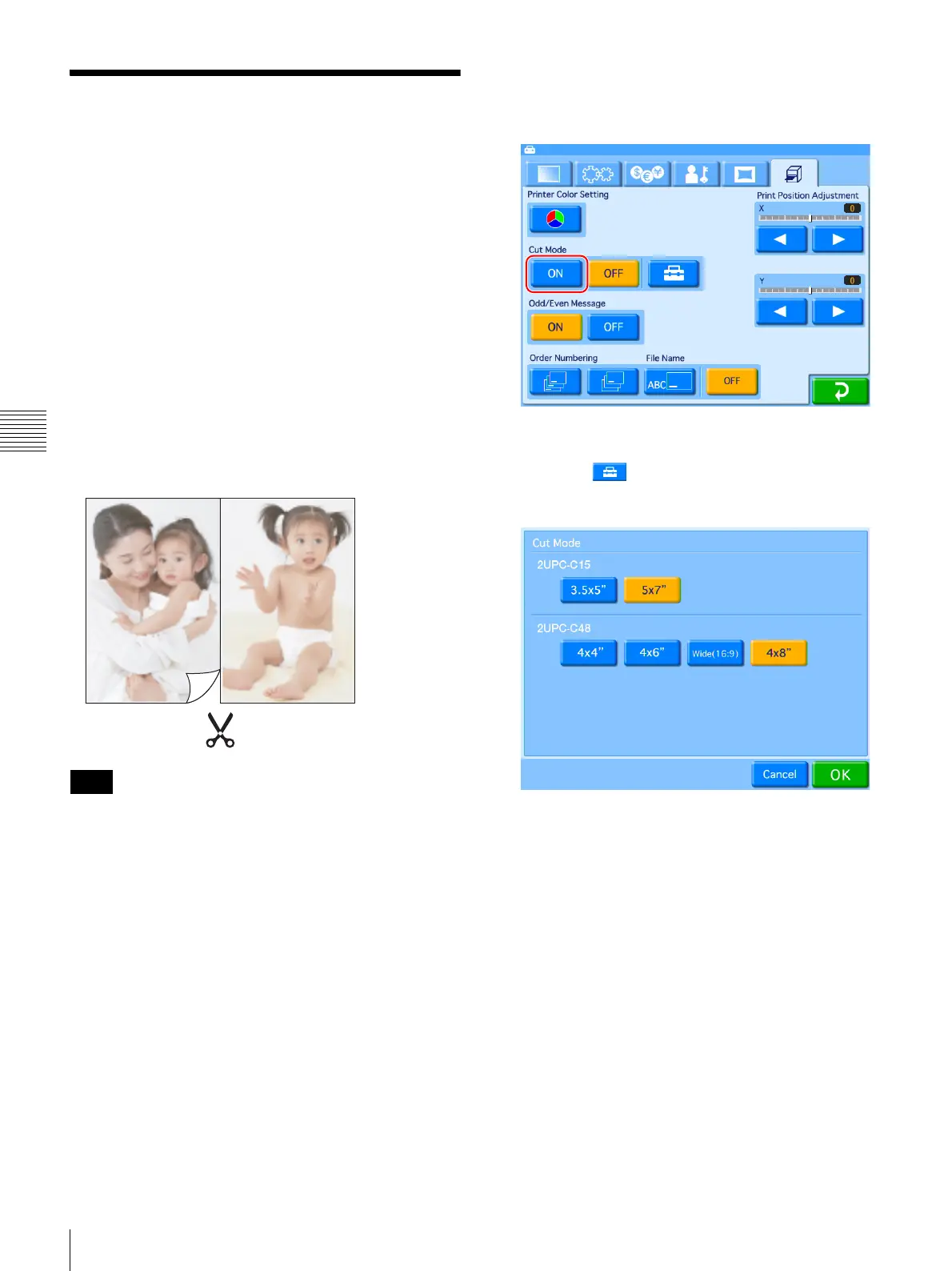
Touch the [ON] button for [Cut Mode].
3
Touch the button.
The following screen appears.
4
Select the size to be printed.
You can select multiple sizes.
5
Touch the [OK] button.
The display returns to the Print tab.
6
Select [ON] for [Odd/Even Message] if necessary.
When [Odd/Even Message] is set to [ON] and a print
order in Cut mode results in images that fill only part
of a sheet, a message appears.
Note


 To Next Page