48
Setting the Printer Image Quality
Chapter 5 Maintenance
Setting the Printer Image
Quality
Adjusting the Printer Image Quality
To adjust the printer image quality, open the Printer tab on
the administration screen and then touch the button.
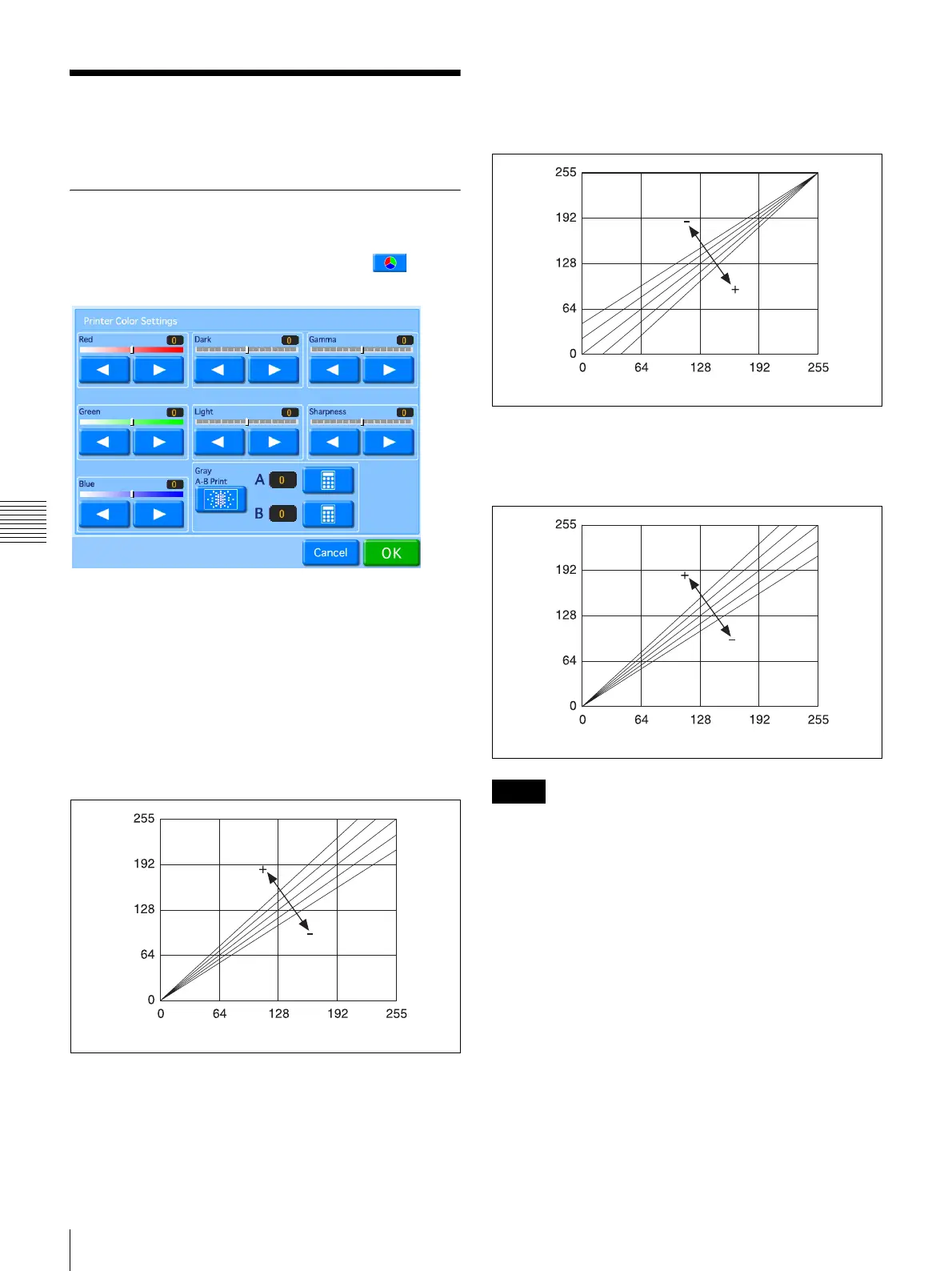
The following screen appears.
Adjusting the color balance
Adjust the color balance by adjusting the sliders for [Red],
[Green], and [Blue] with the [W] and [X] buttons.
Red, Green, Blue
Regarding red, green, and blue, each color becomes
stronger when you move the slider to the right (+), and
weaker when you move the slider to the left (–). For
example, if you move the [Red] slider to the left (–), red
becomes weaker while cyan becomes stronger.
Adjusting the lightness
Adjust the lightness by adjusting the sliders for [Dark],
[Light], [Gamma], and [Sharpness] with the [W] and [X]
buttons.
Dark
Adjusts the scale of the dark tones. Dark tones become
darker when you move the slider to the right (+), and
lighter when you move the slider to the left (–).
Light
Adjusts the scale of light tones. Light tones become lighter
when you move the slider to the right (+), and darker when
you move the slider to the left (–).
To adjust the contrast, move the [Dark] and [Light] sliders.
Contrast becomes higher when you move both sliders to
the right (+), and lower when you move both sliders to the
left (–).
Gamma
Adjusts the scale of medium tones. Medium tones become
darker when you move the slider to the right (+), and
lighter when you move the slider to the left (–).
Strong
Output
Weak StrongInput
Memo
Light
Output
Dark LightInput
Light
Output
Dark LightInput


 To Next Page