38
Using Expansion CompactFlash Cards
Chapter 4 Advanced Settings
Creating an Expansion
CompactFlash Card
Create an expansion CompactFlash card by copying
sample data of promotional images and frame templates
stored on the supplied CD-ROM onto a CompactFlash
card using your computer. If your computer cannot handle
CompactFlash cards, you can also copy the sample data
onto a USB memory device or other memory card, and
then use the unit to copy the data onto the CompactFlash
card.
1
Insert the CompactFlash card into the computer.
2
Copy the promotional images.
Create the folder, “\DNP\DSSL10”, in the root folder
of the CompactFlash card, and copy the
“\DNP\DSSL10\Promotion” folder from the supplied
CD-ROM into the created folder.
3
Copy the border print templates.
Folders for each print size (3 × 5, 4 × 6, 4 × 8, 5 × 7)
are located in the “\DNP\DSSL10\Template” folder of
the supplied CD-ROM. Create the folder,
“\DNP\DSSL10\Template”, in the root folder of the
CompactFlash card, and copy the folders for the sizes
you want to use from the supplied CD-ROM into the
created folder.
If you copy the data onto a memory card other than
CompactFlash or onto a USB memory device, you must
copy that data again onto a CompactFlash card using the
unit.
For details on how to copy the data, see “Copying User
Created Data” on page 39.
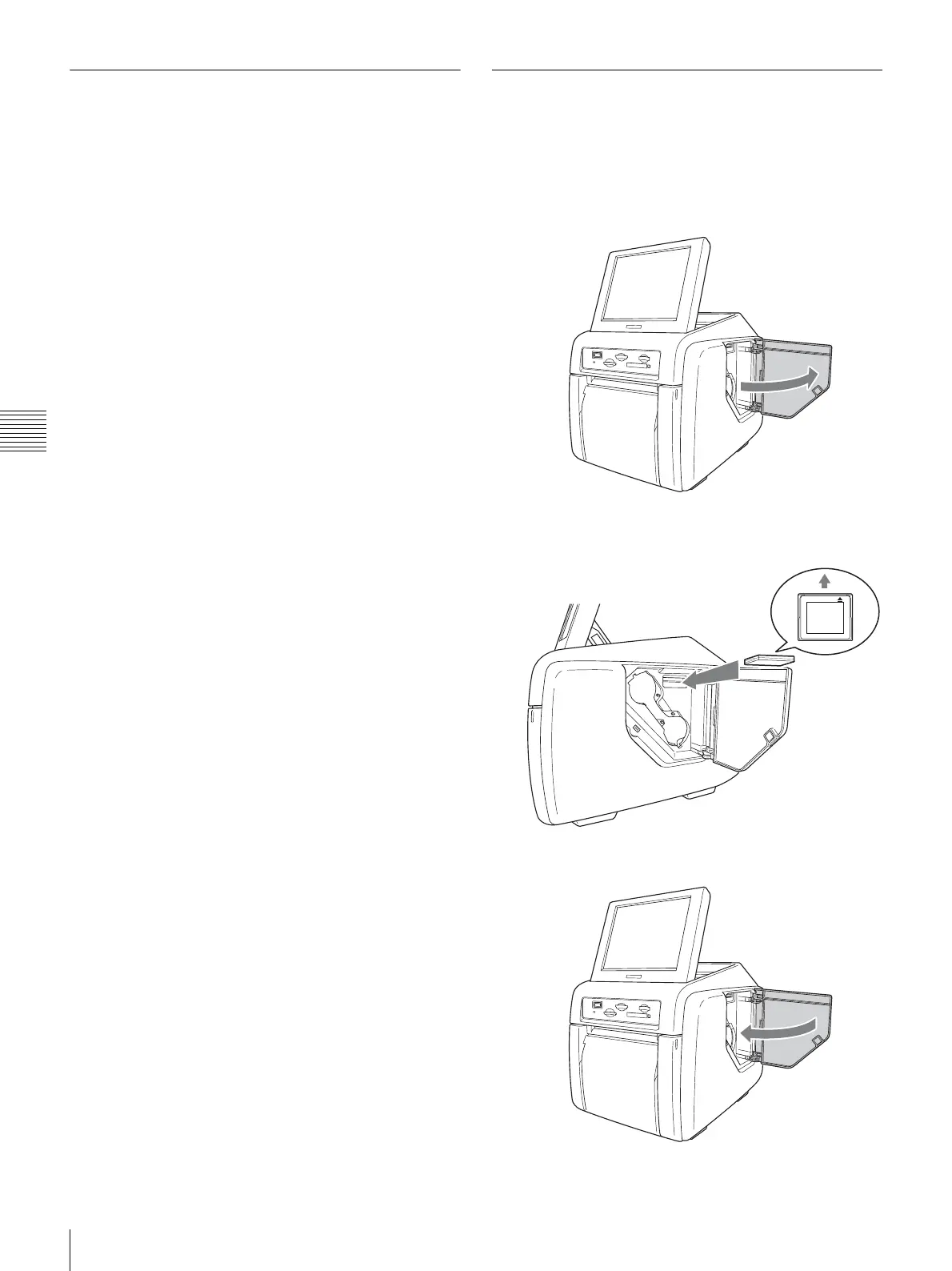
Installing a CompactFlash Card in
the Unit
The expansion CompactFlash card must be installed in the
expansion CompactFlash slot on the unit.
1
Open the side door.
2
Insert the expansion CompactFlash card that you have
created into the expansion CompactFlash card slot.
3
Close the side door.


 To Next Page