57
Using Split Image Print
Chapter 6 Operation
If the unit is in Event mode, printing begins.
If the unit is in Full mode, the order confirmation
screen appears.
For details on how to proceed, see “Confirming and
Printing the Order” on page 59.
Using Split Image Print
J Applicable modes: Full mode, Event mode
This function lets you print multiple images on a single
sheet.
This function can also be used to print multiple copies of a
single image in a prescribed size, such as for Passport
photos.
1
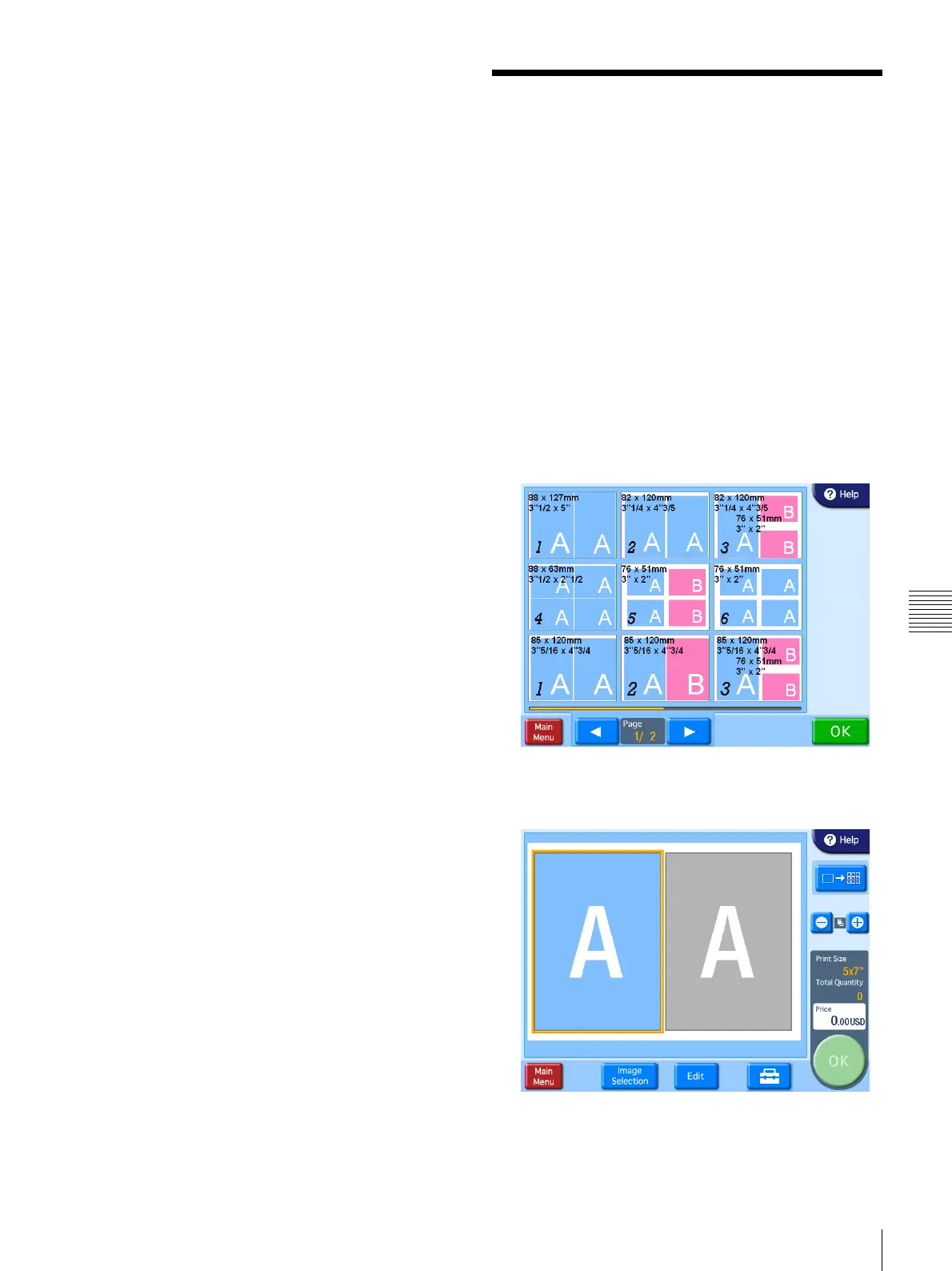
From the main menu, touch [Split Image].
The layout selection screen appears.
Select a layout with the suitable size.
The letters “A” and “B” in the layouts indicate the
positions of images that will be assigned later. The
same image will appear in all locations marked by the
same letter.
2
Select the desired layout and then touch [OK].
The preview screen appears.
3
Touch the frame that you want to assign an image to.
The image selection screen appears.


 To Next Page