61
Image Editing
Chapter 6 Operation
Image Editing
J Applicable modes: All operation modes (only
crop and rotate in Quick Print mode)
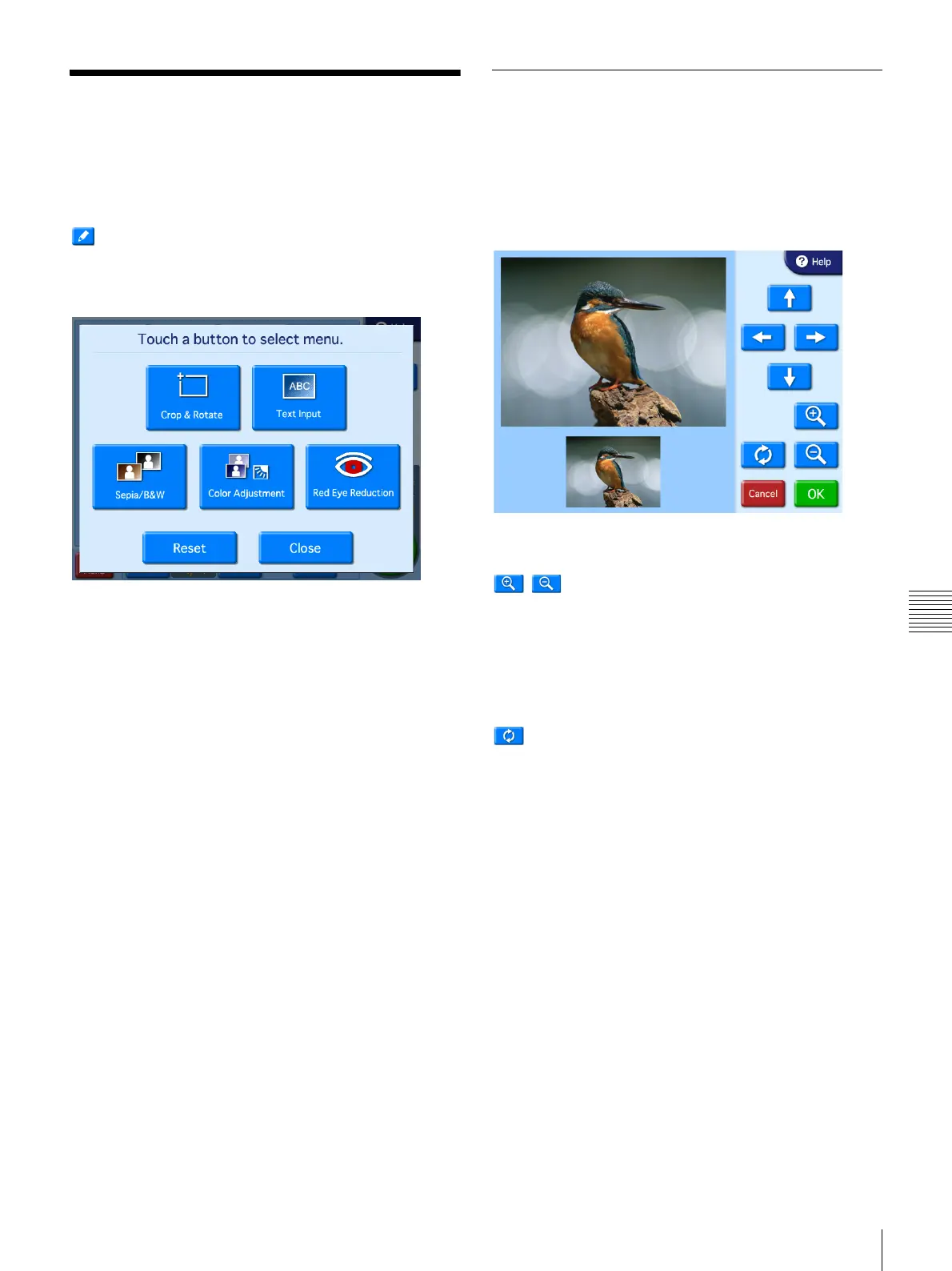
While selecting or previewing images, touching the
button or the [Edit] button causes the editing menu to
appear.
In Quick Print mode, the crop/rotate screen appears instead
of the editing menu.
The following editing functions are available on the
editing menu.
• Crop and Rotate
• Text Input
• Color Adjustment
• Sepia/B&W
• Red Eye Reduction
Canceling editing changes
To restore an edited image to its original state, select the
image and then touch the [Reset] button.
Specifying the Layout (Crop and
Rotate)
This function allows you to trim and rotate an image, thus
changing the composition of the image.
To adjust the image composition, touch [Crop & Rotate]
on the editing menu.
To crop the image
/ buttons
Use these buttons to adjust the size of the image.
Arrow buttons
Use these buttons to adjust the area to be cropped.
To rotate the image
button
Use this button to rotate the image clockwise 90 degrees.
Touch this button repeatedly until the image is at the
desired orientation.
Once the new image composition is completed, touch the
[OK] button.


 To Next Page