27
Before using the terminal
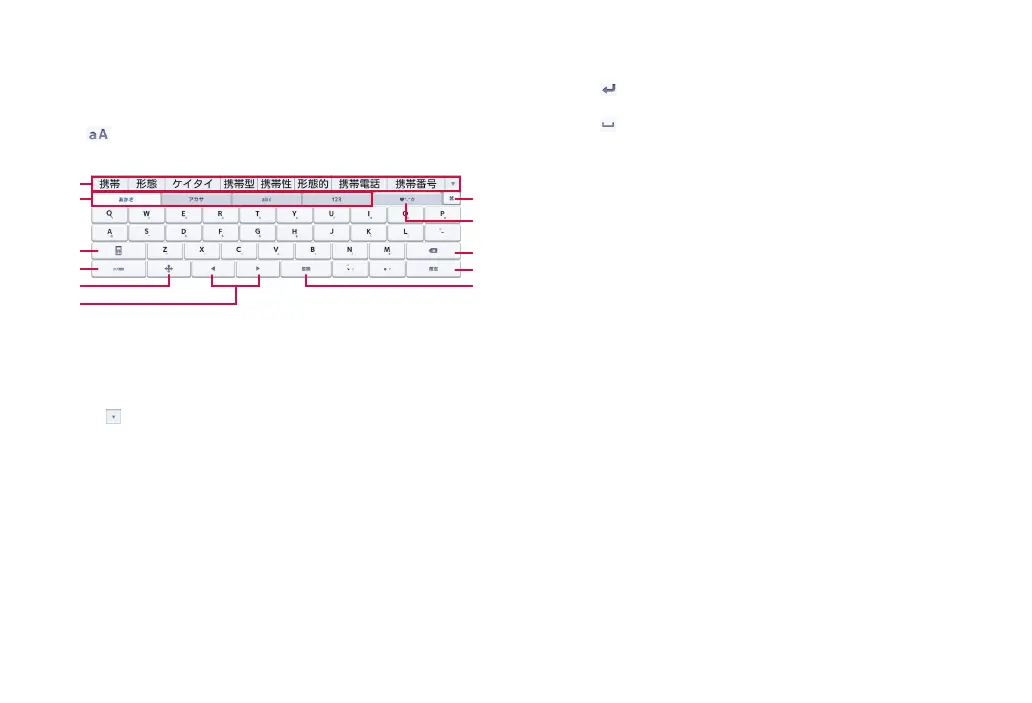
■ QWERTY
Key arrangement is the same as the keyboard of a PC. To enter
Japanese, input by alphabet.
·
Flick an alphabet key up to enter in upper case. And flick a key down to
enter number or symbol assigned to the key.
·
Tap displayed during one-byte alphanumeric entry to switch upper/
lower case.
❶
❷
❸
❹
❼
❽
❾
❿
⓫
❺
❻
QWERTY
❶ Display conversion candidates. Tap a candidate to enter characters.
·
To switch conversion candidate display, flick the conversion candidate
field left/right.
·
Tap to expand the conversion candidate field.
❷ Change character input mode.
❸ Change the keyboard type (P. 30).
❹ Convert to alphabet.
·
When “Menu” is displayed, the input method can be changed or the
keyboard type can be set.
❺ Display the cursor screen.
·
Move the cursor or select a range of text to copy/cut/paste.
❻ Shorten/expand the conversion range by 1 character.
·
Move cursor to left/right when there is no unfinalized text.
❼ Close the keyboard.
❽ Use smileys/symbol list (P. 30).
❾ Delete a character on the left of the cursor. Touch and hold to delete
characters continuously.
Finalize entered characters.
·
When appears, add a linefeed.
Convert.
·
When is displayed, enters a space.



 To Next Page