DOM Roq® Setting confirmation
55
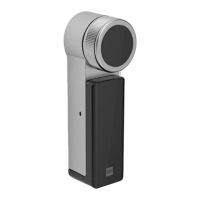
DOM Roq® Smart Lock
III. The motor unlocks the lock and opens the door by additionally pulling back the
latch for 3 seconds (as the door has no handle on the outside).
IV. To reach this setting, press the push button for 5 seconds (F) and release it after
the second beep.
Setting confirmation
After these settings, the motor unit runs several cycles to confirm the settings.
If the LED lights white, the process was successful.
In case of an error, check the assembly and start again with the commissioning. Also check
whether the laser is performing its functions (best via the app).
Connection DOM Roq® with Internet and App
To load and setup the mobile app for your DOMRoq® motor unit, proceed as follows:
1. Download and install the DOMRoq® app from the Google Play Store or Apple Store.
2. Follow the instructions in the app to install and setup your DOMRoq® motor unit.
Note! If the settings described here do not work and further commissioning
does not guarantee trouble-free operation, please contact DOM Support on our
website or a specialist dealer.
Note!
Alternatively, you can download the Somfy Keys app to manage your DOM
Roq® and create smart functions with the Somfy Tahoma smart home system.
Note!
Have all the necessary information and products ready. This includes the ac-
cess data for your WLAN network (name and access password), the gateway
that connects your DOM Roq® to the WLAN and a power supply for the gate-
way.


 To Next Page