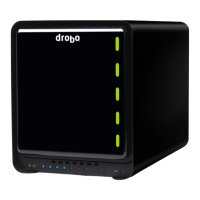
Drobo 5D3 User Guide 17
3 Setting Up Your Drobo 5D3
Once you have unpacked your Drobo 5D3 from its box and ensured you meet all system
and hardware requirements, it is time to set up your Drobo 5D3 for use. This can be
done in just a few easy steps!
1. Downloading and Installing Drobo Dashboard
2. Inserting Drives
3. Connecting Cables on Your Drobo 5D3
4. Initializing and Updating Your Drobo 5D3 to the Latest Firmware
5. Formatting the Drives for Your Drobo 5D3
6. Registering Your Drobo 5D3
7. Migrating a Disk Pack from Another Drobo Device
8. Using Drobo 5D3 with Time Machine Backup or Backup Software
9. Inserting an mSATA SSD (optional)
Note:
The Drobo 5D3 supports migrating entire disk packs from other devices,
preserving its data. To ensure a safe and successful migration of the drives, carefully
follow the instructions in Migrating a Disk Pack from Another Drobo Device
3.1 Downloading and Installing Drobo
Dashboard
The Drobo Dashboard application will help you to set up and manage your Drobo 5D3.
After installation of the Dashboard, you can configure the settings to automatically
install version updates, which is highly recommended.
Drobo software and firmware updates for Drobo 5D3 can be downloaded and installed
from Start Drobo 5D3 page.


 To Next Page