Drobo 5D3 User Guide 99
3. If the page is not displaying the system information, make sure that you have
selected the System Information from the drop-down list.
The information you can view on this page includes:
● Name - The name of the selected Drobo 5D3.
● Serial # - The serial number for the selected Drobo 5D3.
● Health - The health of the selected Drobo device. It displays as Good (in green) when
healthy or Warning (in orange) when you need to add capacity.
● Firmware - The firmware version running on the selected Drobo 5D3.
● Hot Data Cache - If the value for this is "on," it indicates that you have all HDDs in the
standard drive bays with an mSATA SSD present. The mSATA SSD is used as a cache for
"hot" data that is frequently read.
● Active Interface - The connectivity interface currently being used.
8.7 Checking Drive Information
To check the drive information of your Drobo deviceL
1. In Drobo Dashboard on the All Drobos page, select the appropriate Drobo 5D3.
2. Click the Status option on the Navigation menu. The Status page opens.
3. Select Drive Information from the drop-down list at the top.
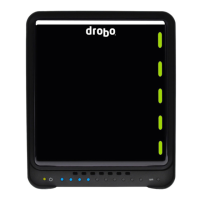
4. Select the disk drive whose information you need by clicking the associated drive bay
in the image of the Drobo device.


 To Next Page