Drobo 5D3 User Guide 38
Important Notes:
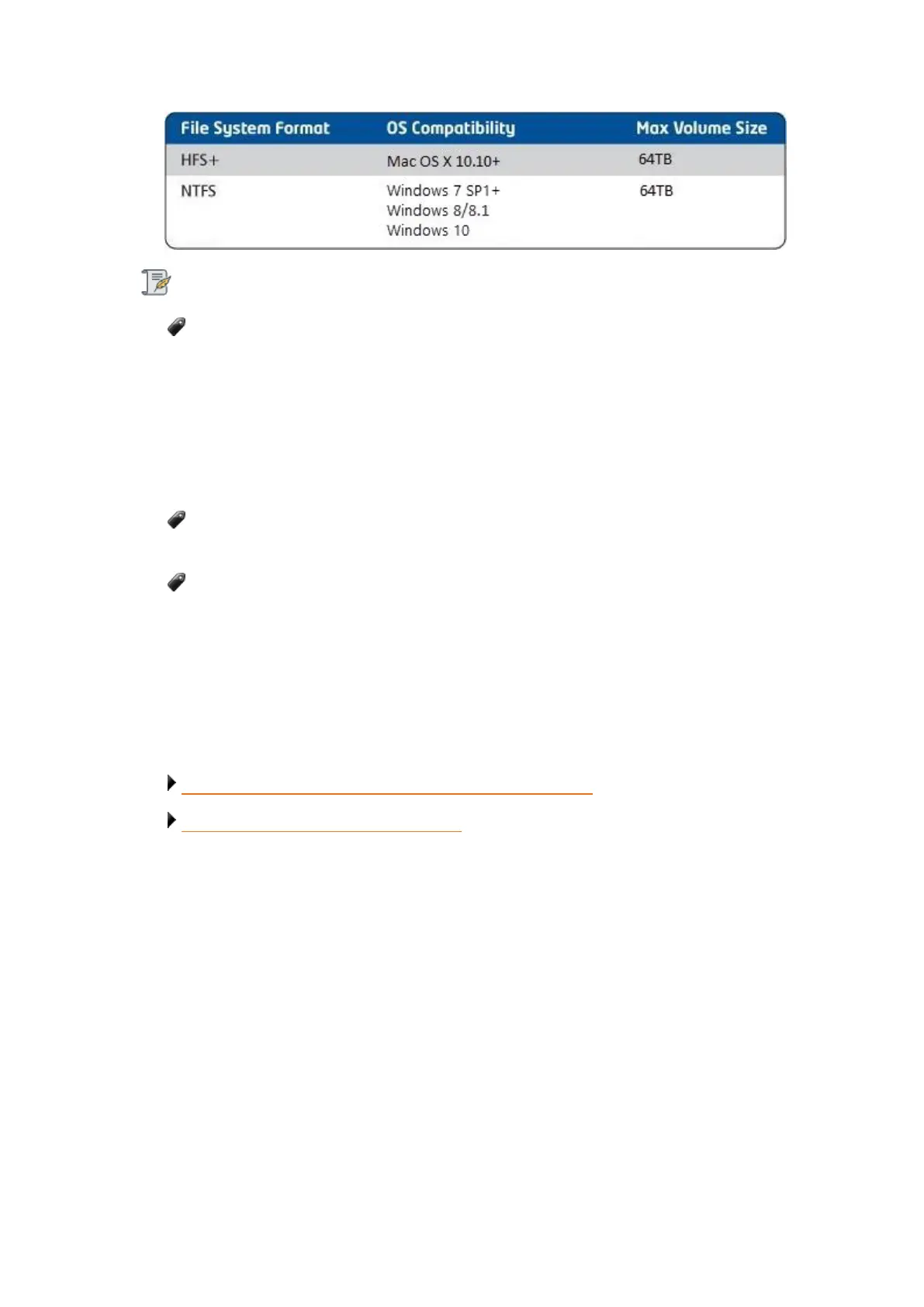
The term Volume does not represent how much actual storage space is available
on your Drobo 5D3. It represents virtual storage space.
For example, your Drobo 5D3 may be loaded with 2TB of drive space, but you can
create a volume of 64TB.What this enables you to do is, add more capacity to your
Drobo 5D3 (by inserting an additional drive or replacing a smaller capacity drive with
a larger capacity one) without having to format an additional volume. The additional
capacity becomes part of the same volume you formatted originally.
Your operating system may show the virtual space available on your Drobo
device, as defined by the volume size.
If the amount of available, protected storage space in your Drobo 5D3 ever
exceeds the size of the volume that you chose (this may occur when you add one or
more additional drives to your Drobo 5D3), then Drobo Dashboard will automatically
create a new volume (or volumes) of the same size as the original volume. Drobo
Dashboard will notify you when this occurs and ask you to format and name the new
volume(s).
Next in the Setup for Your Drobo 5D3
Turning On Your Drobo 5D3 and Formatting the Drives
Return to Setting Up Your Drobo 5D3
3.6.2 Turning On Your Drobo 5D3 and Formatting
the Drives
With Drobo Dashboard installed on your host computer and cables connected, you are
ready to turn on your Drobo 5D3 and format the drives.
To format the drives:


 To Next Page