Drobo 5D3 User Guide 87
5. When finished, close the Drobo Accelerator Bay door and return the Drobo 5D3 to its
normal position.
Next in the Setup for Your Drobo 5D3:
Inserting Drives
Return to Setting Up Your Drobo 5D3
7.5 Removing an mSATA SSD
Because the mSATA SSD card is not part of your device's disk pack, you can remove it
from your Drobo 5D3 at any time.
Note:
Your Drobo device must be powered off and unplugged before removing the
mSATA card.
It is important to ground yourself before doing this in order to discharge static
electricity. To do so, touch a grounded metal object just before installation.
Warning:
Any pre-existing data on the mSATA card will be erased. If you wish to keep the
data, copy it to another drive or medium before using with your Drobo device.
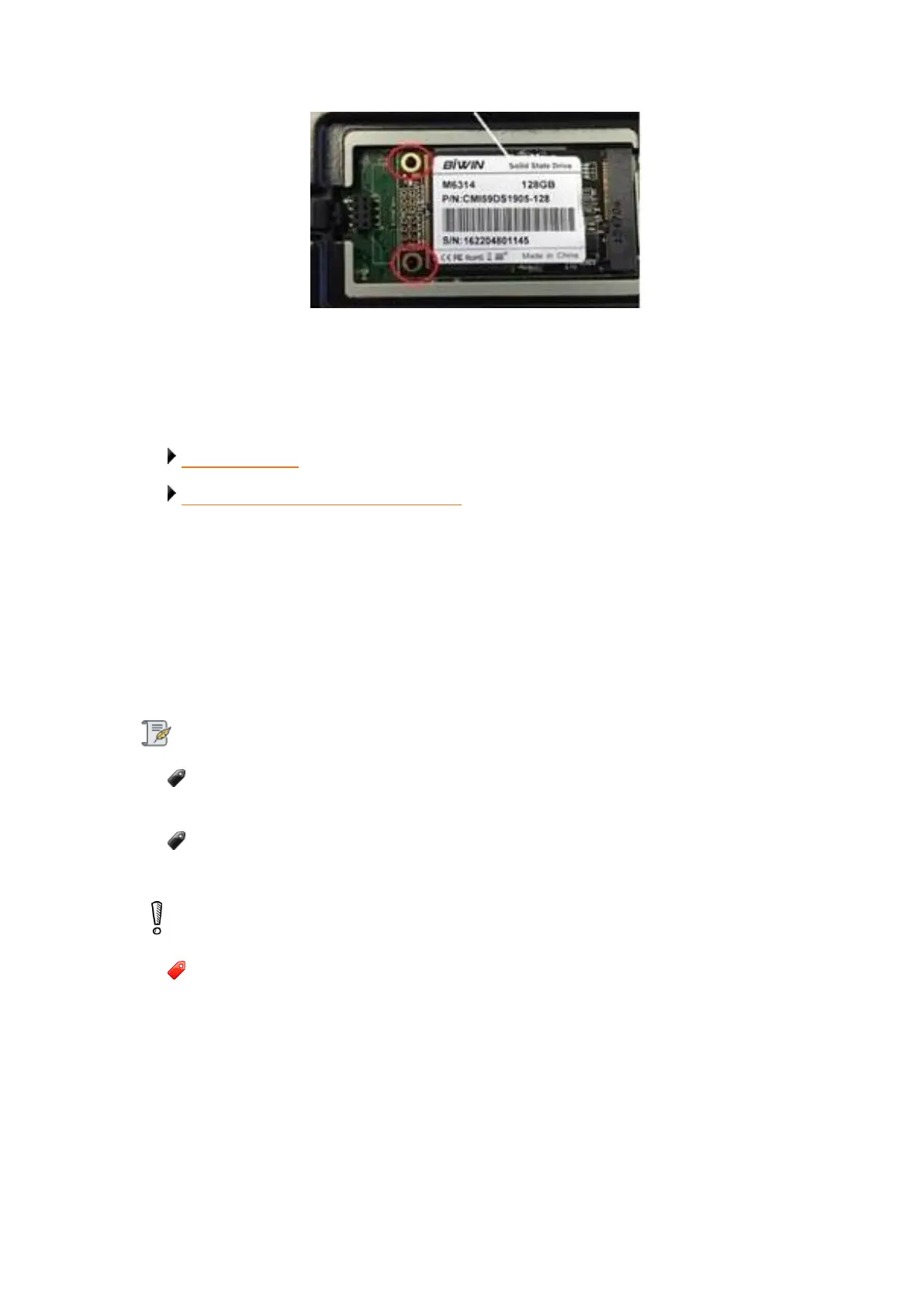
To remove an mSATA card:
1. Safely shut down your Drobo 5D3.
2. Gently turn the Drobo 5D3 on to its side to access the bottom of the Drobo 5D3, and
open the Drobo Accelerator Bay door.


 To Next Page