Drobo 5D3 User Guide 60
Manually Updating Firmware from the Website
5.1.1.1 Checking for Software Updates
The following steps ensure that Drobo Dashboard and your Drobo device’s firmware are
up to date.
1. In Drobo Dashboard, select the appropriate Drobo 5D3 device on the All Drobos
page.
2. Click the Tools option on the Navigation menu to open the Tools page.
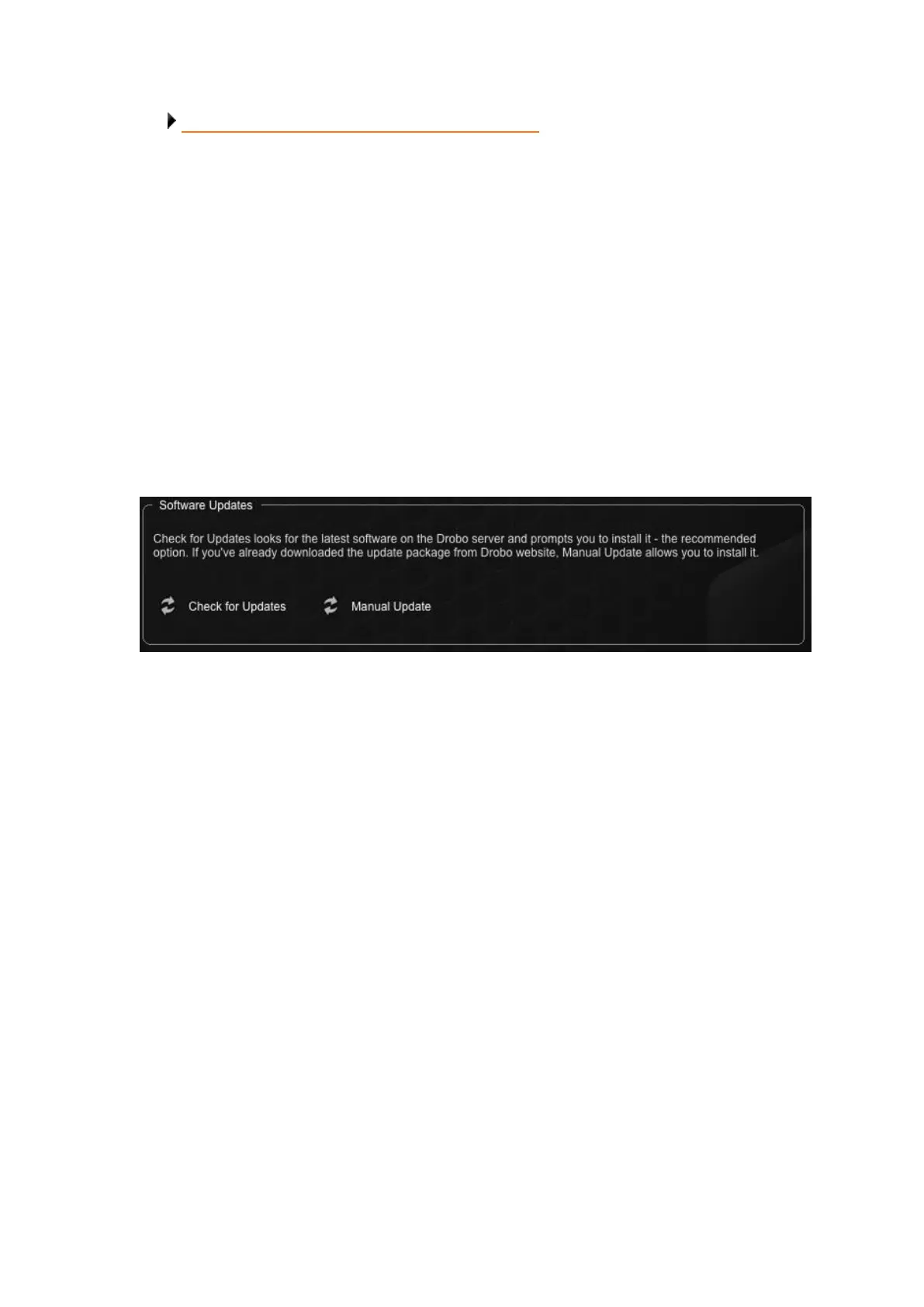
3. In the Software Updates area of the Tools page, click the Check for Updates option.
4. If a software update is available, a dialog box opens, asking if you would like to install
the update. Click the Yes button and follow the prompts to install the update.
5.1.2 Manually Updating Firmware from Drobo
Website
To manually update the firmware from the website, take the following steps.
1. Launch the Drobo Dashboard and select Drobo 5D3 from the All Drobos page. Also, if
applicable, log in to this Drobo device.
2. Click the Tools option on the Navigation menu for the selected Drobo device to open
the Tools page.
3. From the Software Updates area, click the Manual Update option.


 To Next Page