Drobo 5D3 User Guide 28
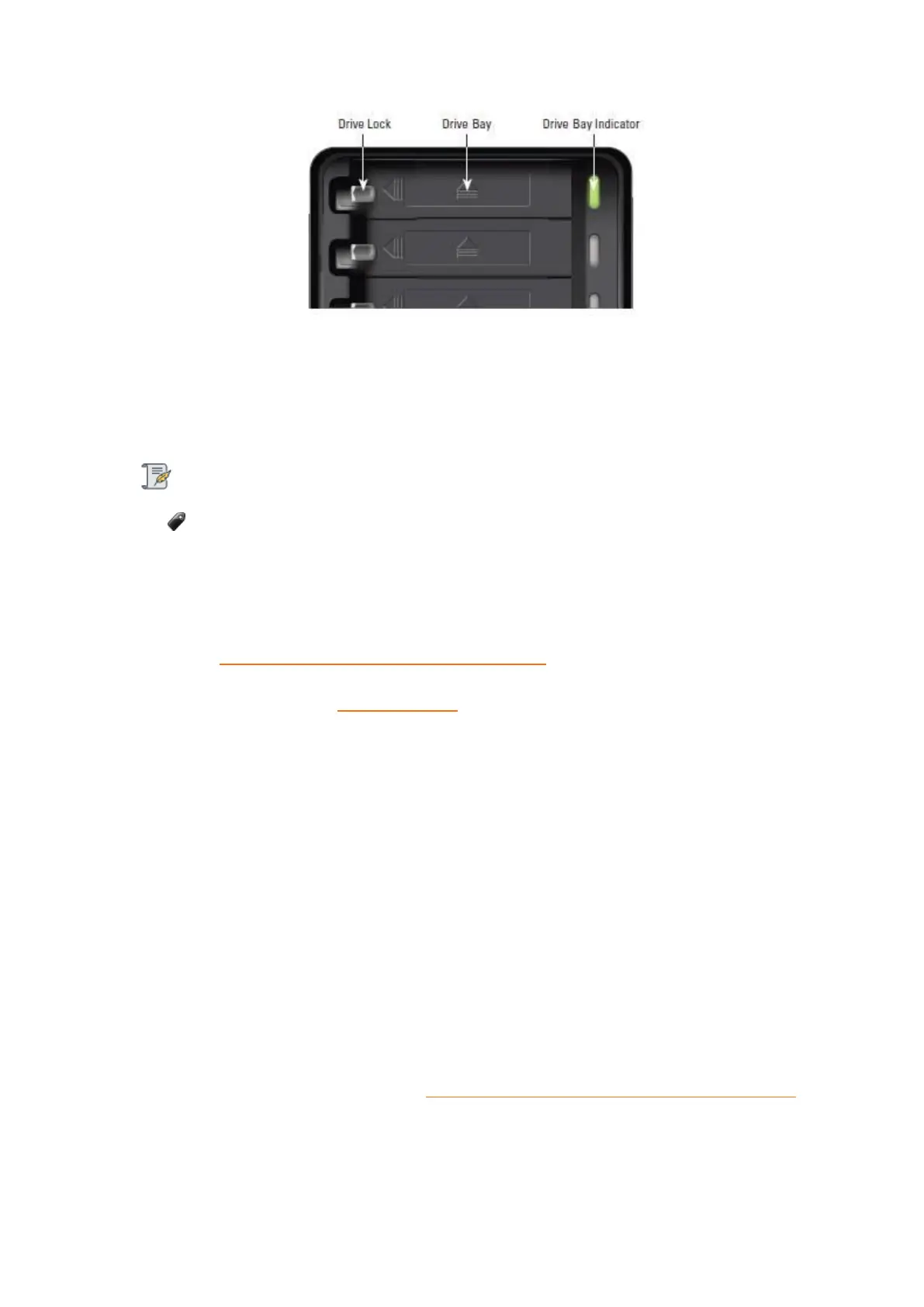
4. Slide the drive into the drive bay, release the drive lock and push the drive into place
until you feel it connect. The drive lock snaps behind the drive, securing it into place.
5. Insert additional drives in the same manner, following steps 2 through 4.
Note:
Once you insert the drives into your Drobo 5D3, they function as a unit or “pack.”
To access the data on them, you will need the entire pack.
6. When finished, replace the bezel right side up, so that when your Drobo device is
turned on, you will be able to see the indicator lights. For more information on Indicator
lights, see Guide to meaning of indicator lights (LEDs).
For more information see Selecting Drives .
You are now ready to connect cables and power on your Drobo device.
3.3 Connecting Cables on Your Drobo 5D3
After installing Drobo Dashboard and inserting the drives into your Drobo 5D3, you are
ready to connect the power and data cables on your Drobo device. There are two ways
you can connect the data cables:
You can connect the Drobo 5D3 directly to your computer using the Thunderbolt 3 port
or the USB 3.0 Type-C port. For information on the different connectivity interfaces
available and their requirements, see Connectivity Interfaces Supported for Drobo 5D3.
If you use the Thunderbolt port, you also have the option to connect the Drobo 5D3 to
another Thunderbolt-enabled device that is attached to your computer (including


 To Next Page