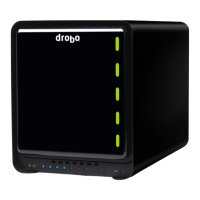
Drobo 5D3 User Guide 30
1. Plug one end of the Thunderbolt cable into the back of your Drobo 5D3.
2. Plug the other end of the cable into your host computer.
3. Connect the power cord to the power connection at the back of your Drobo device.
4. Connect the other end of the power cord to a power source.
5. You are now ready to turn on your Drobo device and format the drives.
Note:
We recommend connecting a surge protector to protect against power surges.
For more information, see Using Power Protection.
Next in the Setup for Your Drobo 5D3
Formatting the Drives for Your Drobo 5D3
Return to Setting Up Your Drobo 5D3
3.3.2 Connecting Your Drobo in a Daisy Chain
With the Thunderbolt 3 port, you can connect the Drobo 5D3 directly to your computer
or to another Thunderbolt-enabled device in a daisy-chain manner. The Drobo 5D3
performs best when it is the first in the daisy-chain, but it can also be in the middle or at
the end.
You can daisy-chain up to six peripheral devices and one display (which can be a Display
Port monitor) from a single computer. The non-Thunderbolt display needs to be at the
end of the chain.
Note:
As long as they are plugged in, Drobo devices do not need to be powered on for
Thunderbolt interfaces to remain active. This enables other devices in the chain to
remain accessible by the computer.
Here are three options for connecting your Drobo device using its Thunderbolt interface.
1. Your Drobo device directly connected to a computer (with no daisy-chain).


 To Next Page