Drobo 5D3 User Guide 29
another Drobo device or a display monitor) in a daisy-chain manner. The Drobo 5D3 can
be the first in the daisy-chain (directly attached to your computer), in the middle, or at
the end. For more information and steps, see Connecting Your Drobo 5D3 in a Daisy-
chain.
Next in the Setup for Your Drobo 5D3:
Connecting Directly to Your Drobo 5D3 or Connecting Your Drobo 5D3 in a Daisy-
chain
Return to Setting Up Your Drobo 5D3
3.3.1 Connecting Directly to Your Drobo 5D3
You can connect the Drobo 5D3 directly to your computer using the Thunderbolt 3 port
or the USB 3.0 Type-C port. For information on the different connectivity interfaces
available and their requirements, see
Connectivity Interfaces Supported for Drobo 5D3.
If you are using a Thunderbolt port and would like to connect the Drobo 5D3 in a daisy-
chain, see Connecting Your Drobo 5D3 in a Daisy-chain.
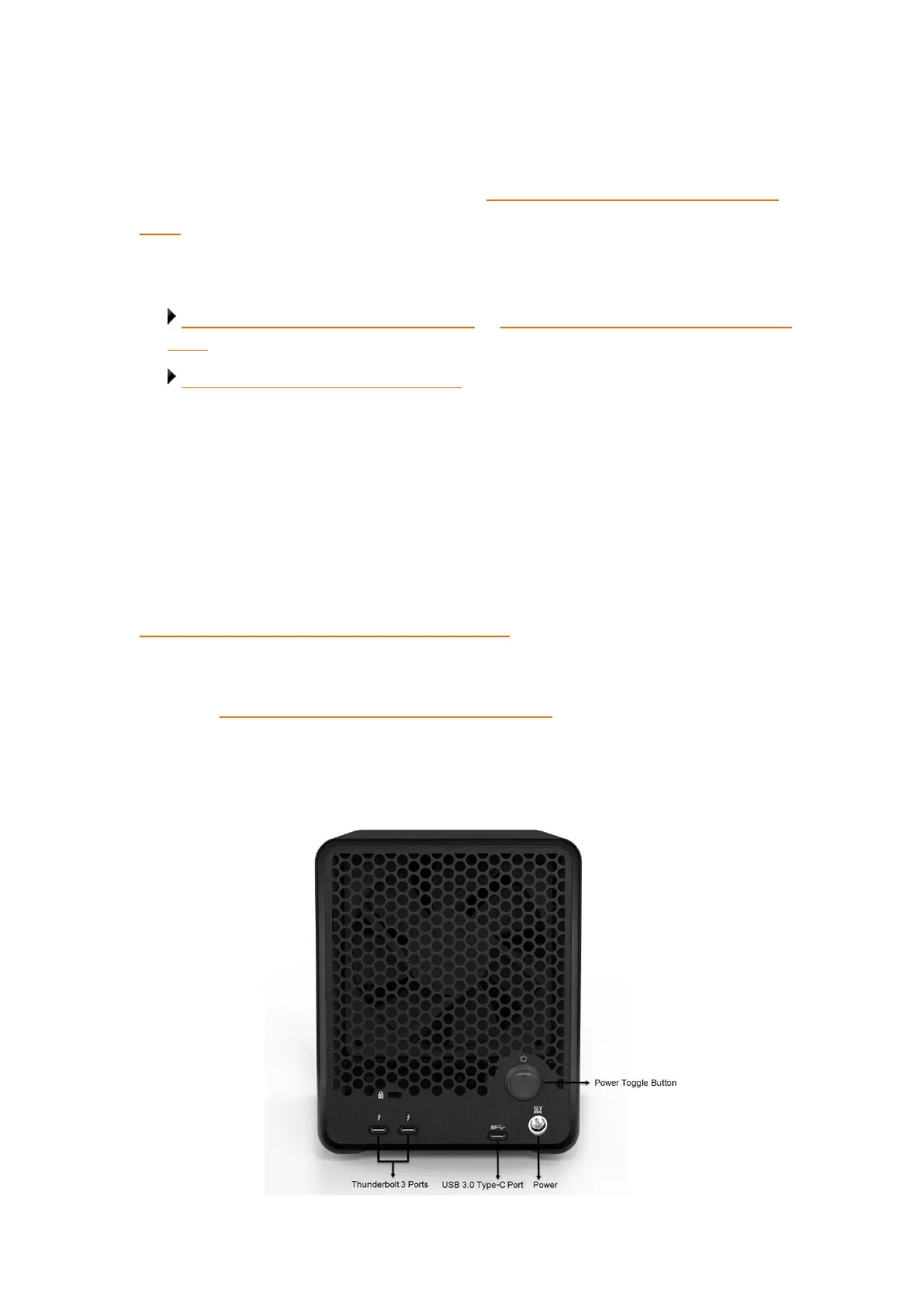
As you follow the steps below, refer to the following image.


 To Next Page