Drobo 5D3 User Guide 84
6. With your other hand, use your thumb to depress and hold open the drive lock to an
empty drive bay.
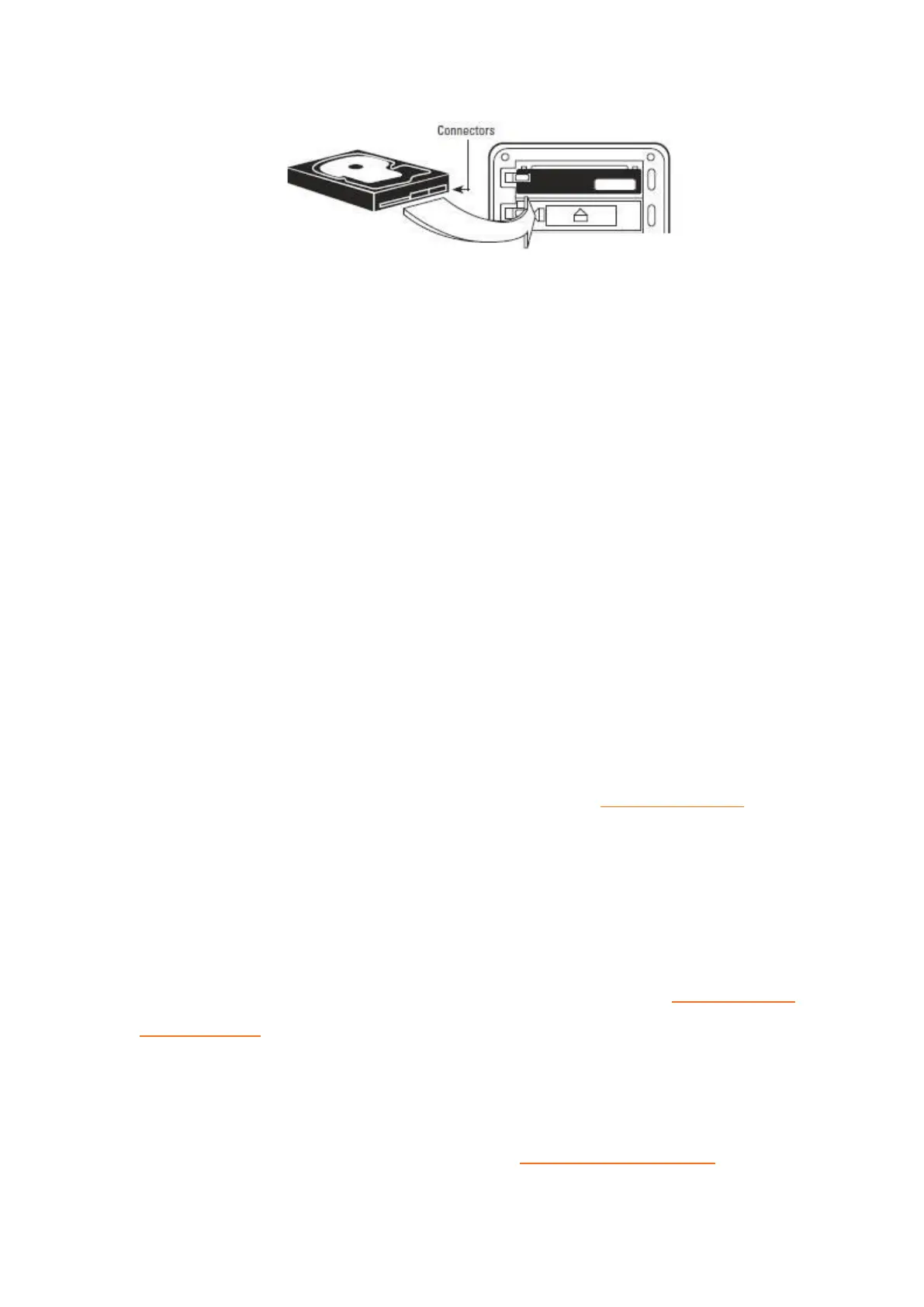
7. Slide the drive into the data bay, release the drive lock and push the drive into place
until you feel it connect. The drive lock will snap behind the drive, securing it into place.
8. Add or replace additional drives in the same manner, following steps 3 through 6.
9. When finished, replace the bezel right side up, so that you will be able to see the
indicator lights whenever your Drobo device is turned on.
7.3 Removing Capacity (or Drives)
You may wish to remove one or more drives from your Drobo 5D3, thereby reducing
overall capacity. Before doing so, keep the following in mind:
● Your Drobo device requires a minimum of two drives, or three drives if you are using
Dual Disk Redundancy, to ensure your data is protected. See Managing Capacity for
more information.
● Remove only one drive at a time while your Drobo device is powered on, giving your
Drobo device the opportunity afterwards to rearrange your data into the safest
configuration across the remaining drives.
● If you would like to remove all drives from your Drobo device, first safely shutdown
your Drobo 5D3, and then unplug the power.
● Data stored on drives removed from your Drobo device cannot be read by other
systems.
If you would like to remove your mSATA card, see Removing an mSATA Card.


 To Next Page