Drobo 5D3 User Guide 83
In the event that your Drobo device becomes nearly full and all the drives are of
the same capacity, you will need to replace two drives, one at a time, in order to
increase the overall amount of protected capacity. Replacing one drive will not
increase your overall protected capacity in this situation.
1. Ensure the drive lights on your Drobo device are not blinking yellow and green,
which indicates that your Drobo device is working to protect your data. Wait until the
blinking stops.
Warning:
Removing or adding a drive during this process may result in loss of data
2. Remove the bezel (faceplate) from the front of your Drobo device by pulling it off.
3. If you are replacing a smaller capacity drive with a larger one, first remove the
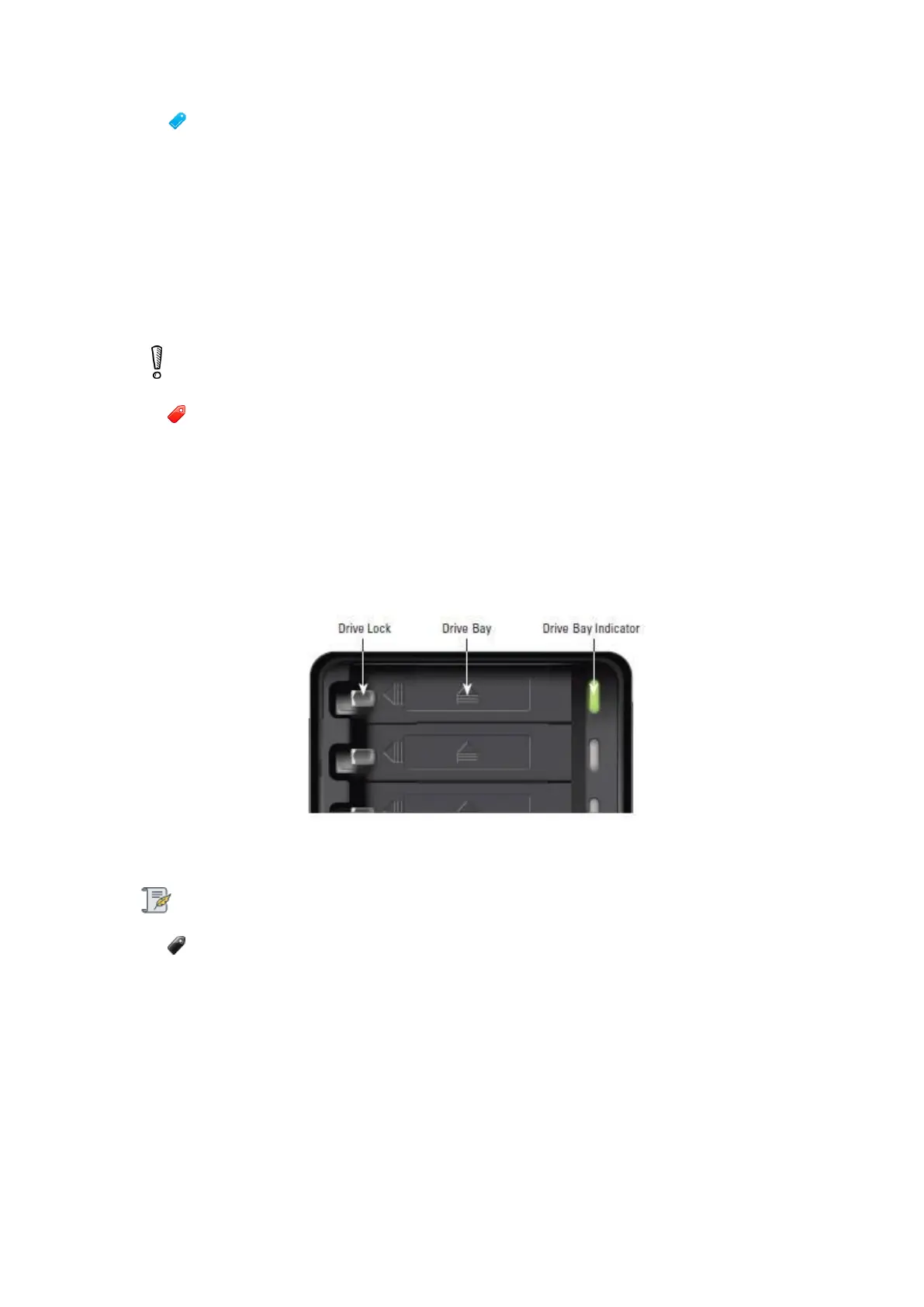
smaller capacity drive by using your thumb to depress (and open) the drive lock for the
data bay that contains the drive you would like to remove. Refer to the image below.
4. The drive ejects from the drive bay. Carefully remove it.
Note:
The drive light turns a solid red, indicating that you need to add a drive or replace
the current drive with a larger drive. It may stay red for up to 15 minutes after you
replace the drive.
5. With one hand, hold the drive so that the label on the top of the drive faces up (and
its connectors are positioned at the device and toward the left). Refer to the image
below.


 To Next Page