Drobo 5D3 User Guide 26
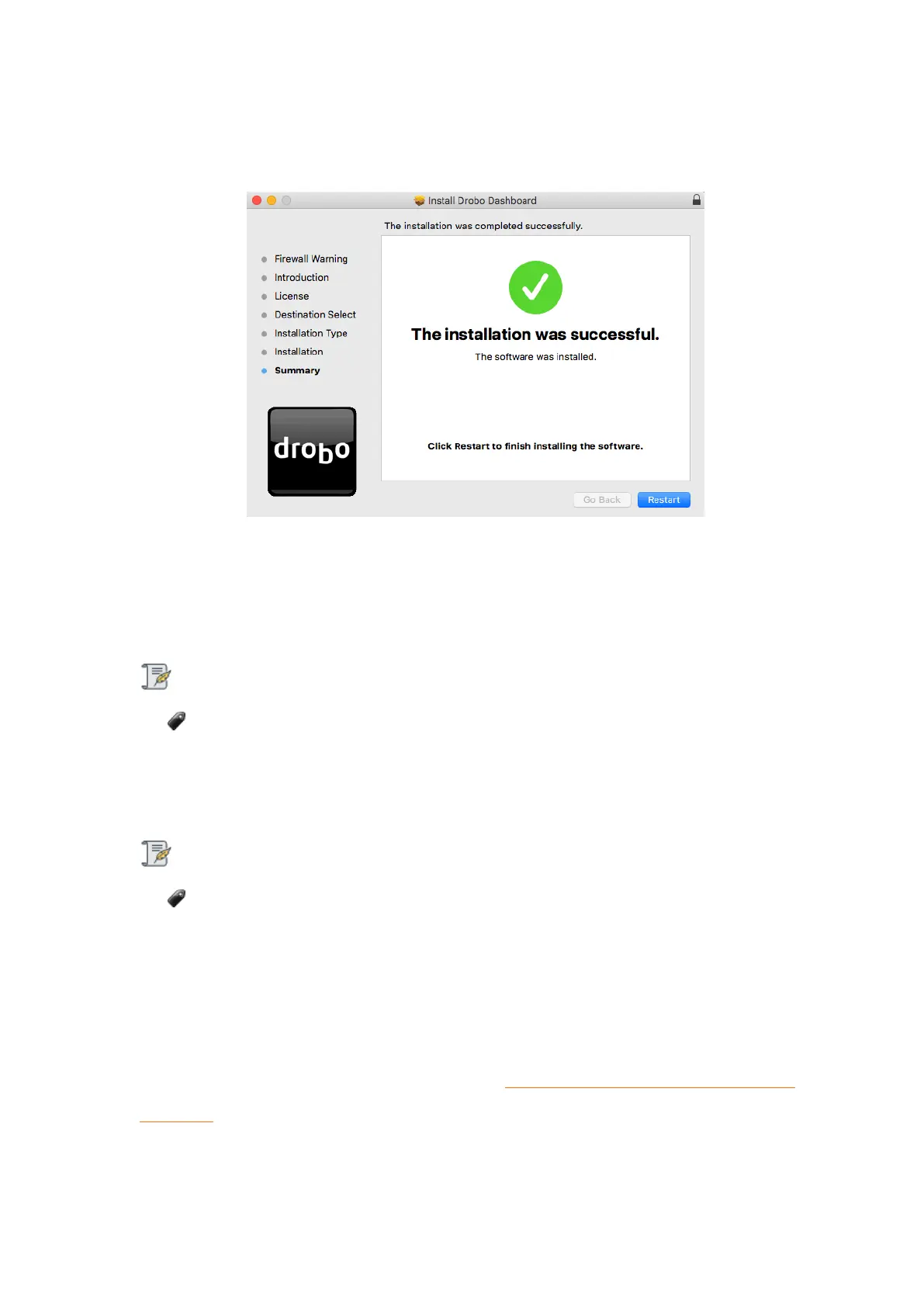
13. When the installation completes, you will see the following screen to restart the
computer to finish the installation. Click Restart.
14. Once the computer restarts, launch the Drobo Dashboard application.
15. The application will prompt you to register your Drobo 5D3. You can either register it
or skip the step and register it later. Select an option based on you preference.
Note:
We highly recommend to register your product in order to obtain support.
16. Click the Next button to view the All Drobos page. After a few seconds, Drobo
"discovers" all Drobo devices currently connected and displays them on this page.
Note:
After the Drobo Dashboard launches, you may be asked if Drobo can collect
anonymous information on your usage. Click Yes or No, as desired.
17. If you have no Drobo device connected to the computer or powered on, a "No
Drobos Detected" message displays until you do.
18. Your Drobo 5D3 will not work until you upgrade the firmware. For information on
updating the firmware to the latest version, see Updating your Drobo 5D3 to the latest
firmware.


 To Next Page