DuraLabel.com | 800.788.5572
7.3 Merging Information, Sequencing Labels | 35
LABEL DESIGN
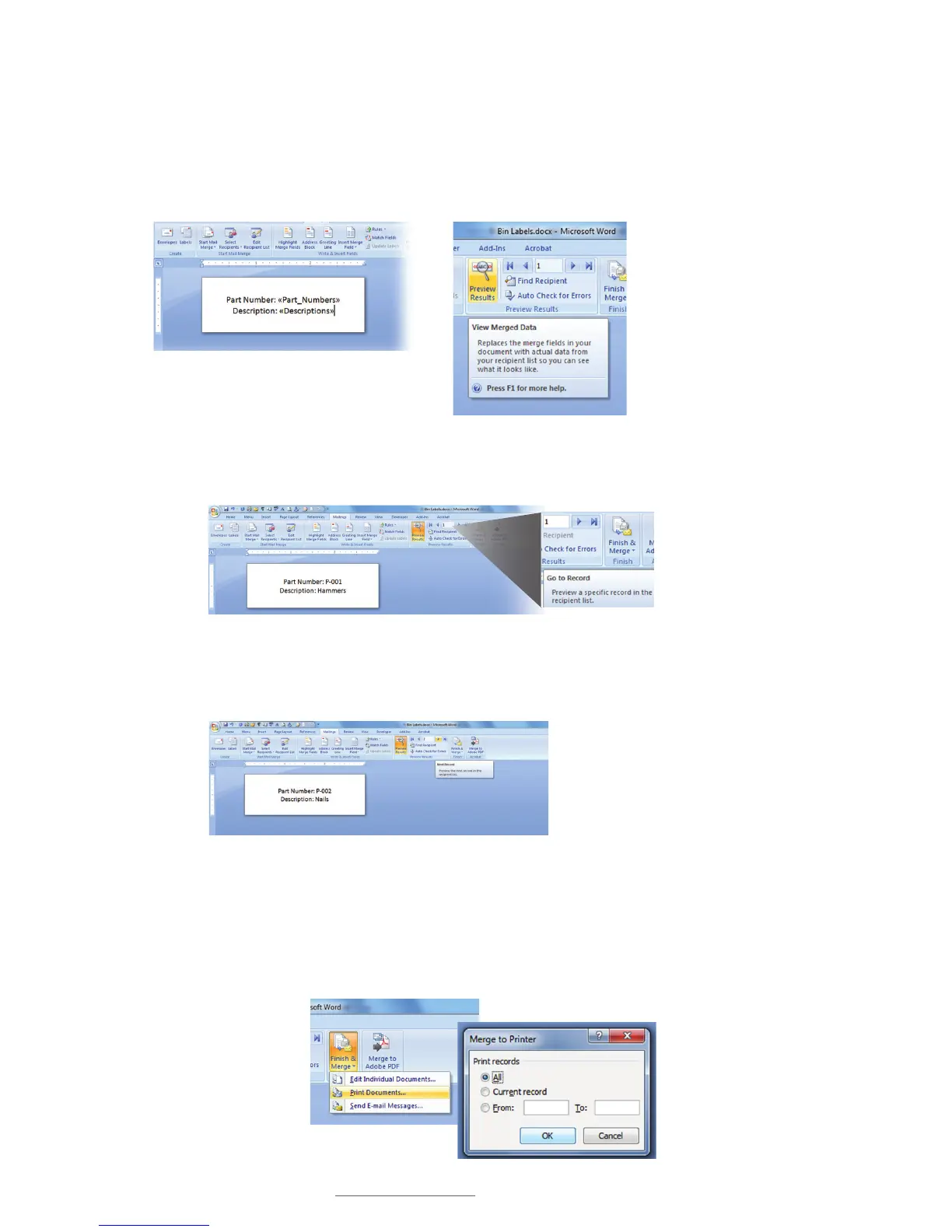
FIGURE 13 Word document ready to receive data from
Excel Column B.
FIGURE 14 Click Preview Results
to display View Merged Data
window.
FIGURE 16 Word template with Next
Record arrow selected and second
label in the sequence displayed.
FIGURE 17 Click Print
Documents from the Finish
& Merge drop-down menu
to start the process of
printing sequenced labels.
FIGURE 18 Select
labels for printing
from the Merge to
Printer window.
FIGURE 15 First label in a sequence, with content imported from an Excel spreadsheet.
K. Select Column B header. A Column B space-holder (<<Descriptions>>) appears
next to the Column B header (Fig. 13).
L. Select Preview Results from the Word toolbar. A View Merged Data window should
appear (Fig. 14).
M. With the Go to Record set at 1, the first label in a sequence should now appear on
the Word template (Fig. 15).
N. Click on the Next Record arrow to display the next label in the sequence (Fig. 16).
O. Now click the Finish & Merge button, then click Print Documents from the drop-
down menu that appears (Fig 17).
P. A Merge to Printer selection box appears, offering the option of printing all labels,
the current record, or specifying a range (Fig. 18). Check the appropriate button.



 To Next Page