DuraLabel.com | 800.788.5572
8.2 Installing a Driver for the Ethernet Port | 39
CONFIGURING ETHERNET CARD
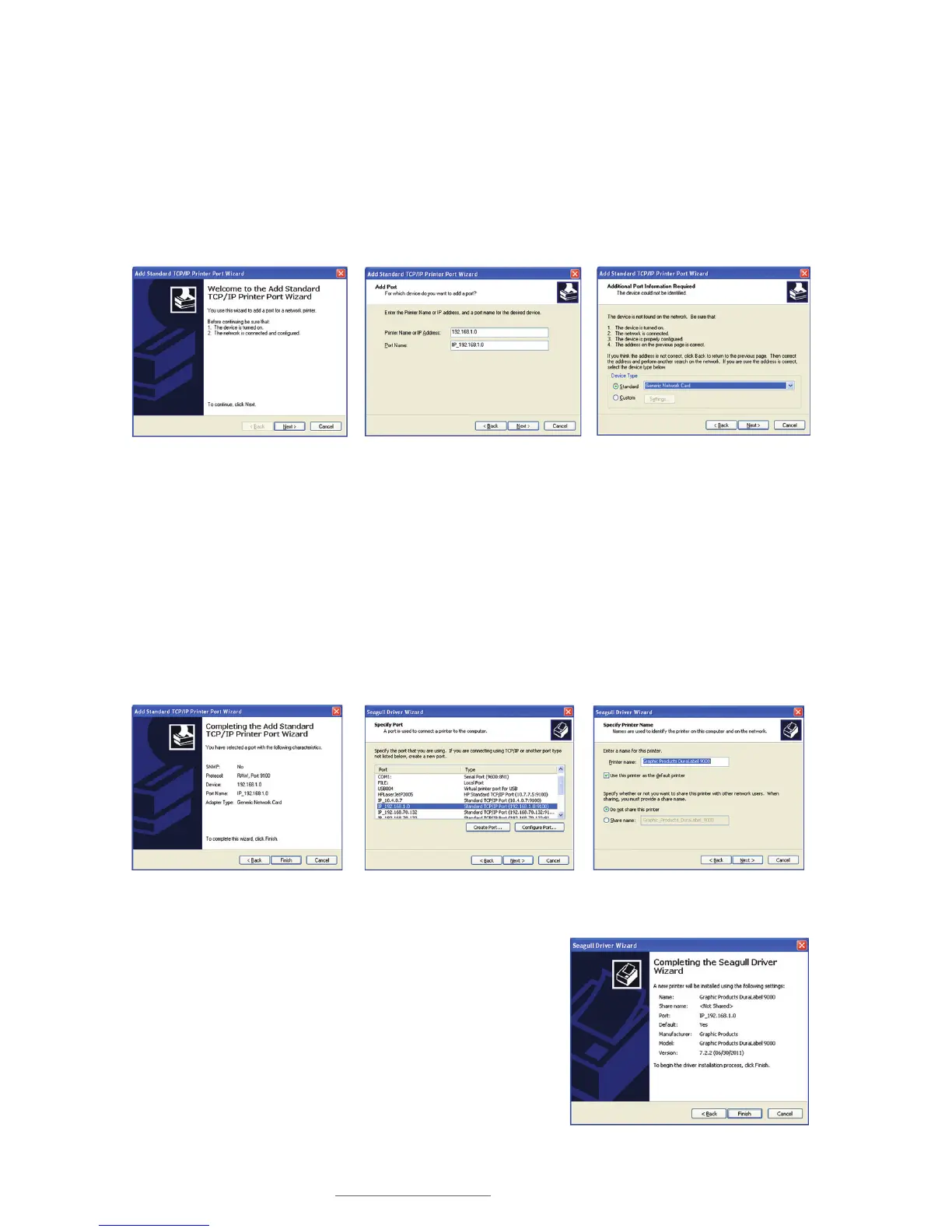
J. The Add Standard TCP/IP Printer Port Wizard appears. Click Next.
K. Enter the IP Address and Port Name in the Add Port dialog box that appears, then
click Next.
L. An Additional Port Information Required window now opens. Select Standard:
Generic Network Card under Device Type and click Next.
Add Standard TCP/IP Printer Port
Wizard
Add Port Dialog Box
Additional Port Information Required
Window
Specify Port Window
Specify Printer Name Window
Completing the Add Standard TCP/IP
Printer Port Wizard Window
P. Review the information on the Completing the
Seagull Driver Wizard window that opens and
click Finish if the information is correct. If it isn’t
correct, revise the selections made in previous
steps and click Finish when the window’s
information is accurate.
Completing the Seagull Driver Wizard Window
M. Make sure the port information is correct on the Completing the Add Standard
TCP/IP Printer Port Wizard window that appears, then click Finish.
N. Select the newly created port on the Specify Port window that now appears, then
click Next.
O. Select Printer Name, set the printer as default and choose printer sharing options
on the Specify Printer Name window that opens, then click Next.



 To Next Page