Upper case and lower case can be toggled by tapping the button.MODE
Exit from the menus and operating screens
Tap the button to exit from menus and operating screens. This returns to the next higher-level menu. All ESC
menus and operating screens are exited automatically 10 minutes after the last time any button was tapped. A
jump to the main menu or to the alarm menu if any error message is pending (only CI 3x00 / AL 300) is
performed here.
8.3.2 Call controller menu using remote operation, page 115
If the system centre, store computer or operator terminal remains locked down, settings on the
controller are read-only. Changes and inputs are not possible.
However, if any parametrisation is required, the input lock must be deactivated, see Cancelling entry
. block, page 83
Tip: Detailed descriptions for the basic configuration of the controller, controller name and its position
designation or about the settings of important parameters etc. can be found in Basic configuration of
. the controller, page 48
8.3.2.1 CI 4x00 System Centre
The terminal for remote control of the controller (menu 2-2 or menu 4-2) is called in the system centre as
follows:
Tap " " or " in the main menu. If "2" is selected, the values below Step 1: 2 - System overview "4 - Configuration
are only displayed as read-only; for "4", lock-down must previously be removed by logging in (see Cancelling
) so that the settings below can be made. entry block, page 83
Step 2: Tap " " and select the required controller in the list that is then displayed using the 2 Case controllers
cursor buttons (↑) and (↓). In the screen that opens, the name, position designation and the alarm priority of
the controller can be input as required.
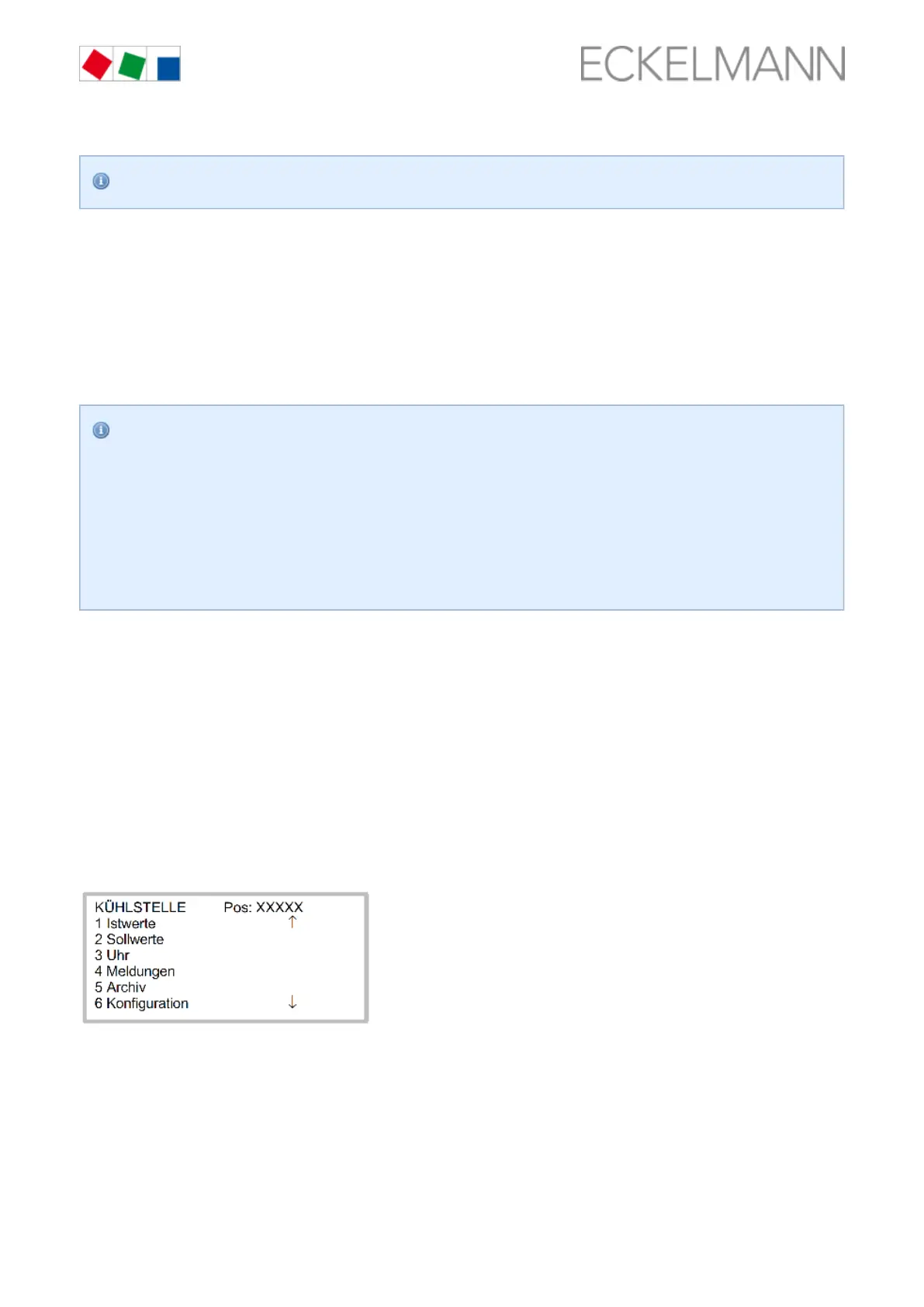
Step 3: The main menu of the controller is then displayed by tapping the "Remote control" button:
8.3.2.2 CI 3x00 store computer / AL 300 operator terminal
The main menu of the controller is called in the store computer or operator terminal as follows:
Select the submenu "5 Remote control" in the main menu (see graphic).Step 1:


 To Next Page