Note:
All the operations here (such as playback speed, channel, time and progress) have relationship
with hardware version. Some series DVRs do not support some functions or playback speeds.
4.3.3 Calendar
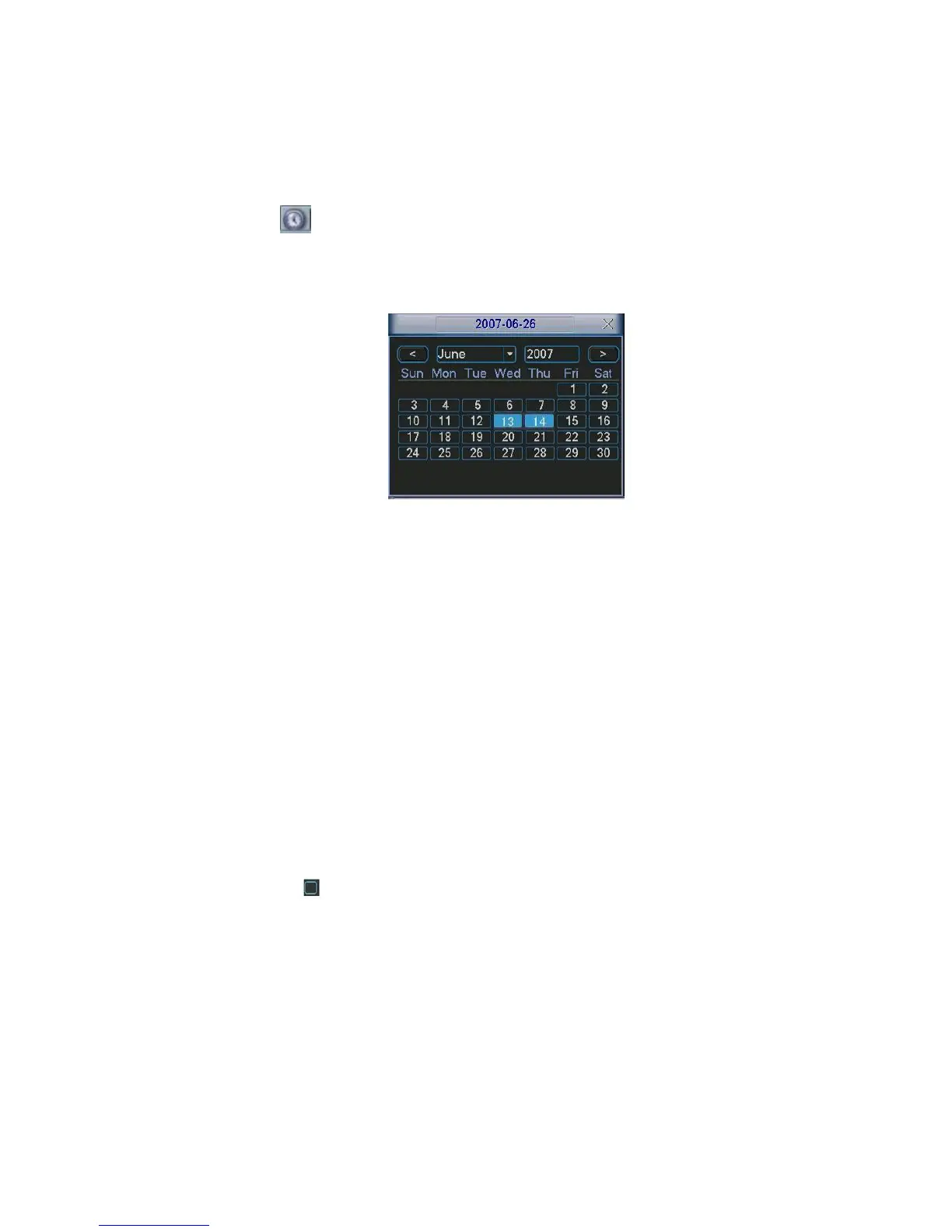
Click calendar icon in Figure 4-12, system pops up a calendar for your reference.
The highlighted date means there are record files in that day. You can click blue date to view file
list.
In X300H300H300HFigure 4-12, there are video files in June 13th and 14th. Double click the date to view its file list.
Figure 4-12
4.4 Schedule
After system booted up, it is in default 24-hour regular mode. You can set record type and time in
schedule interface.
4.4.1 Schedule Menu
In the main menu, from setting to schedule, you can go to schedule menu. See Figure 4-13.
Channel: Please select the channel number first. You can select “all” if you want to set for the
whole channels.
Week day: There are eight options: ranges from Saturday to Sunday and all.
Pre-record: System can pre-record the video before the event occurs into the file. The value
ranges from 1 to 30 seconds depending on the bit stream.
Snapshot: You can enable this function to snapshoot image when alarm occurs.
Record types: There are four types: regular, motion detection (MD), Alarm, MD & alarm.
Please highlight icon to select the corresponding function. After completing all the setups
please click save button, system goes back to the previous menu.
At the bottom of the menu, there are color bars for your reference. Green color stands for regular
recording, yellow color stands for motion detection and red color stands for alarm recording. The
white means the MD and alarm record is valid. Once you have set to record when the MD and
alarm occurs, system will not record neither motion detect occurs nor the alarm occurs.


 To Next Page