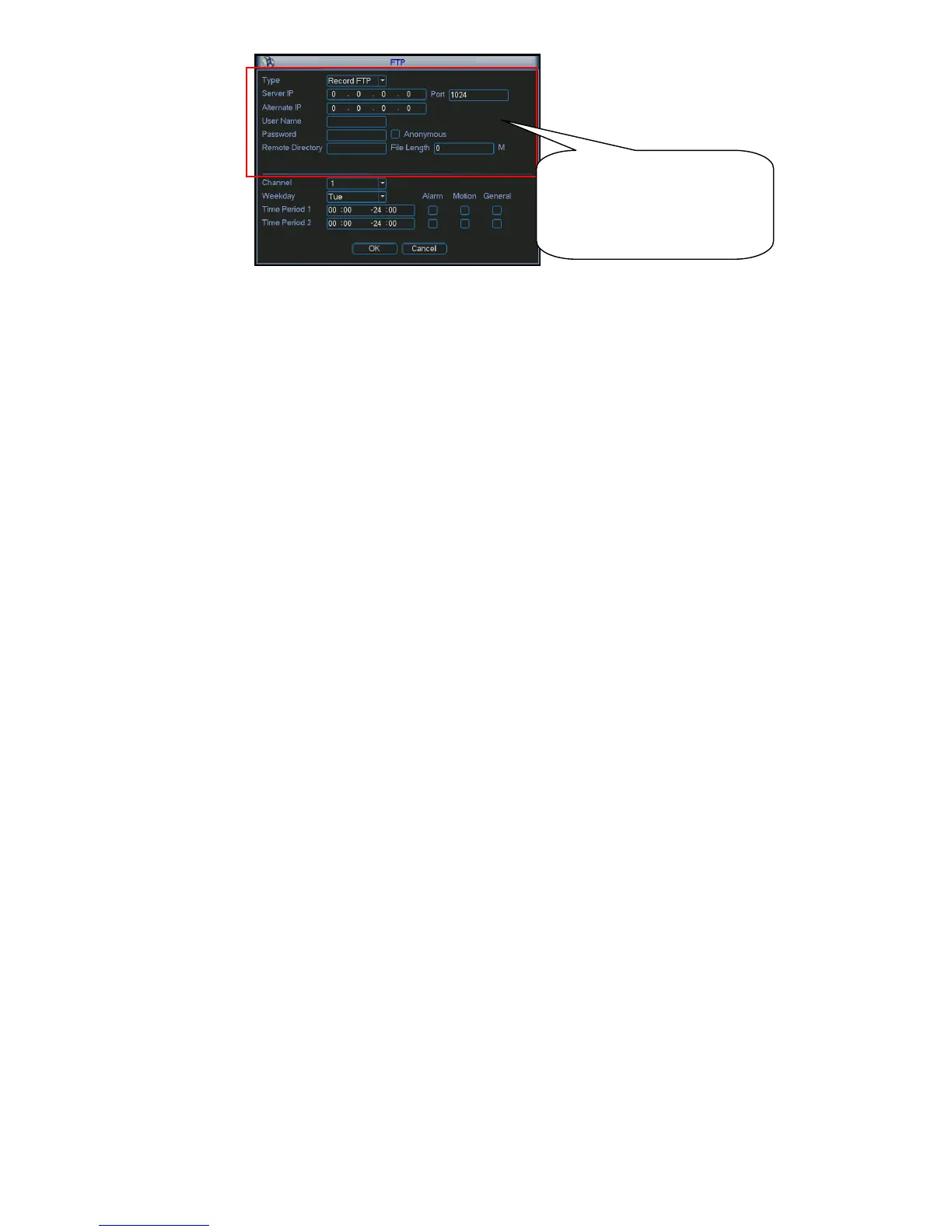
Figure 4-16
4.5 Detect
4.5.1 Go to Detect Menu
In the main menu, from Setting to Detect, you can see motion detect interface. See Figure 4-17.
There are three detection types: motion detection, video loss, camera masking.
The simple lite series product does not support RS232, alarm and PTZ function.
4.5.2 Motion Detect
Detection menu is shown as below. See Figure 4-17.
Event type: from the dropdown list you can select motion detection type.
Channel: select the channel to activate recording function once alarm occurred. Please make sure
you have set MD record in encode interface(Main Menu->Setting->Schedule) and schedule record
in manual record interface(Main Menu->Advanced->Manual Record)
Latch: when motion detection complete, system auto delays detecting for a specified time. The
value ranges from 10-300(Unit: second)
Region: Click select button, the interface is shown as in Figure 4-18. Here you can set motion
detection zone. There are 396(PAL)/330(NTSC) small zones. The green zone is current cursor
position. Grey zone is the motion detection zone. Black zone is the disarmed zone. You can click
AUX button to switch between the arm mode and disarm mode. In arm mode, you can click the
direction buttons to move the green rectangle to set the motion detection zone. After you
completed the setup, please click ENTER button to exit current setup. Do remember click save
button to save current setup. If you click ESC button to exit the region setup interface system will
not save your zone setup.
Sensitivity: System supports 6 levels. The sixth level has the highest sensitivity.
Show message: System can pop up a message to alarm you in the local host screen if you enabled
this function.
Alarm upload: System can upload the alarm signal to the network (including alarm centre) if
you enabled current function.
Send email: System can send out email to alert you when alarm occurs.
PTZ activation: Here you can set PTZ movement when alarm occurs. Such as go to preset, tour
&pattern when there is an alarm. Click “select” button, you can see an interface is shown as in
Figure 4-19.
Period: Click set button, you can see an interface is shown as in Figure 4-20X . Here you can set for
business day and non-business day. In Figure 4-20 X307H307H307HX, click set button, you can see an interface is
shown as in Figure 4-21. Here you can set your own setup for business day and non-business day.
Anti-dither: Here you can set anti-dither time.


 To Next Page