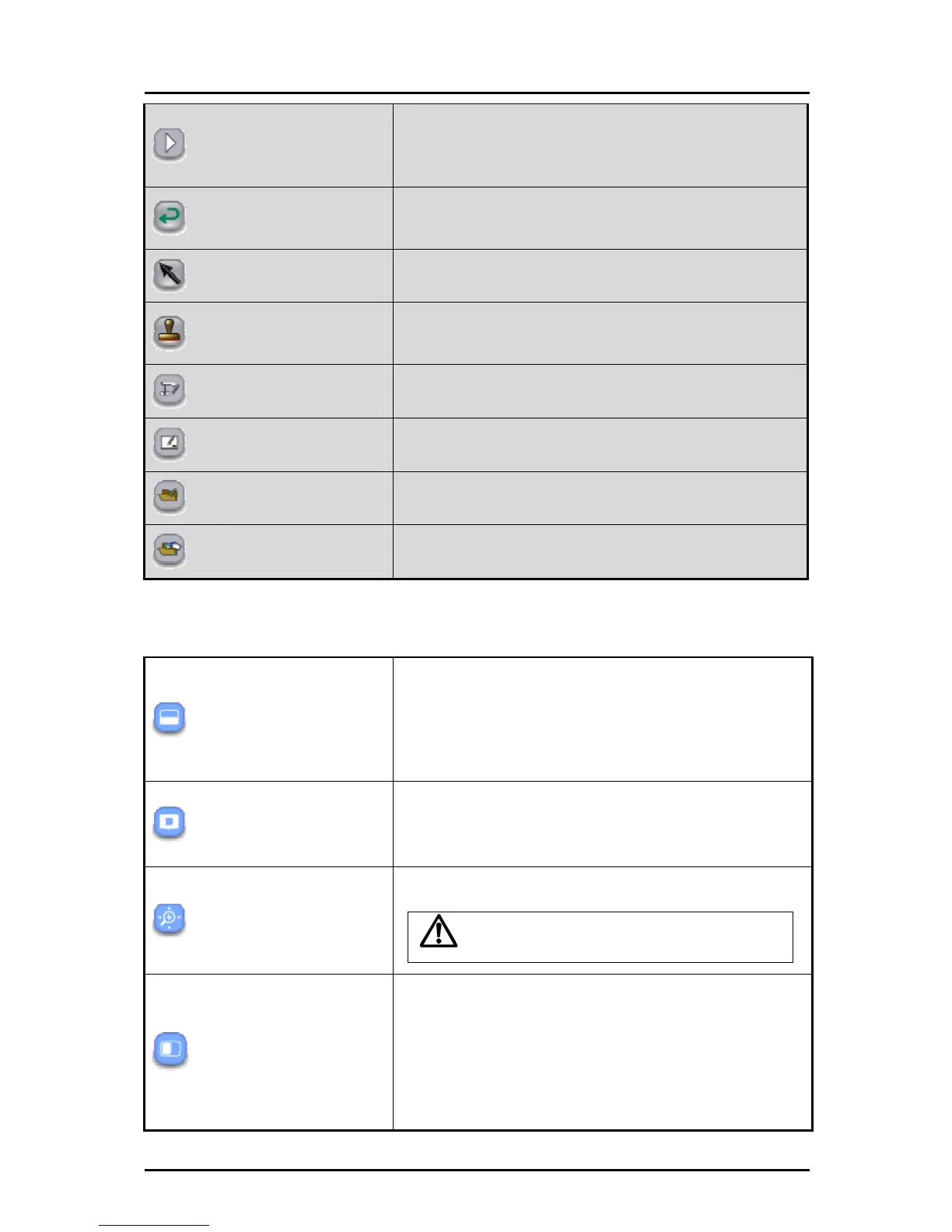
Next menu
Displayed when the whole menu cannot be displayed on one
screen. Use this button to go to the next menu.
When the final menu is displayed, touch this button to return
to the first menu.
Undo
To redo the last editing operation (such as drawing with the
pen or deleting with the eraser). There is a limit on the number
of operations that can be undone.
Select
To select a drawn line to move it or change its size.
Stamp
To insert stamps.
You can also add stamps.
See "Adding a Stamp" for more details.
Document Camera mode
To go to Document Camera mode.
Whiteboard mode
To go to whiteboard mode.
Teaching material import mode
To go to teaching material import mode.
Teaching material creation mode
To go to teaching material creation mode.
The shaded items are available in expert mode.
See "Expert setting" for more details.
■ Sub menu buttons
Caution
Mask
To hide part or all of the Document Camera image that is
displayed.
You can move the masked by dragging it.
In one operation, you can only move the mask up or down or to
the left or right. When the mask touches the edge of the screen,
the movement stops. You can drag the mask again to move it.
Highlight
To bring attention to a part of the Document Camera image.
You can move the highlighted area by dragging it.
In expert mode, you can change the size of the highlighted
area by dragging the area that is not highlighted.
Scroll
To perform electronic magnification of the Document Camera image.
Use it to enlarge the area that is too small.
This is different from the zoom function of the
Document Camera.
Compare pictures
To display the current Document Camera image together with
the still image that is shot when the button is touched. The still
image is displayed on the left of the screen and the current
Document Camera image is displayed on the right.
Use it to compare the still image and the live image.
You can explain the differences between two images while
indicating them the Tablet.
50



 To Next Page