Teaching Material Import Mode
■
Menu buttons
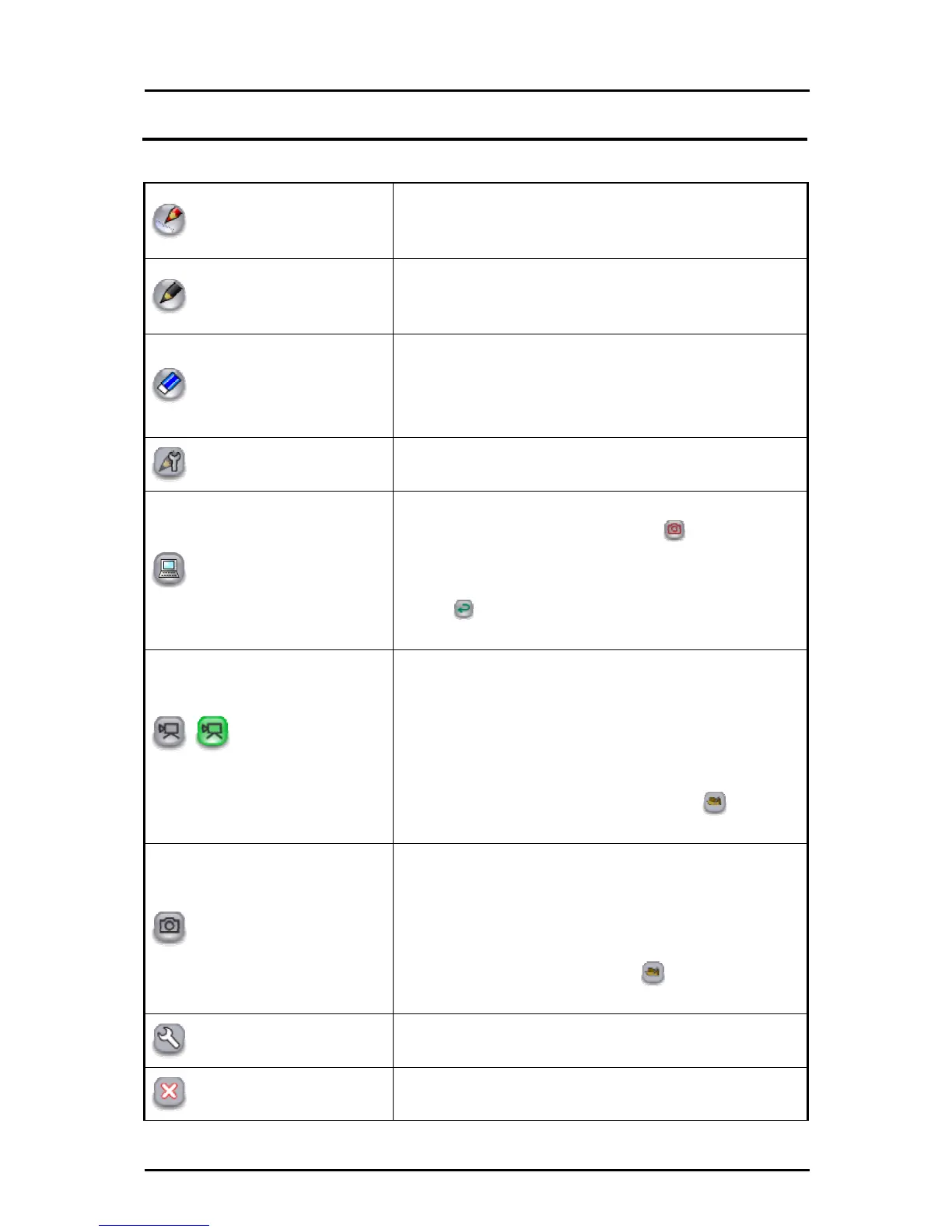
Pen 1
To select pen 1.
The initial setting is a red straight line pen. You can change
the settings for this pen in "Pen Settings".
Pen 2
To select pen 2.
The initial setting is a black pencil. You can change the
settings for this pen in "Pen Settings".
Delete all
To delete all the lines that are drawn on the screen.
If you only want to delete part of a drawing, align the
cursor with the area that you want to delete, and touch
the tablet while pressing the pen's eraser button.
See "Partial deletion".
Pen settings
To display the settings for pen 1 and pen 2.
See "Setting the Pen" for more details.
Computer operations
To operate the computer.
On the computer screen, touch
to change to
"Whiteboard Mode" with the captured computer image
as the background.
Touch
to return to the Tablet software (Image Mate
Accent) screen.
Start/stop lesson recording
To save the currently displayed contents and the audio
that is input to the computer as a video.
Elements such as the Document Camera image that is
displayed on the background, the background image
and the drawn lines are recorded, but elements such as
the buttons and cursor are not recorded.
The saved videos can be played back in "
Teaching
material import mode".
Capture
To save the currently displayed contents as a picture.
Elements such as the Document Camera image that is
displayed on the background, the background image
and the drawn lines are recorded, but elements such as
the buttons and cursor are not recorded.
The pictures can be displayed in "
Teaching material
import mode".
Settings
To configure the Pen and Tablet.
Quit
To quit the Tablet software (Image Mate Accent).
49



 To Next Page