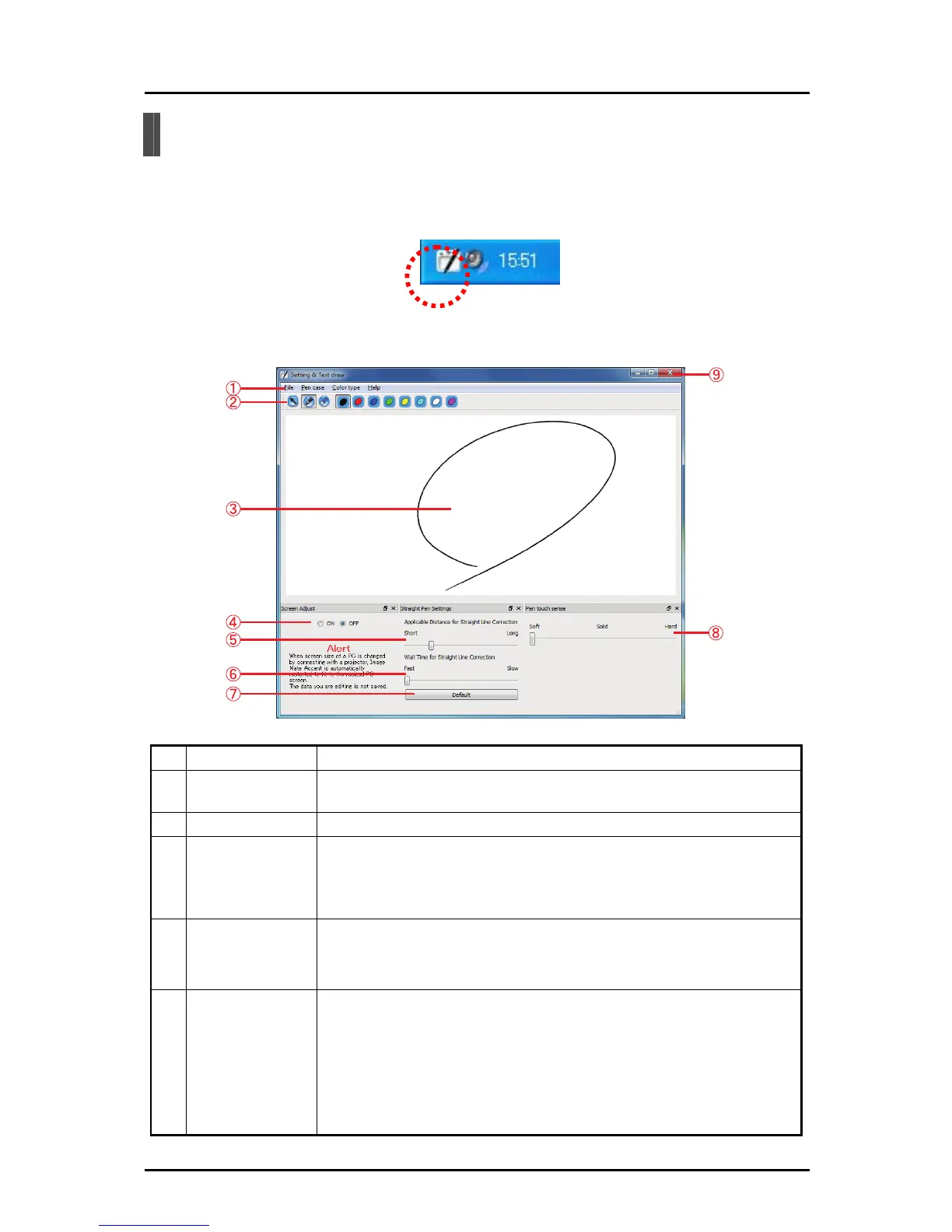
Setting the Pen Writing Style
➊
Double-click the "Image Mate Accent Driver" icon that is displayed on the
taskbar.
Select "Settings and Test Drawing" in the menu.
➋
The Image Mate Accent Driver settings and test drawing screen is
displayed.
①
Menu
To configure settings for drawings or perform operations.
② Drawing settings
Use the eraser button to delete the entire drawing area.
Use the color buttons to change the color of the pen.
③ Drawing area
This is a test drawing area for checking the pen touch sensitivity.
④ Screen adjust
To configure whether or not to forcibly restart the Tablet software (Image Mate
Accent) when the size of the computer screen is changed.
When ON is set, the Tablet software is restarted when the size of the computer
screen is changed; for example, when connecting to a projector.
⑤
Applicable
distance for direct
line correction
To configure the line length at which to perform straight line correction.
When the line length reaches the set value or longer, straight line correction is
performed.
⑥
Waiting time for
direct line
correction
To configure the time until converting to a straight line.
When the elapsed time after drawing reaches the set value or longer, straight line
correction is performed.
If you start to draw again within the set time, straight line correction is not
performed.
If straight line correction is performed while you are writing text, make this setting
longer.
76



 To Next Page