72
English
ADVANCED
OPERATIONS
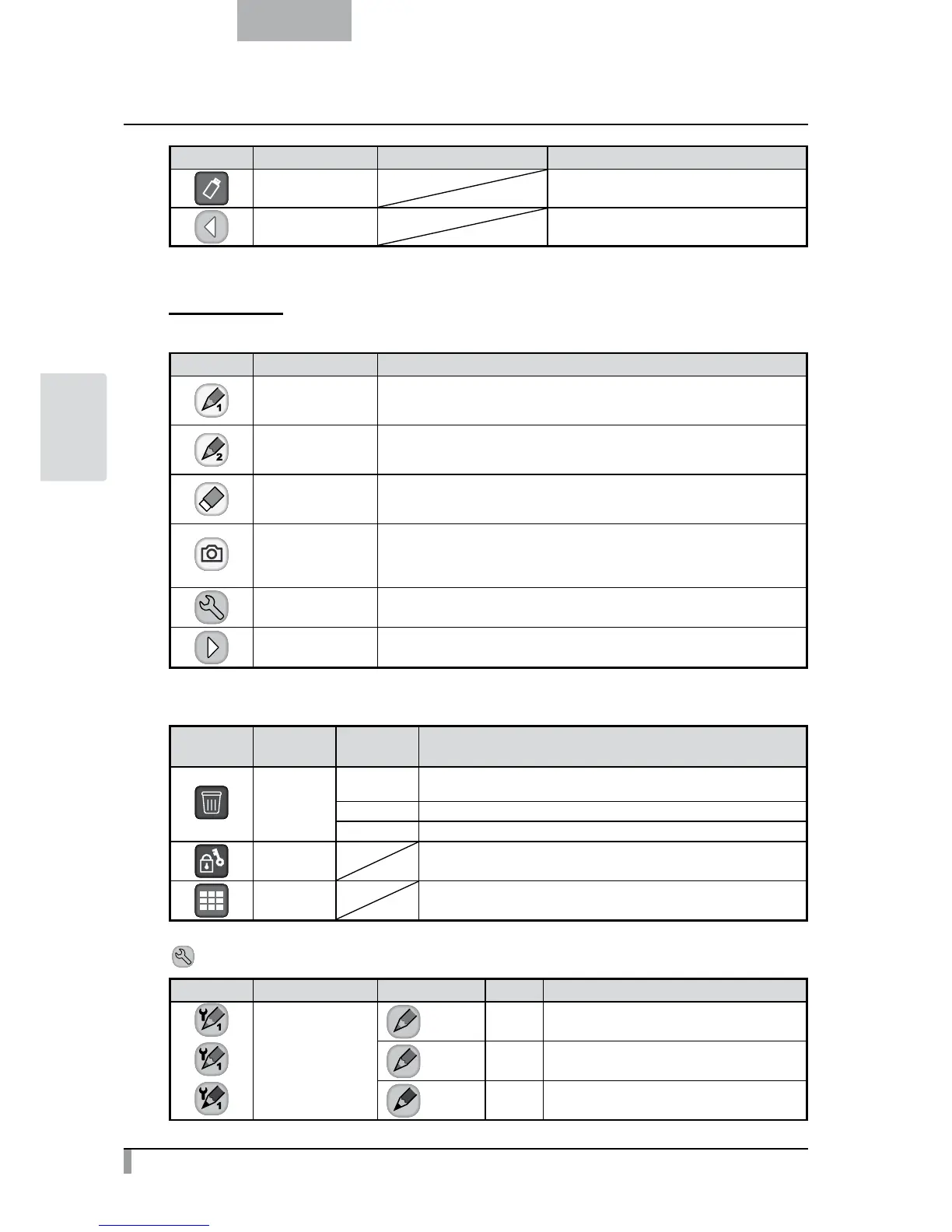
Icon Name Selection Item Function
USB Flash Drive
To change the memory device to save or dis-
play the image.
Prev Menu To move to the previous menu page.
Single Mode
• Picture Display Menu 1
Icon Name Function
Pen 1
To select Pen 1.
The initial color setting is Red.
You can change the settings for the pen in the Setting menu.
Pen 2
To select Pen 2.
The initial color setting is Black.
You can change the settings for the pen in the Setting menu.
Clear Screen
To erase anything drawn on the screen.
If you need to erase a part of a drawing, move the cursor to the section to be
erased, and touch the section with the pen while pressing the pen Erase button.
Capture
To capture the image currently displayed on the screen as a picture and save it
on the SD card.
This feature captures only the displayed camera image and your comments/
drawings; the cursor and menu icons are not captured.
Setting To specify the settings for Pen and Eraser.
Next To go to Menu 2.
• Picture Display Menu 2
Icon Name
Selection
Item
Function
Delete
Yes
To delete the image displayed on the screen (You can not delete the
image if it is protected).
No To cancel deletion.
Exit Exit the current menu.
Memory Lock
To lock (set as protected) or unlock (set as unprotected) the selected
image.
Thumbnail
Display
To display thumbnails (a list of pictures or movies).
Setting Menu (when Setting Menu is selected)
Icon Name Selection Item Default Function
Pen 1 Color
Red
✔
To set the pen color to red.
Blue To set the pen color to blue.
Black To set the pen color to black.


 To Next Page