11b/g Wireless Long Range Multi-function 7+1 AP Version 1.1
20
4.4 Wireless
Click on the Wireless link on the navigation
drop-down menu. You will then see four
options: wireless network, wireless MAC filter,
WDS link settings, and wireless advanced
settings. Each option is described below.
4.4.1 Wireless Network
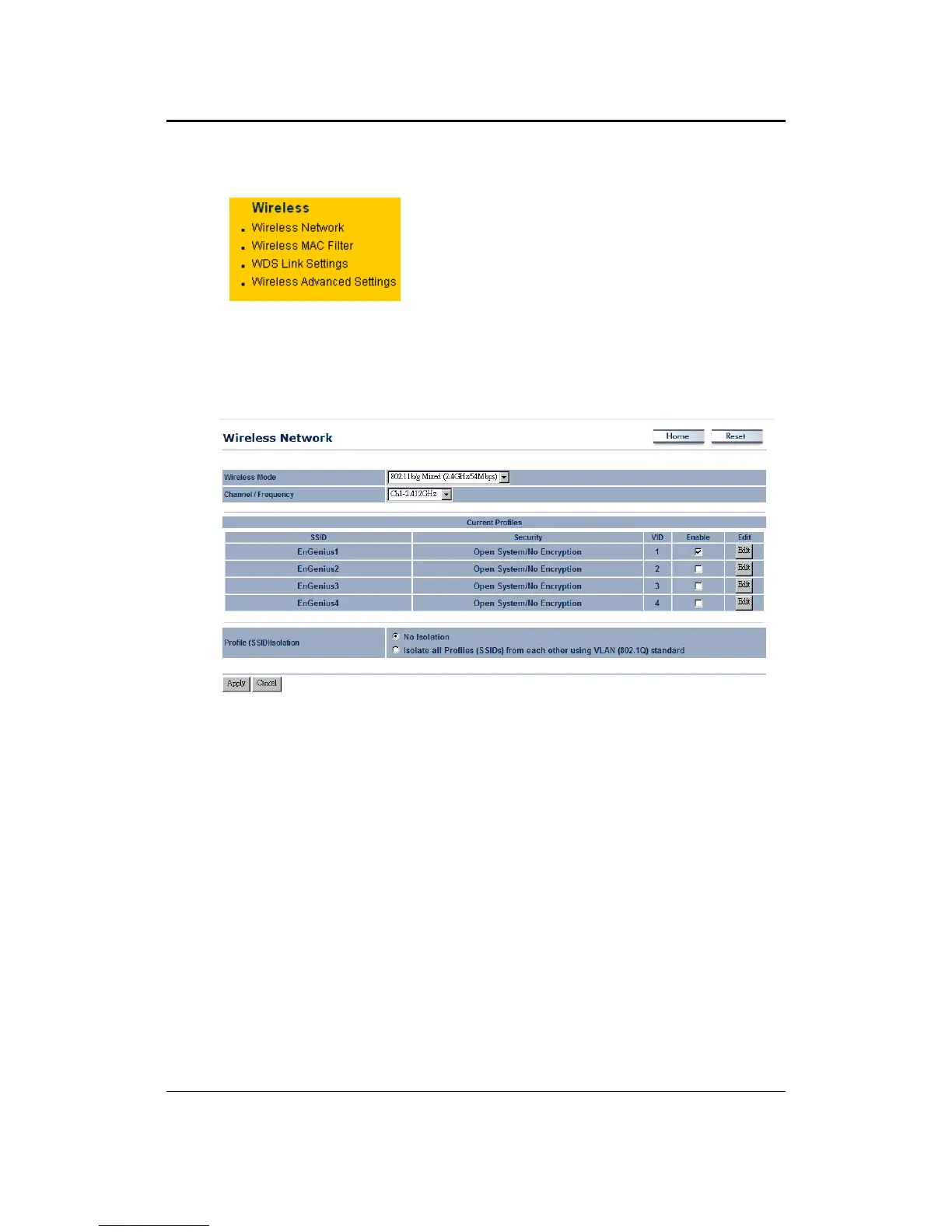
The Wireless Network page allows you to configure the wireless mode, channel,
SSID, and security settings.
Wireless Mode: Depending on the type of wireless clients that are connected to the
network, you may select B, G, B/G-mixed and SuperG. If you are not sure about
which clients will be accessing the wireless networks, it is recommended that you
select B/G-mixed for the best performance.
Note:
In order to achieve 108Mbps data rate, you will need to check the client card is
supporting to 108Mbps as well. If your client device is not super G supported, you
can only get 54Mbps throughput only.
The AP default is set as Dynamic Super-G mode, which means if there is any non-
super-G supported client surrounded, the AP will switch to normal G automatically.
Channel: Select a channel from the drop-down list. The channels available are
based on the country’s regulation. When selecting Infrastructure mode, a channel is
not required, however, when selecting Adhoc mode, you must select the same
channel on all points.
Current Profiles: You may configure up to four different wireless profiles. Click on
the Edit button to modify the profile and place a check in the Enable box to activate
the profile.



 To Next Page