11b/g Wireless Long Range Multi-function 7+1 AP Version 1.1
45
Restore saved settings from a file: Once a file has been backed up, you may
restore it by clicking on the Browse button to select the file, and then the Restore
button.
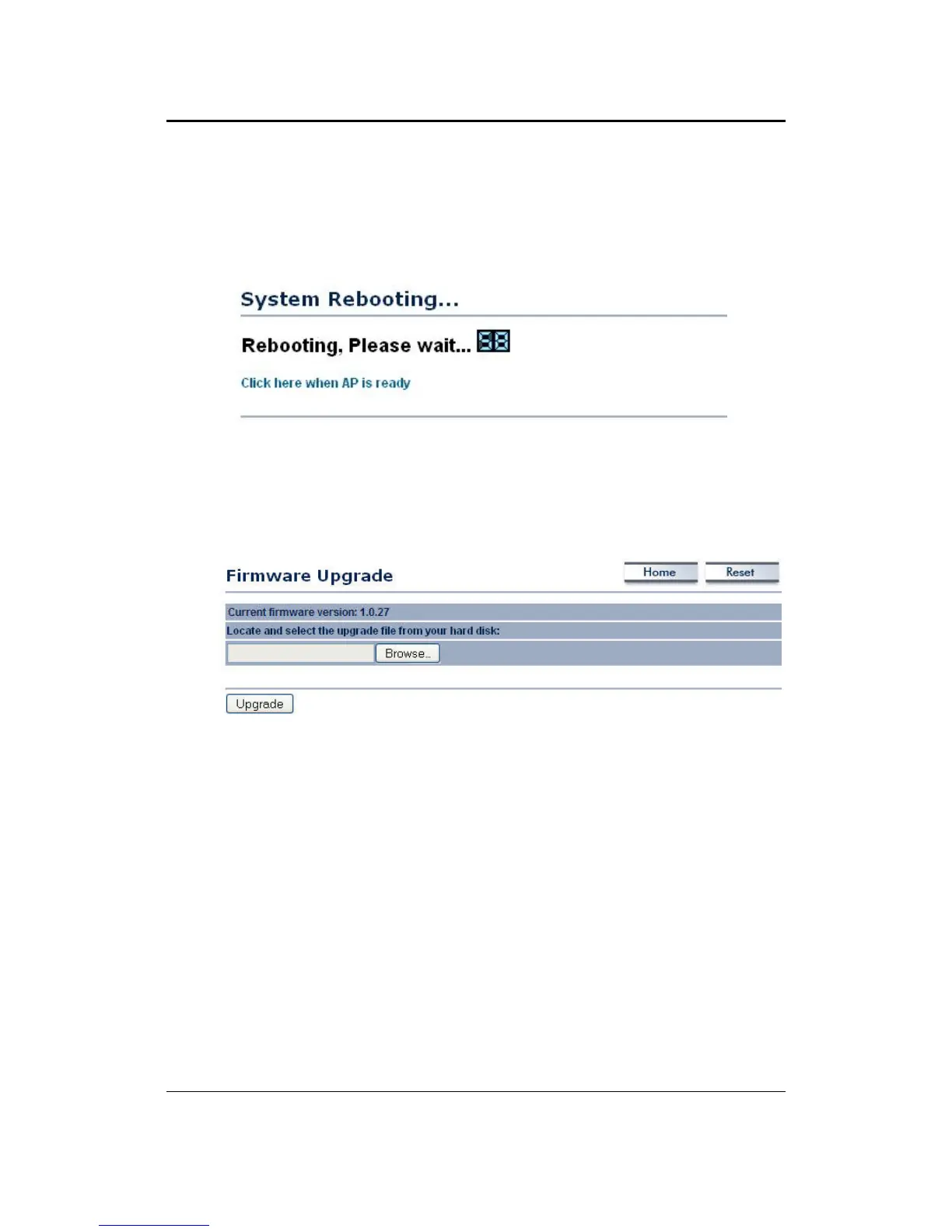
Revert to factory default settings: Click on the Factory Default Settings button to
reset the device to the default settings. Please wait while the device restart and then
access the device using the default IP address: 192.168.1.1
5.5.4 Firmware Upgrade
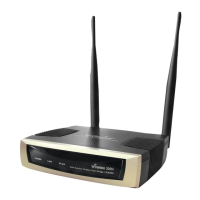
Click on the Upgrade Firmware link under the Management menu. This page is
used to upgrade the firmware on the device. Make sure that downloaded the
appropriate firmware from your vendor.
Click on the Browse button and then select the appropriate firmware and then click
on the Upgrade button.
Note: The upgrade process may take about 1 minute to complete. Do not power off
the device during this process as it may crash the device and make it unusable. The
device will restart automatically once the upgrade is complete.
5.5.5 Time Settings
Click on the Time Settings link under the Management menu. This page allows you
to configure the time on the device. You may do this manually or by connecting to a
NTP server.



 To Next Page