41
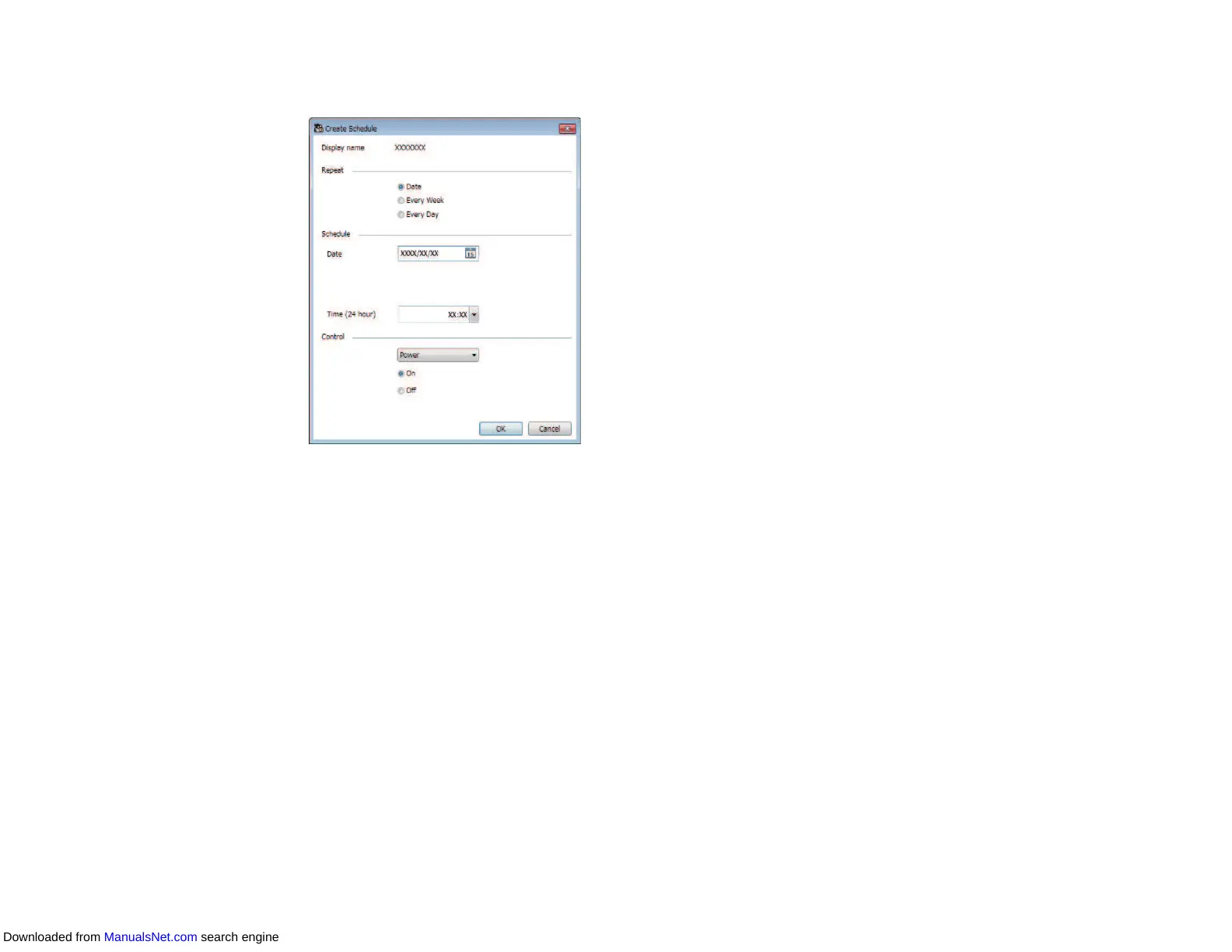
4. Select the date and time for the scheduled event, then select the operation you want performed.
Note:
• If you schedule an event that requires the projector to be turned on, the projector turns on
automatically, even if you do not specify a power-on event.
• Before activating the Auto Setup feature, allow the projected image to become steadily bright,
without any flickering. Be sure to select a power-on event prior to the Auto Setup event to allow
the projected image to become steadily bright.
• Turn on all projectors before using the Auto Setup feature. Be sure to select a power-on event for
all projectors on which you want to use the Auto Setup feature.
5. Select OK to save your settings.
The event schedule is saved.
Note:
• To edit the event schedule, select the event in the Schedule Settings screen and select Edit.
• To remove a scheduled event, select the event in the Schedule Settings screen and select Delete.
Downloaded from ManualsNet.com search engine


 To Next Page