53
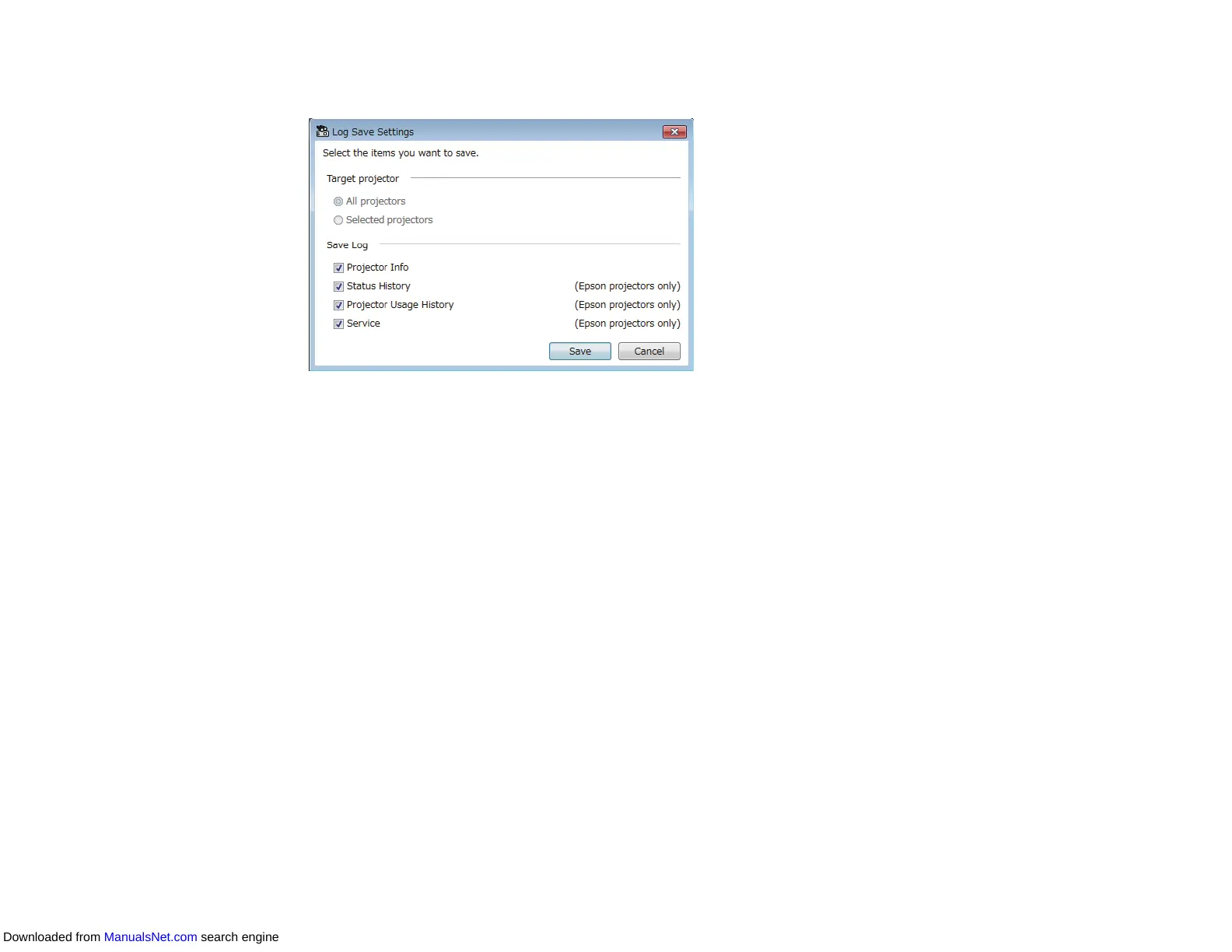
The Log Save Settings screen appears.
2. Select the target projector.
• Select All projectors to include all registered projectors.
• Select Selected projectors to include only the selected projectors.
3. Select the type of information you want to save in a log file, and then select Save.
4. Specify the output folder and file name, and then select Save.
The zip file is created to the specified folder.
Parent topic: Using Additional Functions
Updating the Registered Information
When you replace a registered projector, the software automatically detects it and displays a message.
When the message appears, you can update the registered information.
Note: Any schedule events associated the replaced projector are still enabled.
1. On the Epson Projector Management main screen, select the replaced projector. You can select
multiple projectors or all projectors by selecting checkboxes as necessary.
2. Right-click any selected projector in the list, and then select Process Replaced Projector.
Downloaded from ManualsNet.com search engine


 To Next Page