Menus and Toolbars 57
This will change the display mode of the software to show you a copy of
how a printout of the currently selected file and window would look like. In
"Print Preview" mode you will not be able to zoom in or out of a graph.
Click “Close” to exit the "Print Preview" mode and return to normal display
This will open a window allowing you to view and/or adjust one or more of
your printer's settings.
When User Admin software is installed, users must logon to the software
prior to being permitted to use the software. When User Admin software is
not installed this feature will be greyed out.
Log On ( )
This allows a user to logon to and use the ConsolePro software. Therefore,
this command will only be available if the ConsolePro software is connected
to the User Admin software. If a user is already logged on to the software,
then this command is not visible.
( )
This allows the currently logged on user to logoff the ConsolePro software.
If there is no currently logged on user, this command is not visible.
Change Details
...
This allows the currently logged on user to modify their password that they
use to logon to the ConsolePro software. This command will only be
available if User Admin software is installed and the User Admin
administrator has granted the appropriate user permissions.
Send
... ( )
This will help you send, by email, the currently open and selected file to
another user without the need to exit to your email software or to deal with
file attachments. This command is explained in further detail in the section
"
Sending a file by email direct from Console
".
Properties
...
This will open a window that will display the information about the file that is
being displayed and currently selected. This same window and information
will be displayed if you view the properties of the file from Microsoft
Digital Sign
... ( )
This will open a window to display a list of digital signatures that have been
included with the file. It also allows you to add and print this list of digital
signatures. This command is explained in further detail in the section
This portion of the menu represents a list of the most recently files you
have viewed. To reopen one of these files, simply click on the entry (name
of the file) to open. If a file that you want to view is not included in this list,
you may use the "Open..." command included in this menu. The number of
files included in this list can be adjusted through the "
File
" section of the
This command will exit and close down the ConsolePro software. Any files
that you currently have open will also be closed automatically for you. If a
user is currently logged on to the ConsolePro software when the
ConsolePro closes, the user will be automatically logged off. F you have
downloaded data from a logger and not saved it, you are prompted whether
Edit Menu
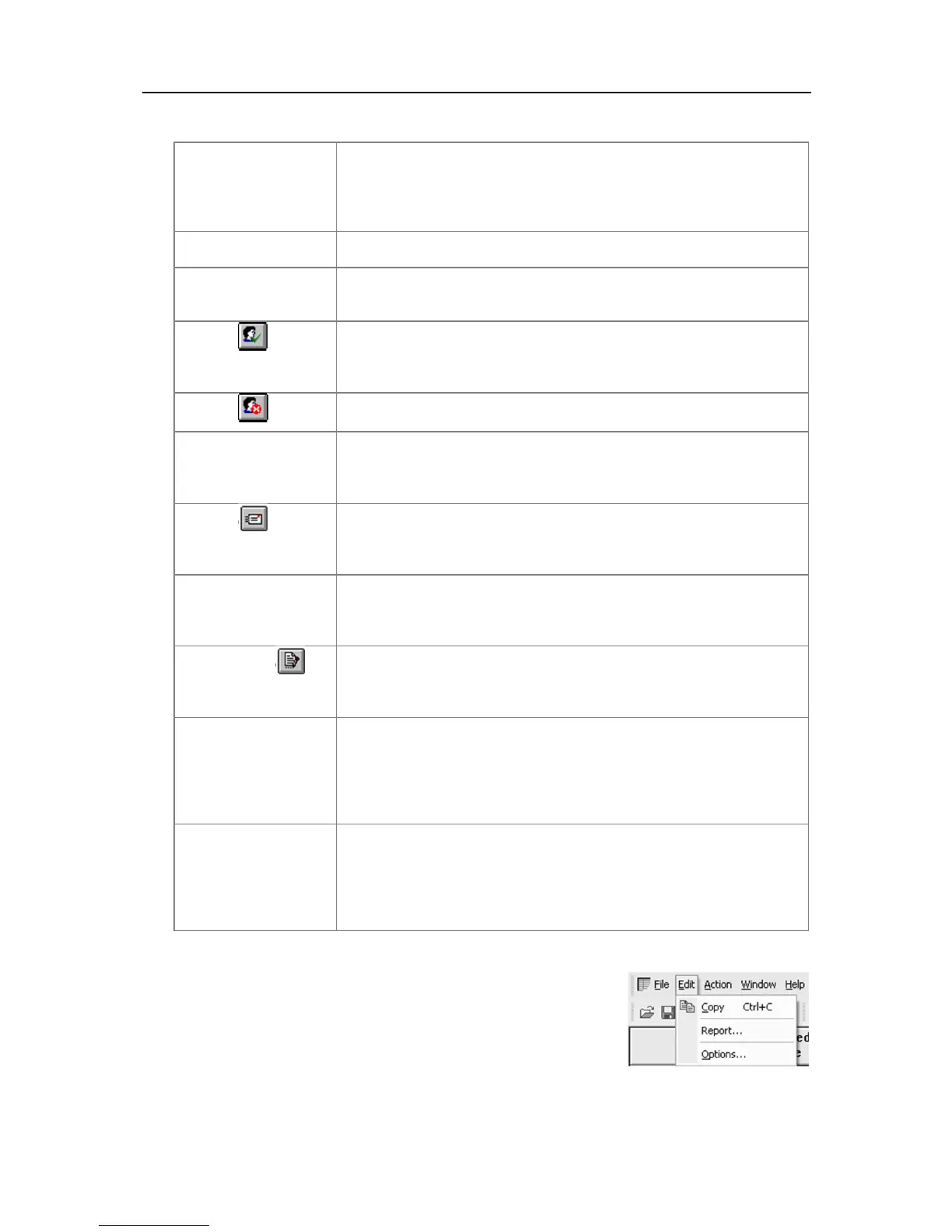
The "Edit" menu contains commands that generally relate to the contents
of an iMiniPlus file and will appear similar to the following picture.
The following table outlines the commands and the explanation of each
command that may appear in the "Edit" menu when using the ConsolePro
software:


 To Next Page