Menus and Toolbars 61
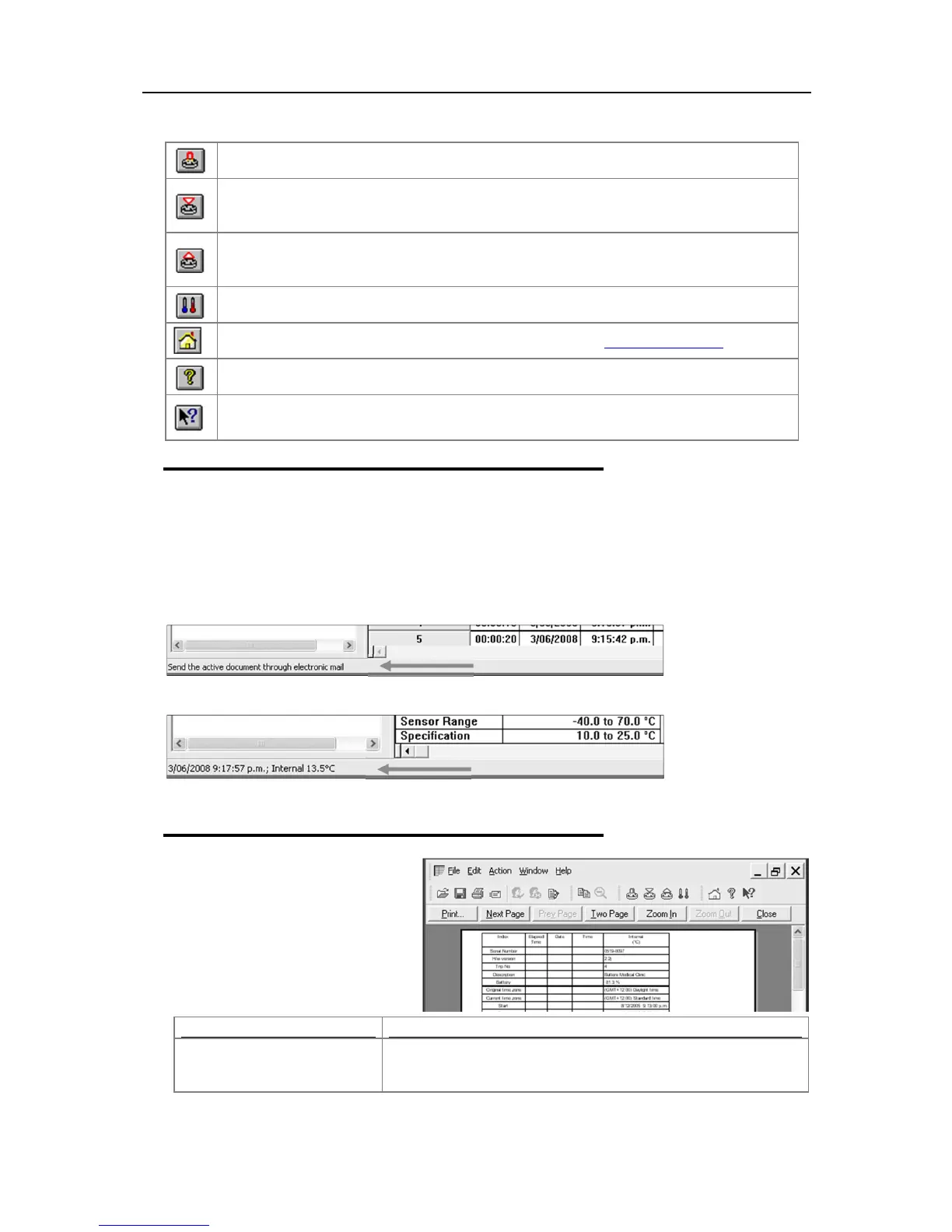
Opens Restart Wizard that reprograms iMiniPlus using previous logging settings for new
logged trip.
Opens Program and Configure Wizard to help you through the necessary steps to prepare the
iMiniPlus for its next use. This command is explained in further detail in the chapter
"
Preparing iMiniPlus for use”
Opens Download Information Wizard to help you through the necessary steps to retrieve a
copy of the recorded readings stored within the Escort(s). This command is explained in
further detail in the chapter "
Results from iMiniPlus
".
This feature is not available for the iMiniPlus.
Opens your default Internet browser software and display www.cryopak.com
Displays the version information about the ConsolePro software that you are using.
This will allow you to show the help topic on any particular command or topic that you
subsequently select.
Status bar
The status bar is a handy one line instruction of a menu activity or shows the graph co-ordinates. It is
displayed at the bottom left of the ConsolePro window.
To hide or display the Status Bar, choose
Options
from the
Edit
menu and uncheck or check
Display the
Status Bar
option from the
General
tab.
Description of the Menu activity. When a menu item is selected the appropriate description will appear in
the Status Bar.
Displays the date, time and temperature along the x-axis when a 2D graph is displayed.
See sections 2D graphs and View Data in Graph.
Print preview toolbar
The print preview feature, available
through the
File menu
, of the software
will display copy of the data as it would
be included on a print out. When the
software is displaying a file in print
preview mode, an additional toolbar will
appear, similar to the following picture.
This will open a window allowing you to print a copy of the iMiniPlus
file to an output device, which will typically be a printer. This
command is further explained in the section "
Printing the results
".


 To Next Page