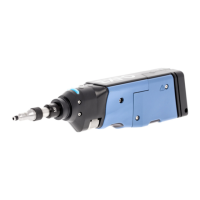
Setting up Your Fiber Inspection Probe and ConnectorMax2 Mobile
24 FIP-400B
Connecting or Disconnecting the Wireless Probe
To install ConnectorMax2 Mobile:
1. Ensure that you have access to an Internet connection.
2. Tap the Google Play Store icon.
3. In the Google Play Store (or Play Store) application, search for EXFO
or ConnectorMax2 Mobile.
4. Follow the instructions on-screen.
Once the ConnectorMax2 Mobile application is installed, you can now
activate the wireless probe.
Connecting or Disconnecting the Wireless
Probe
When your wireless probe is detected, it is added to the list of the available
probes. The probes are identified by their serial numbers and type.
It is also possible to disconnect the probe if you want to perform the
following:
Work with another probe
Work with another smart device
Note: Once a connection has been established with a wireless probe, the latter
remains connected as long as you do not disconnect it. However, when the
application is in standby mode, the connection is lost. The application will
try to reconnect automatically when the image reappears on screen.
When the ConnectorMax2 Mobile application is installed on your smart
device, you have to connect your wireless probe by Wi-Fi. When your
wireless probe is connected it is added to the list of the available probes. It
remains available for future tests.



 To Next Page