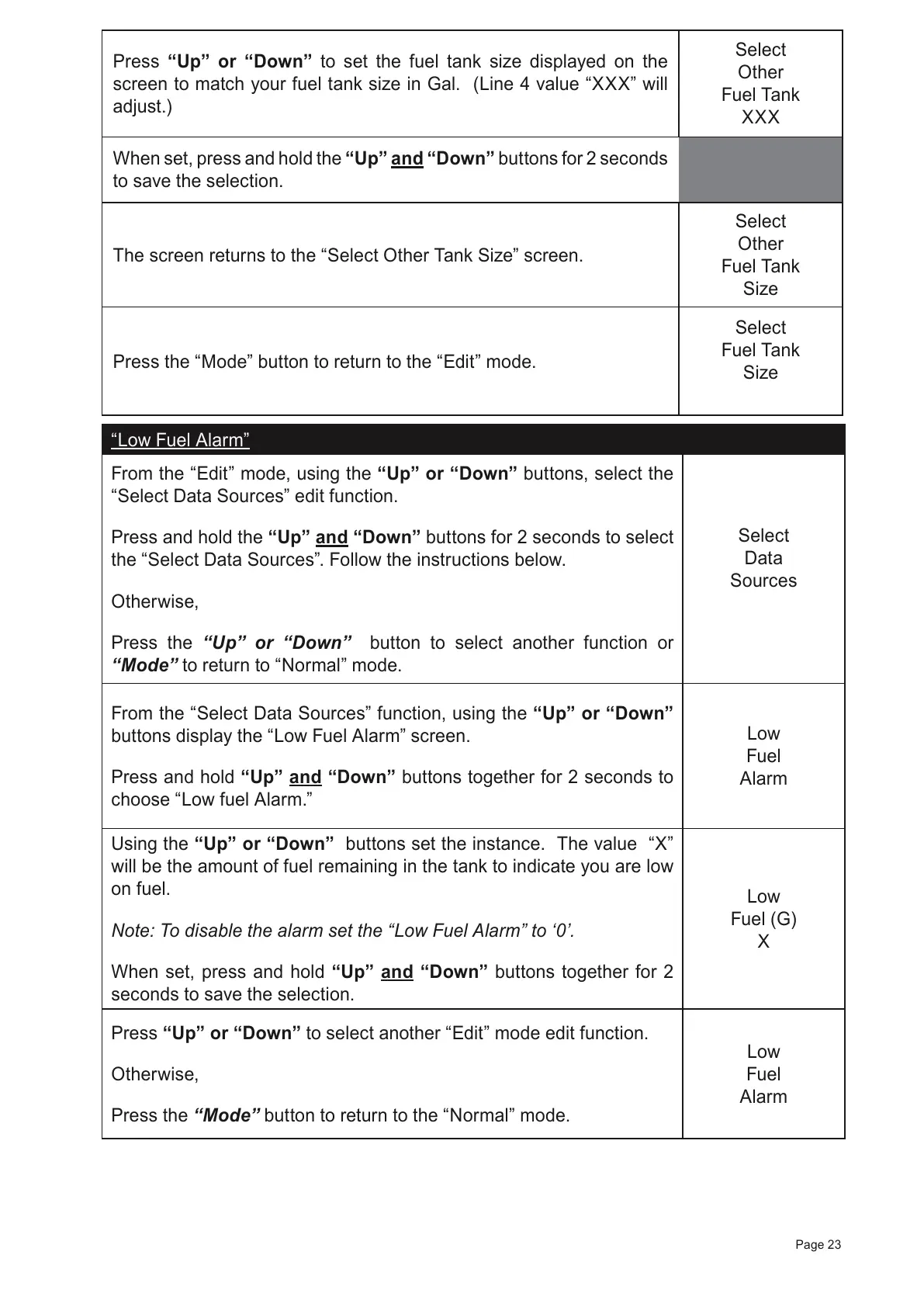
Press “Up” or “Down” to set the fuel tank size displayed on the
screen to match your fuel tank size in Gal. (Line 4 value “XXX” will
adjust.)
Select
Other
Fuel Tank
XXX
When set, press and hold the “Up” and “Down” buttons for 2 seconds
to save the selection.
The screen returns to the “Select Other Tank Size” screen.
Select
Other
Fuel Tank
Size
Press the “Mode” button to return to the “Edit” mode.
Select
Fuel Tank
Size
“Low Fuel Alarm”
From the “Edit” mode, using the “Up” or “Down” buttons, select the
“Select Data Sources” edit function.
Press and hold the
“Up” and “Down”
buttons for 2 seconds to select
the “Select Data Sources”. Follow the instructions below.
Otherwise,
Press the “Up” or “Down” button to select another function or
“Mode” to return to “Normal” mode.
Select
Data
Sources
From the “Select Data Sources” function, using the “Up” or “Down”
buttons display the “Low Fuel Alarm” screen.
Press and hold “Up” and “Down” buttons together for 2 seconds to
choose “Low fuel Alarm.”
Low
Fuel
Alarm
Using the “Up” or “Down” buttons set the instance. The value “X”
will be the amount of fuel remaining in the tank to indicate you are low
on fuel.
Note: To disable the alarm set the “Low Fuel Alarm” to ‘0’.
When set, press and hold “Up” and “Down” buttons together for 2
seconds to save the selection.
Low
Fuel (G)
X
Press “Up” or “Down” to select another
“Edit” mode edit function.
Otherwise,
Press the
“Mode” button to return to the “Normal” mode.
Low
Fuel
Alarm
Page 23



 To Next Page