FARO Gage
May 2011
22
Chapter 3: Operation
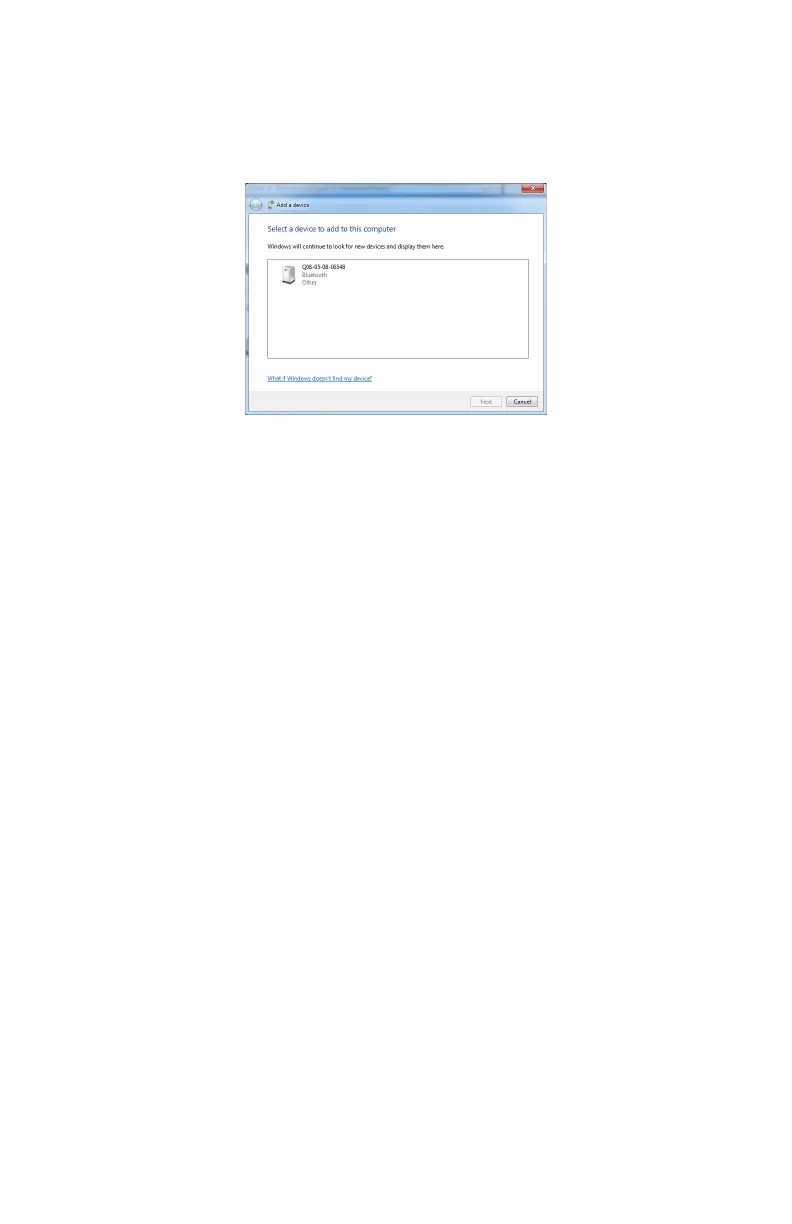
1 Click START < DEVICES AND PRINTERS. Choose ADD A DEVICE from
the menu in the upper left corner of the window.
2 All Gages are identified by their serial number. Double-click your Gage.
3 Choose the E
NTER THE DEVICE’S PAIRING CODE option.
4 Enter the Gage pairing code, faro and click the NEXT button to create the
SSP connection. Look down at the status bar in the lower right corner of the
screen to see what COM port is assigned to your Gage. This is usually COM3.
Write down your SPP connection COM port
______________________
This number is important and will be used later.
Computer to the Gage Driver Connection
The Gage USB driver connects to the SPP connection using the FARO Bluetooth
Connection Setup utility software.
• Start FARO Bluetooth Connection Setup utility software program.
• Click the NEW button.
• Type a name for your connection
•In the P
ORT list select the proper COM from the Devices and Printers category
of the Control Panel (e.g. COM3). This is the port that you previously wrote
down.
• Click the OK button.
A test is automatically run to verify that the COM port is connected to the
Gage.
Figure 3-10 Connecting the Gage to the Computer
08M47E00_FAROGage.book Page 22 Wednesday, June 8, 2011 4:12 PM


 To Next Page