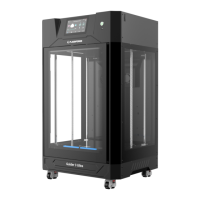
3. After connecting Guider 3 Ultra to the network, enter the cloud platform interface
(click the Settings icon -> Cloud Platform icon). Turn on the Polar Cloud switch
(it should display green). Enter the account and PIN code, and then click [Save].
4. Once the connection is completed, you can view the printer's information on the
home page of Polar Cloud.
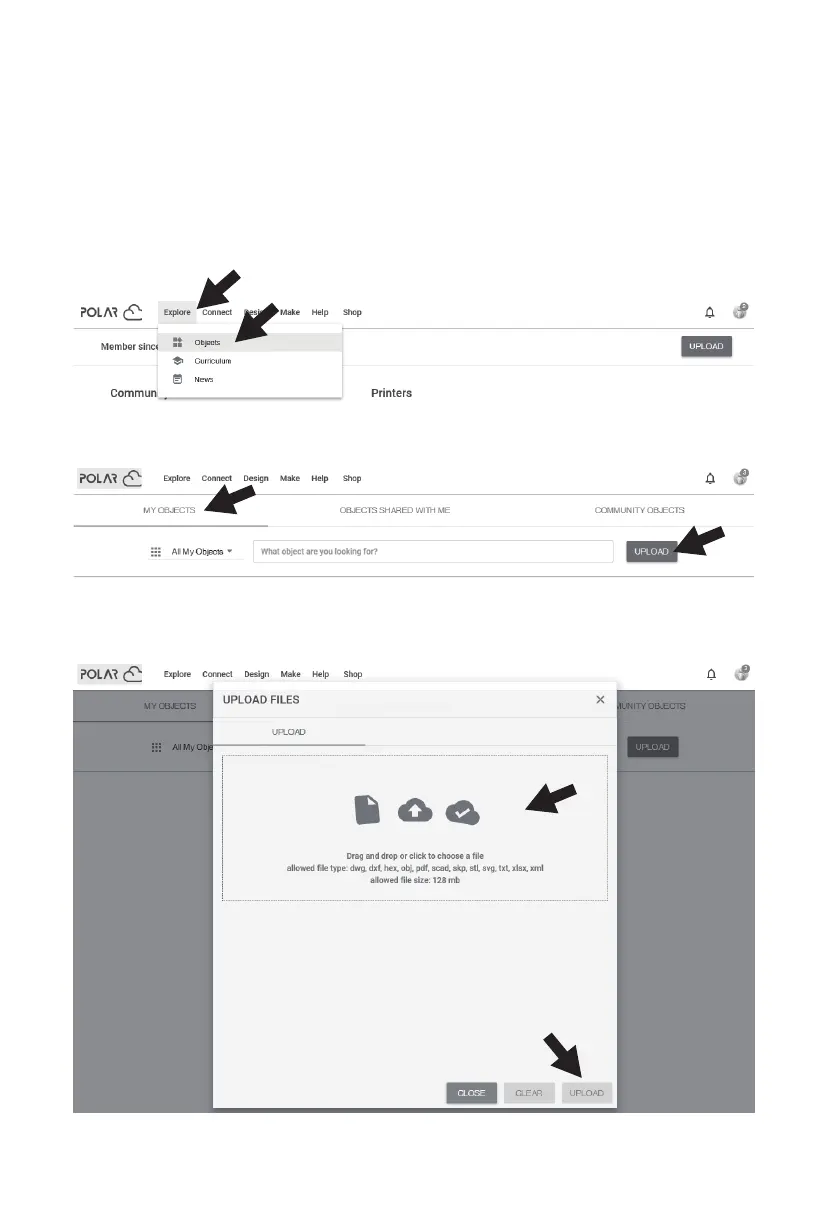
5. Click [Explore] in the top menu bar, and then select [Objects] from the drop-down
list.
6. Click [MY OBJECTS], and then click [UPLOAD] to upload a model.
7. Drag and drop the model file to be uploaded into the box area or click the box area
to select a model for upload. Then, click [UPLOAD].
28





 To Next Page