iTuner Manual
2
2 IP Address Configuration and Connection
An iTuner is a TCP/IP device connected over Ethernet. As such, the user needs to ensure that all
iTuners, as well as other TCP/IP devices, connected to the system have a unique IP address. This
is accomplished by connecting each individual iTuner to the system one at a time. The user
must then configure each tuner. Furthermore, the computer used must be set to a fixed IP
address. This procedure is described using the HyperTerminal TCP/IP client that is included with
Microsoft Windows (note: any telnet client may be used).
2.1 Setting the computer’s IP address
(* This step may cause other network features to stop working depending on your LAN setup
.
For more information see your network administrator.)
Before setting the IP address(es) of your iTuner(s), the computer’s own IP address must be set.
Note also that the windows displayed may be slightly different than those displayed here,
depending on the version of Windows.
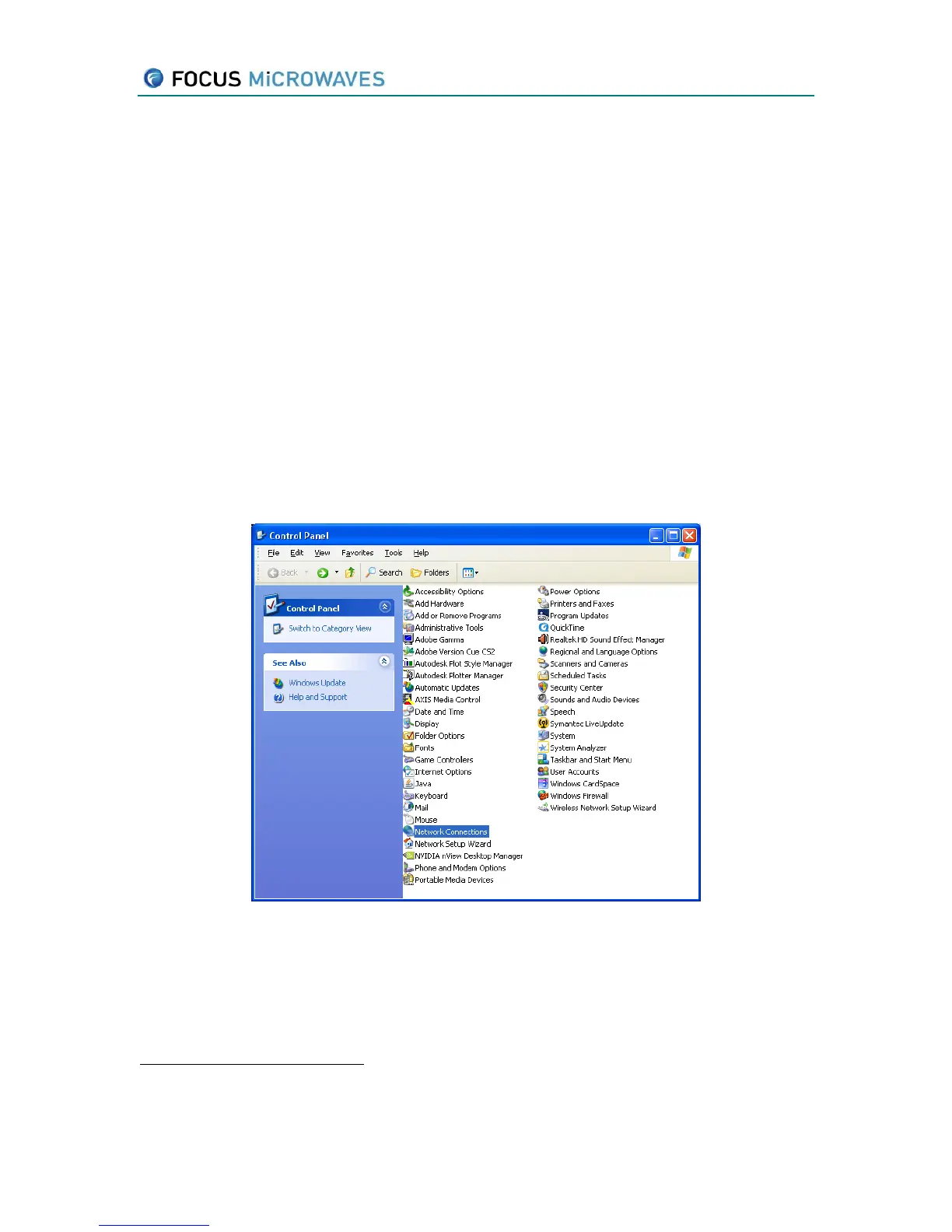
1. Open the Windows Control Panel and choose Network Connections.
Figure 2-1
2. Right click the Local Area Connection entry and select properties
In particular if your network has DHCP enabled, your network administrator must assign your computer
a fixed IP address.



 To Next Page