7
1 INTRODUCTION
THE HOME PAGE: PRESETS
Once you have connected your FM3 you can begin to audition factory preset sounds. Remember that aside from
a few templates, the factory presets are designed for use with full-range speakers / monitors / headphones. (See
Section 4 for details on many other types of setups.)
The FM3 contains 512 preset memories, each like a fully independent rig with its own amps, cabs, effects,
settings, controllers, and more. When you consider everything that is possible with Scenes and Channels, a single
preset can cover an entire song, or even a whole show.
Here’s how to explore the factory presets:
Press HOME to show the Home page,
where you can switch presets.
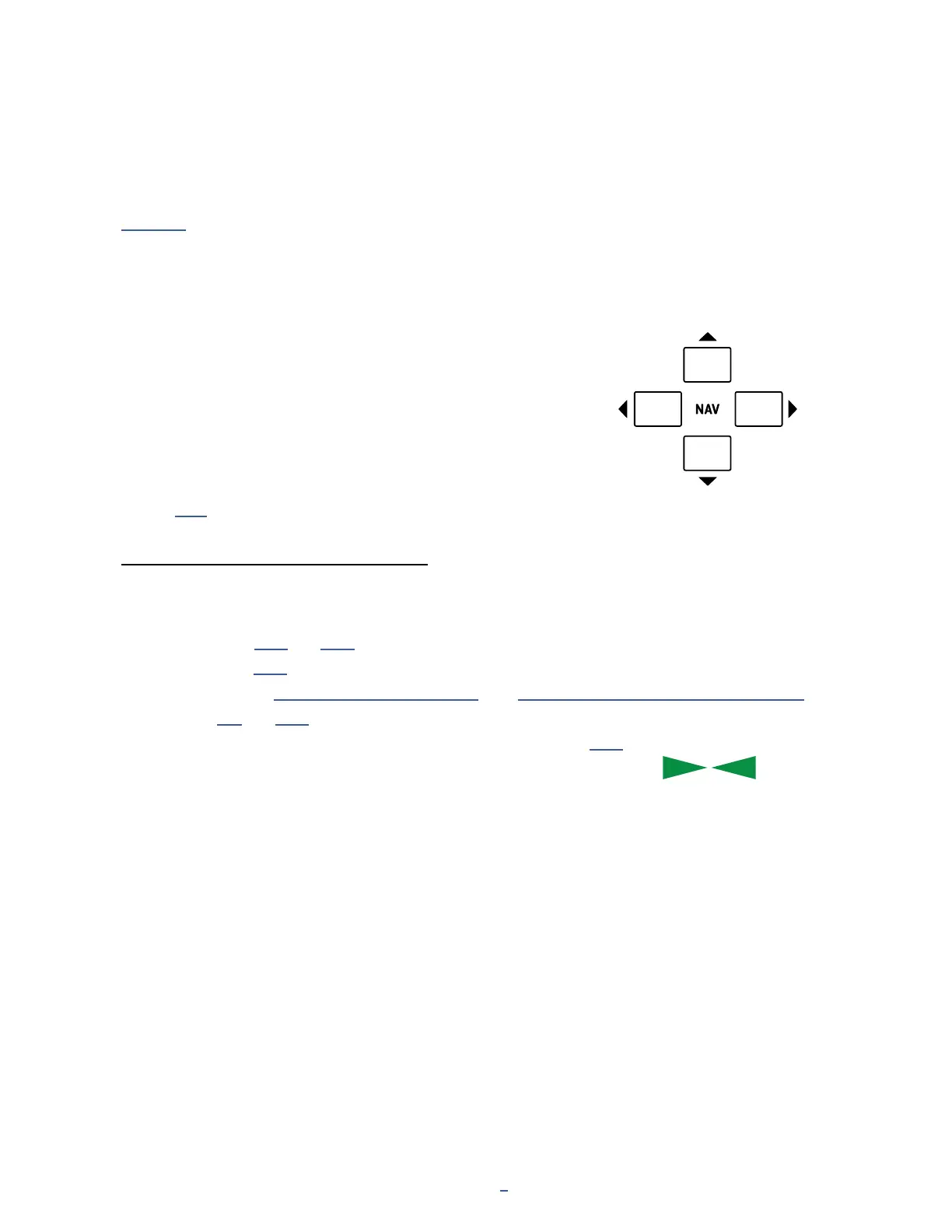
To change presets, turn the VALUE
knob or use the NAV buttons.
Many factory presets contain extra Scenes.
You can switch between Scenes using the NAV buttons or by
turning knob A.
See p. 15 for an introduction to Scenes.
OTHER HOME MENU FUNCTIONS
The push functions of the ve knobs on the Home page of the Home menu provide access to other areas:
Tuner
Layout grid (p. 14 and p. 40)
Controllers (p. 65)
FC Per-Preset (“Per-Preset Switches” on p. 79; also “The Footswitch Functions Guide” on p. 18)
Setup (p. 3 and p. 87)
Turning knob E changes between different foot control “Layouts” (p. 69).
A mini-Tuner appears at the top of the Home page itself in the form of two
green triangles. When both are shown, the note is in tune.
The Home menu also provides access to the Presets directory page,
listing all presets in a scrolling list sorted by number.
PAGE to the Presets page to show the directory.
To sort alphabetically by name, press the “Sort A–Z” button.
The ENTER key loads the selected preset and returns to the Home page.
The Meters page provides visual indication of all input and output levels, including USB.
Previous Scene
Previous
Preset
Next
Preset
Next Scene


 To Next Page