62
9 MODIFIERS
MODIFIER PARAMETERS
The default modier settings are linear. You change the source and the parameter follows in direct relationship.
Modier parameters allow you to change this relationship. You might tune the taper of a pedal, or make it work in
reverse. Maybe you want the parameter attached to a footswitch to glide instead of snap. Here is an overview of
the additional parameters you can use to create these effects and many more. Find these options on the Modify
page when you set up any modier.
Min and Max determine the range of parameter change. These are extremely important parameters.
EXAMPLE: The modier for a pedal controlling Delay Feedback has Min at “10%” and Max at “50%”. The
feedback sweeps only from 10% to 50 as the pedal is moved, even though this parameter’s actual range is
from -100% to +100%.
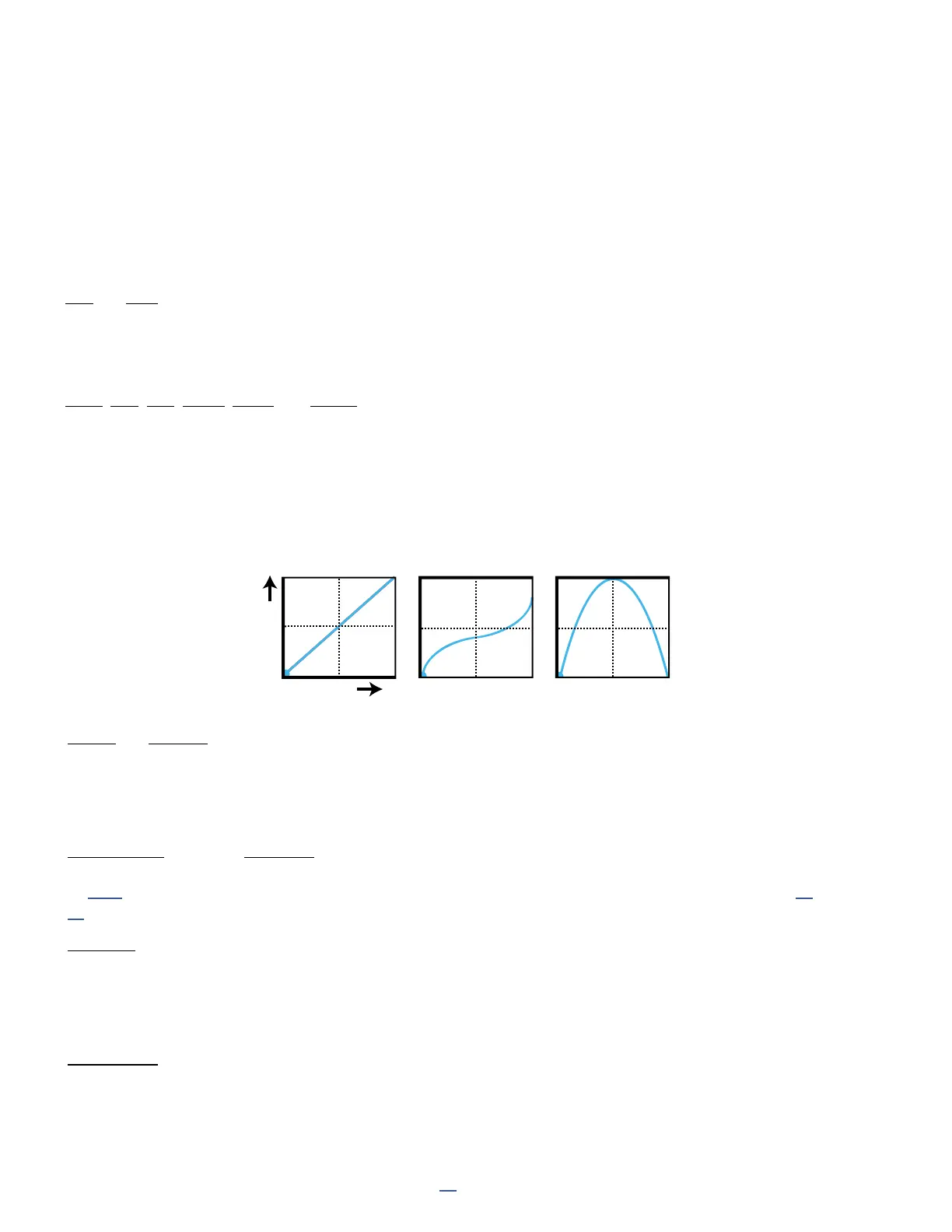
Start, Mid, End, Slope, Scale, and Offset are used to create custom curves which re-map the relationship
between the modier source and the value of the target parameter. On the Modify page, a graph shows the
relationship between the source (x-axis) and the parameter (y-axis). A dot on the graph tracks the source.
The default settings (rst graph below) create a 1:1 linear relationship (the blue line) between source and
parameter. As the source changes, the parameter tracks it directly.
The second two graphs below show examples of the kinds of non-linear curves you can create using Slope, Scale,
and Offset. The pages which follow contain more examples.
Attack and Release: These values apply “damping” to slow the rate at which the target parameter value chases
the source. Attack determines the rate of change as the source is increased, and Release controls the rate as it
decreases. At low settings, these add just a little smoothing. Try settings of about 5 ms to “relax” a pedal or to
ease the edges of a square LFO to eliminate clicks and pops. Higher settings can cause sound changes to be
extremely slow and lazy.
Auto-Engage works with Off Value to create effects which turn ON or OFF automatically whenever the source
controller is moved. This is typically used with a Wah pedal so you don’t need a toe switch. (Follow the example
on p. 60 and set AUTO-ENGAGE to “SLOW POS” to try it out!) Find additional information on Auto-Engage on p.
64.
PC Reset sets the value of an external source when a preset rst loads. This allows you to override the actual
position of an external controller until it is moved or updated. Here’s how it works: after applying the modier,
exit to the parameter again on its Edit page. Notice that the value of that parameter can be edited as usual. If PC
Reset is ON, the value you set and then save will be used from preset load until the source is changed (i.e. the
pedal has been moved).
Update Rate controls how often the modier is refreshed. The setting of slow is actually very fast, and ne for
the vast majority of applications. The faster settings require additional CPU but provide even smoother sound
performance when ultra fast changes are required (while using a fast LFO for instance). Check this setting if you
think you hear “zipper noise” while a modier is in use.


 To Next Page