74
10 LAYOUTS & SWITCHES
LAYOUT VIEWS
On an FC-12 controller, all 12 switch denitions of any layout are shown one-to-one across the 12 footswitches.
On an FC-6 controller, only the rst six are normally shown. On the FM3, only three.
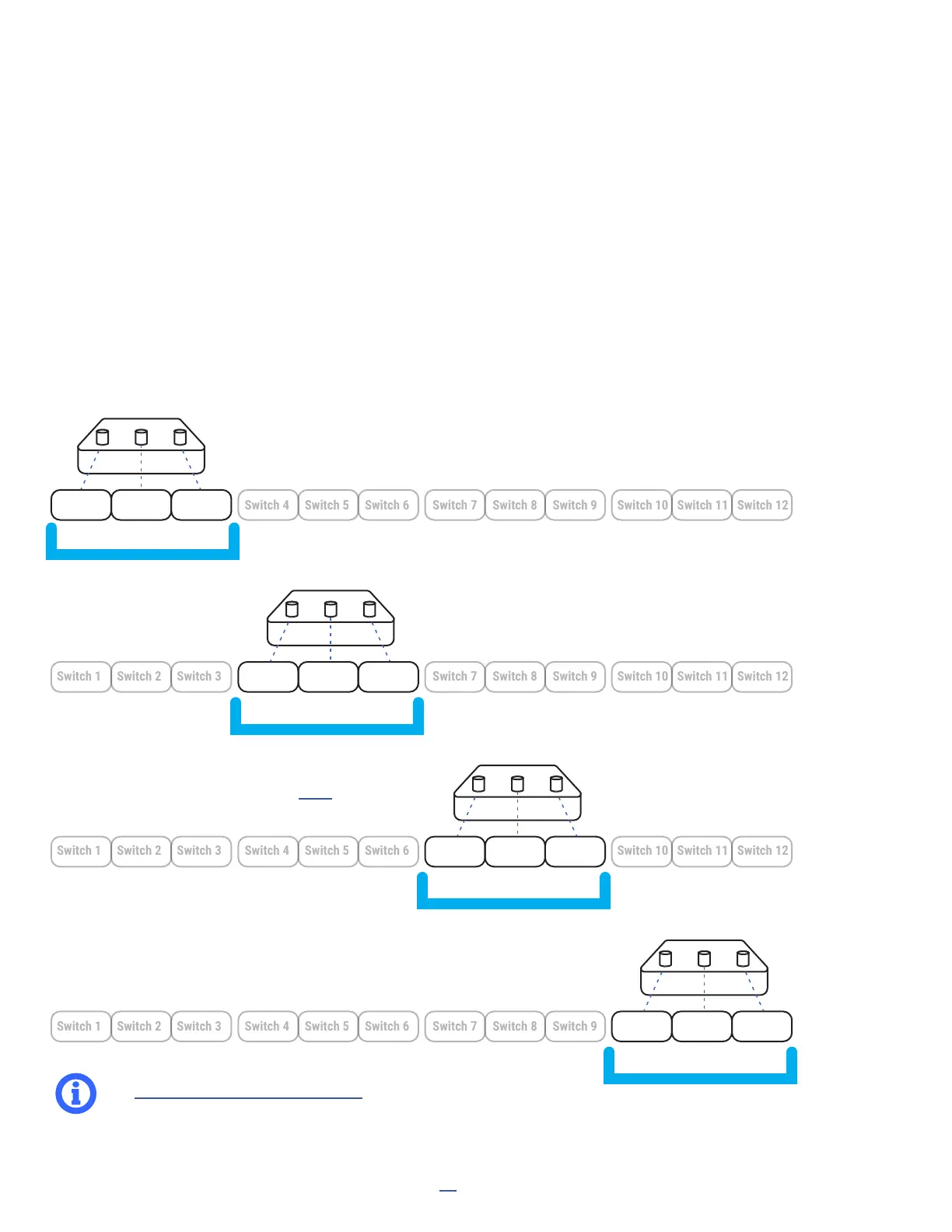
Rather than being wasted, however, the inaccessible switch denitions can be put to use by changing the layout
view. If we think of the FM3 as a window just large enough to show three switches, changing the view moves this
window to show a different set. This concept is illustrated below.
Several of the default layouts — including the Master Layout Menu — use this new feature. For example, when you
press and hold the left or right footswitches in the Scenes layout, a different set of scenes is offered across the
switches of the FM3. In the Effects layout, the same press and hold feature on the outer two switches is used to
change which three effects are controlled by the footswitches.
“View 1”
Switch 1 Switch 2 Switch 3
Switch 4 Switch 5 Switch 6
Switch 7 Switch 8 Switch 9
Switch 10 Switch 11 Switch 12
“View 2”
“View 3”
“View 4”
Here, a layout is loaded and the FM3 shows switches 1, 2, and 3 from that layout.
Let’s say this layout has a “View +1” assigned to press and hold on the right switch...
Now the view has been changed and the
FM3 shows switches 4, 5, and 6.
Some of the factory default layouts (p. 71) use two hold
functions to allow changing the view in either direction.
Here, View 3 shows switches
7, 8, and 9.
Here, view 4 shows switches 10, 11, and 12.
See “The Footswitch Functions Guide” for more information on Views.


 To Next Page