50
6 SCENES & CHANNELS
HOW TO CHANGE A BLOCK’S CHANNEL
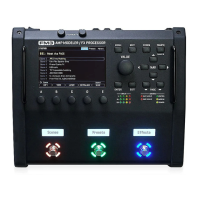
Different areas of the FM3 provide different ways to change block channels:
On the GRID – Select the desired block and turn the Channel knob(B).
The current Channel is shown above the knob.
While EDITING a BLOCK – Press the MORE button (Push-knob E) to show the Scene/Channel strip.
Use the CHANNEL–/+ buttons (Push-knobs C & D) to select a channel.
The current channel is shown near the top center of every page in the Edit menu.
Foot Control – The onboard switches of the FM3, or those on a connected
FC Controller offer a range of dedicated “Channel” options.
MIDI – MIDI and other controllers such as a connected external footswitch can be used
to change the Channel. See “Selecting Scenes & Channels Remotely” on p. 52.
SETTING UP CHANNELS
Whenever you edit a block, you are already programming at least one Channel (usually Channel A). Programming
additional channels is easy: simply select the desired channel as described above, set the various parameters to
their new values, and then save the preset.
TO COPY ONE CHANNEL TO ANOTHER…
The Tools page of the Layout menu (“grid”) provides a utility to copy one Channel to another. This works within a
single block only; you can’t copy a Channel from one block to another, or from one preset to another.
1. Navigate to the Tools page of the Layout menu (grid).
2. Turn the VALUE wheel until “COPY CHANNEL” is shown on the display.
3. Use the D knob to select the scene you want to copy from. Channel letters are shown above the knobs.
4. Use the E knob to select the location you want to copy to.
5. Press ENTER or the on-screen EXECUTE button (Push-knob C) to complete the copy.
6. Test your preset and remember to STORE to make the changes permanent.
While you can’t copy channels across blocks or presets on the FM3 itself, you can do this using
FM3-Edit, the free companion software editor for the FM3.


 To Next Page