73
10 LAYOUTS & SWITCHES
EASY (“EZ”) EDITS
The FM3 makes it simple to change any footswitch in any layout to perform any function.
The easiest way to do this is with the “EZ” Switch edit page as described below.
TO USE THE EZ EDIT PAGE:
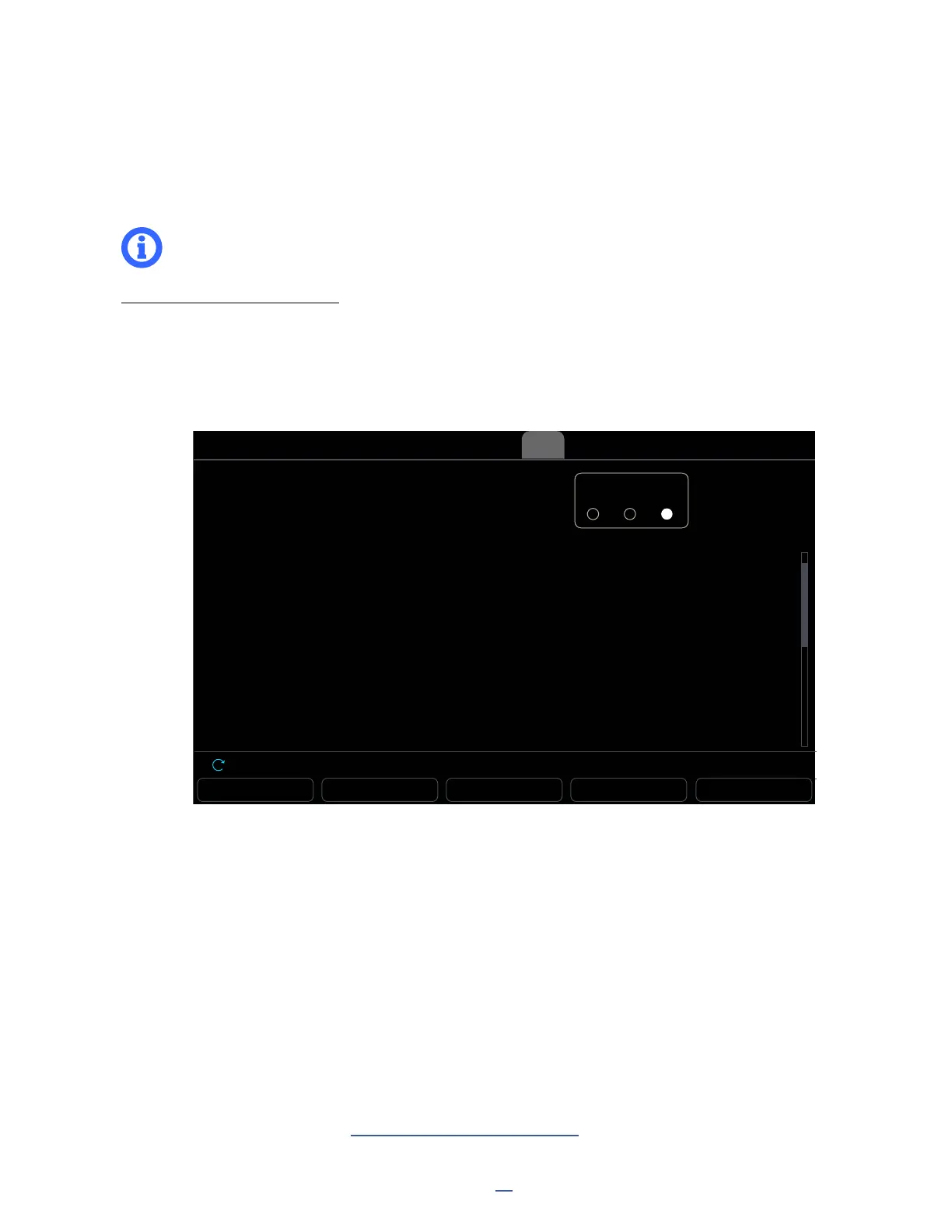
On the FM3, open SETUP: FC Controllers/Onboard Switches and
page to the “EZ” tab if it isn’t already selected.
Press the footswitch you want to edit.
An onscreen graphic shows which footswitch you have selected.
IMPORTANT: To avoid annoying screen jumps and sonic mishaps, all footswitches are DISABLED
while you are on the EZ page. To test switch edits, change to a different menu page or press EXIT.
RESET SWITCH COPY SWITCH PASTE SWITCH -- --
FC Controllers
Layout
Switch Ring Color
TAP FUNCTION
Category
Function
Preset
Mini-Display Label
HOLD FUNCTION
Category
Function
1: PRESETS
Default
Preset
Select by #
1
Name
Unassigned
--
Tap any footswitch to see its settings below.
(FC#1 of 1) FC-6
Nav Value
EZ Devices Layouts Ring ColorsEZ
You can edit both TAP and HOLD functions for any switch.
Use the A knob or NAV buttons to navigate the list and C or VALUE knobs to make changes.
Set the desired Category and the Function.
Set any parameters for the selected Function as desired. For example, when you select Category: Preset
and Function: Select by #, a “Preset” parameter appears to let you dial in the desired preset number.
You can also customize the ring color for an individual switch, overriding the defaults which are assigned
to the switch Category.
You can also select from different automatic “labels” for the Mini-Display, or even enter custom text.
The EZ page also provides buttons to RESET (Clear with conrmation), and COPY/PASTE switches.
Press another footswitch to move on, or press EXIT when you are nished.
Reminder: All changes in the FC Controllers/Onboard Switches menu take effect with no need to store.
For more information, please see “The Footswitch Functions Guide”.


 To Next Page