20
2 HARDWARE OVERVIEW
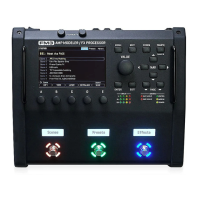
EDIT Button — This button opens the Edit menu to edit blocks selected on the Layout grid. You can also tap
EDIT sequentially to step through all blocks in the current preset (top-to-bottom, left-to-right). See “Presets”
on p. 39 for more on editing presets.
STORE Button — Enters the Store menu where you can save presets and enter names for presets or scenes.
See “Saving Changes” on p. 47.
TEMPO Button — Tap this button once to show the Tempo page of the Controllers menu, or tap 2+ times to
set a new tempo. The tempo can also be entered using MIDI or a remote switch. After setting the tempo,
press EXIT to go back to back to wherever you were. See “Tempo” on p. 83. Press and hold the Tempo
button as a shortcut to access the tuner.
VALUE Knob — The VALUE knob performs different functions on different menu pages. In the Home menu,
it selects presets. In Layout (grid) pages, it is used to add or modify blocks on the grid. In Edit menus, it
changes parameter values, selects from lists, and more.
a
NAV Buttons — The four NAV buttons perform different functions on different menu pages. On the preset
pages of the Home menu, they select and load Presets (Left/Right) and Scenes (Up/Down). In other menu
pages, they select between on-screen parameters or options, moving the “focus” of the VALUE knob, as
indicated by a blue highlight and brighter blue text.
s
ENTER and EXIT Buttons — The ENTER button executes commands, commits changes, accesses sub-menus,
and more. EXIT works for cancel, escape, and various other functions.
d
PAGE LEFT and PAGE RIGHT — These step through menu pages, shown as “tabs” at the top of the display.
f
Meter Bridge — Four LED meters show the levels at input and output jacks. For input meters, the red LED
indicates -6dB. As directed in the Introduction (p. 5) a Pad setting is provided for adjustment. For output
meters, the red LED indicates -1 dBFS and is therefore a more immediate indication of clipping. When the
outputs clip, this usually means that the levels inside your presets are too loud.
TIP: You can also nd on-screen meters on the Meters pages of the Home menu and the Layout.
g
Status LEDs — Five LEDs indicate important information. The Tempo LED flashes to show the current Tempo.
The Edited LED lights whenever the current preset has been altered but not saved. The MIDI In LED lights
while MIDI data is being received at the MIDI Input or via USB. The OUT 1 CLIP and OUT 2 CLIP LEDs indicate
that internal signal levels are too high. (See “Meter Bridge”, above.)
h
Footswitches — The switches of the FM3 use our proprietary Solid State Switching (SSS™) technology,
featuring extremely smooth, quiet, action, and no mechanical contacts to fail. Each footswitch can be
assigned your choice of one “Tap” and/or one press-and-hold (“Hold”) function. These can be different on
every “Layout,” and there are eight different layouts, plus one special layout called the “Master Layout Menu”.
Learn more in Section 10: Layouts & Switches.
Three Footswitches.. Plus 6, or 12, or 24 more!
The FM3 has three onboard switches, making it the perfect compact all-in-one way to enjoy Fractal Audio’s
legendary amp models, speaker cab simulation, and effects. If you need additional footswitches, however, you
can also connect up to two FC controllers, each with six or twelve additional switches with all the same fully-
integrated capabilities as the onboard switches. In addition, each of the onboard PEDAL jacks of the FM3 can
be used for one or two external switches instead of an expression pedal if you choose.


 To Next Page